Text & Language Editing
Learn how to localize the FaceTec UR Code Scan+Match SDKs and customize text in the FaceTec Interface.
Introduction
The FaceTec UR Code Scan+Match App Interface text strings can be customized and localized to any language.
Each Device SDK contains a Strings File that can be used as a baseline for customizing the default strings in the App. The Strings File can also be duplicated and conditionally deployed for different locales and languages. The FaceTec Strings file in each Device SDK lists all of the strings that can be customized.
FaceTec UR Code Scan+Match SDKs Default Languages
The FaceTec UR Code Scan+Match SDKs support 14 different languages out of the box:
- Afrikaans (af)
- Arabic (ar)
- Chinese (zh)
- English
- French (fr)
- German (de)
- Greek (el)
- Japanese (ja)
- Kazakh (kk)
- Norwegian (nb)
- Portuguese (pt-BR)
- Russian (ru)
- Spanish (es)
- Vietnamese (vi)
Important Note: You can add support to other languages by creating a copy of the Strings file and manually updating each of the string texts to the desired language.
Android Localization & String Customization
FaceTec Android UR Codes Scan+Match SDKs support localization through standard System Settings. To localize your App and customize strings, you need to add the specific string resource files with your translated values and allow the FaceTecURScanMatchSDK to be presented to the Users in their desired system locale.
To use these resource files in the FaceTec Android UR Scan+Match SDK Sample App, you will need to perform the following steps:
- In Android Studio, open up the FaceTec Android UR Scan+Match SDK Sample App.
- Copy the strings-## XML file for the language you are localizing to (i.e. strings-fr.xml for French).
- Add the strings-## XML file for the language you want ot use to the res/values folder.
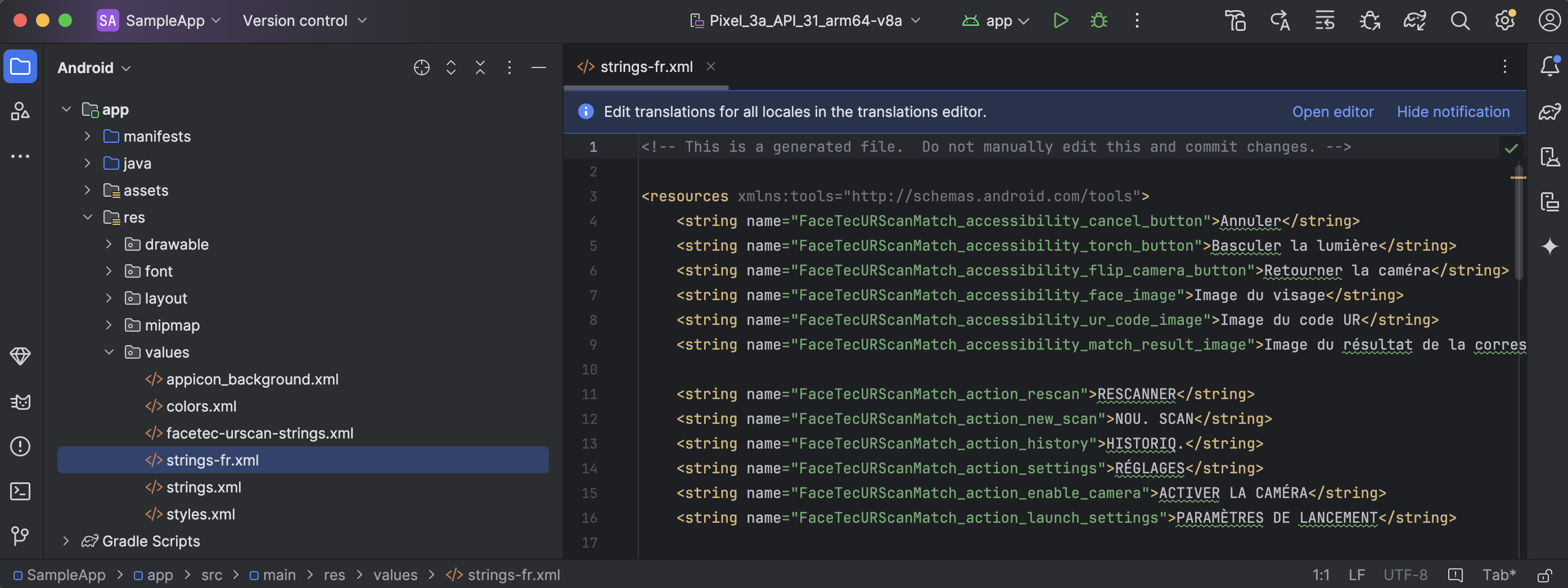
- To customize these strings further, replace the phrase in between the string" tags with your custom phrase.
- On your Android Test Device, change the Device Language to the appropriate language.
- On success, you will be able to run the App on your Android Test Device and see the locale-dependent string customizations.
Important Note: The FaceTec UR Scan+Match SDK default set of string resource files can be found in the **root** directory of the FaceTec Android URScanMatchSDK.
iOS Localization & String Customization
FaceTec iOS UR Code Scan+Match SDKs support localization through standard System Settings.
- In Xcode, open up the FaceTec iOS UR Code Scan+Match SDK Sample App.
- Copy the FaceTecURScanMatch-## Strings file in the package and move it into the top level of the FaceTec UR Scan+Match SDK Sample App (the same folder level as FaceTec_UR_Code_Template_Customization).
- Click the FaceTecURScanMatch-## Strings file, and in the right-most panel, click the Show the File Inspector Icon. Then, press "Localize".
- Click UR-Codes-Sample-App → Go to project → UR-Codes-SDK-Sample → Info Tab → and press the + icon under Localizations and choose the language to localize to
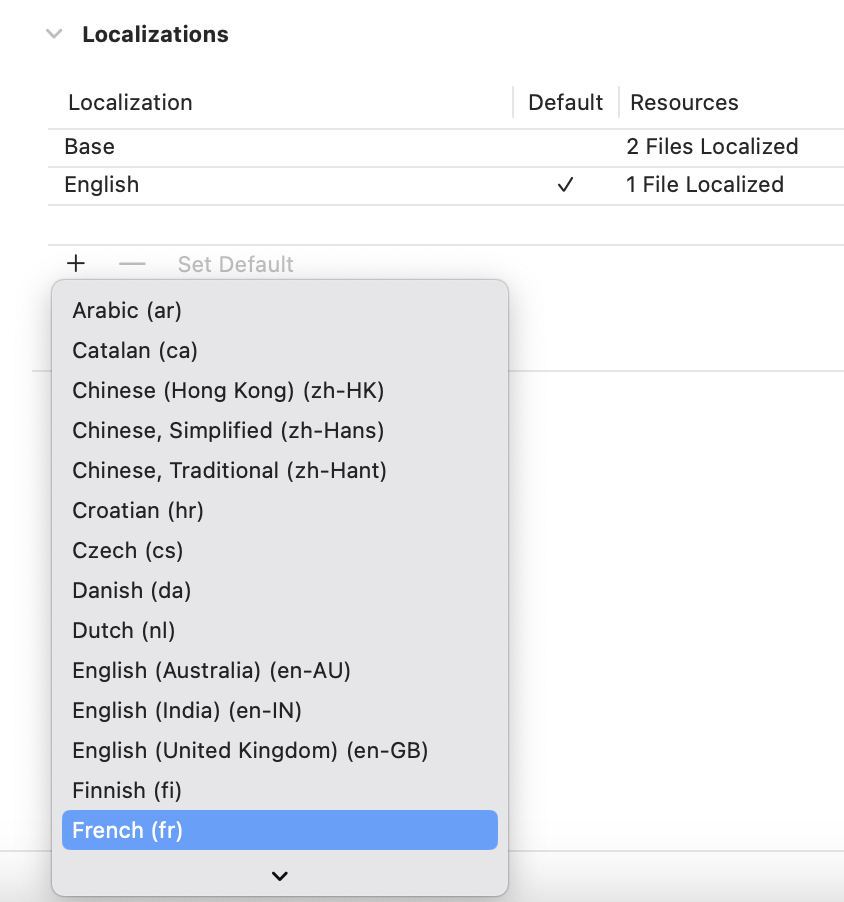
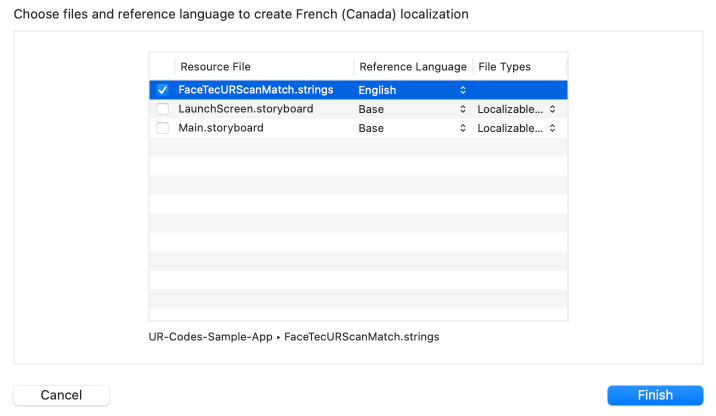
- Check the FaceTecURScanMatch.strings, Uncheck LaunchScreen.storyboard and main.storyboard, and click Finish.
- In the leftmost panel, the FaceTecURScanMatch Strings file should now have an English and "LANGUAGE_LOCALIZED_TO" Version.
- Copy the contents of the corresponding String Localization File into the FaceTecURScanMatch Strings "LANGUAGE_LOCALIZED_TO" file.
- On your iOS Test Device, go to Settings → General → Language & Region and change the Device Language to the appropriate language.
- On success, you will be able to run the App on your iOS Test Device and see the localized string customizations.
Browser Localization & String Customization
Coming Soon!