UR Code Public Key Distribution & Validation
Use this guide to learn how to host your UR Code Public Key.
Background
UR Codes contain a digital signature that can be used to verify the contents of a UR Code and to confirm that the UR Code originated from the appropriate Issuing Authority. Digital Signature Verification relies upon the Elliptic Curve Digital Signature Algorithms (ECDSA) to sign the contents of the UR Code with a Private Key. The corresponding Public Key, which is hosted on the Issuing Authority's Website, is then used to verify the Digital Signature. For more information on Digital Signatures, please see Digital Signature Verification.
To ensure the integrity of the Public Key before it is distributed, FaceTec signs the Public Key with FaceTec's own Private Key. Once the Public Key has been signed, the Issuing Authority hosts the FaceTec-Signed Public Key on their Domain, so Relying Parties can easily access the Public Key and verify the contents of the UR Codes.
Process Overview
To issue UR Codes, Your Organization will need to generate a Public/Private Key Pair and register both Your Organization's UR Code Public Key and Website Domain with FaceTec. Below are the specific steps that Your Organization will need to take:
Step 1: Generate Your Public/Private Key Pair
Step 2: Upload Your Public Key to Your UR Code Dev Account
Step 3: Download the FaceTec-Signed Public Key
Step 4: Host the FaceTec-Signed Public Key
Step 5: Request Verification of Your UR Code Configuration
Step 1: Generate Your Public/Private Key Pair
Your Team first needs to generate a Secp256k1 or Ed25519 Public/Private Key Pair. Once the Key Pair is generated, the Public Key and the URL Domain should be added to Your UR Code Dev Account. This step is handled automatically when using the Encoder Desktop or Encoder SDK setup process.
Step 2: Upload Your Public Key to Your UR Code Dev Account
Once the Key Pair is generated, upload the Public Key to Your UR Code Dev Account.
Important Note: Only the Public Key is uploaded to the UR Code Dev Account. Private Keys should NEVER be shared and are solely managed by Your Team.
Step 3: Download the FaceTec-Signed Public Key
Once Your Public Key has been uploaded, FaceTec will sign the Public Key to ensure the Public Key itself can be validated. The FaceTec-Signed Public Key will then be made available in Your UR Code Dev Account.
Step 4: Host the FaceTec-Signed Public Key
The FaceTec-Signed Public Key and UR Hosting files must be served from Your Website. To accomplish that, please request that your Webmaster or IT Admin download your UR Hosting Files (which include your FaceTec-Signed Public Key) from Your UR Code Dev Account and serve the /ur folder in the Root Directory of Your Website's Hosted Files.
The "/ur" code suffix will be automatically added to the end of your Website's Domain URL as the path to store the FaceTec-signed Public Key. You can send a request to FaceTec to remove the "/ur" suffix from your Website Domain if you choose to use your custom URL to host the FaceTec-signed Public Key.
Instructions:
- Download the ZIP with the UR Hosting Files from Your UR Code Dev Account.
- Extract the ZIP file and upload its content to the /ur/ folder in the Root Directory of Your Website (i.e. https://[Your_Domain].com/ur).
- Confirm that the https://[Your_Domain].com/ur/ page can be loaded in Your Web Browser.
- Confirm that the https://[Your_Domain].com/ur/UR_Code_Public_Key.txt can be loaded in Your Web Browser
- Confirm that the https://[Your_Domain].com/ur/Revoked_URIDs.txt can be loaded in Your Web Browser.

Important Note: The size of the UR Code Data may increase if you host the /ur/ folder in a different directory. UR Codes store the URL of its associated Public Key, which is located in the /ur/ folder. Since the URL is stored in the UR Code, the size of the URL may impact the size of the UR Code Data itself. To minimize the size of the URL, the /ur/ folder should be saved in the Root Directory of Your Website's Hosted Files.
Step 5: Request Verification of Your UR Code Configuration
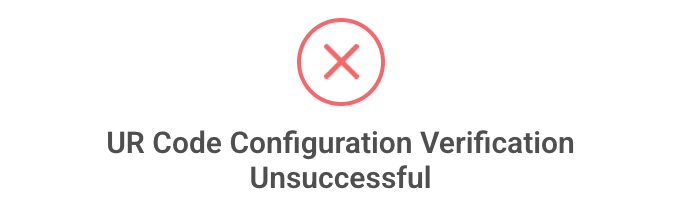
After Your Webmaster has added the UR Hosting Files to Your Domain, you can request FaceTec to verify Your Configuration by pressing the "Verify Now" Icon in Your UR Code Dev Account. FaceTec will verify that Your FaceTec-Signed Public Key is being hosted and that no alterations have been made to the key itself. This will result in the Configuration being Verified (left image) or the Verification being Unsuccessful (right image).

Public Key Checker and File Hosting
All UR Code Apps and SDKs incorporate a Public Key Checker that will retrieve and validate the Issuing Authority's hosted Public Key. The validated Public Key is then used to validate the UR Code's digital signature and the UR Code's data.
The Public Key Checker included in the UR Scan+Match App or SDK performs this validation on the User's Device. For scenarios where the Device-side validation cannot be trusted, Issuing Authorities and Relying Parties can use the incorporated Public Key Checker on the UR Encoder and Matcher SDKs to perform this validation inside their secure server environment.
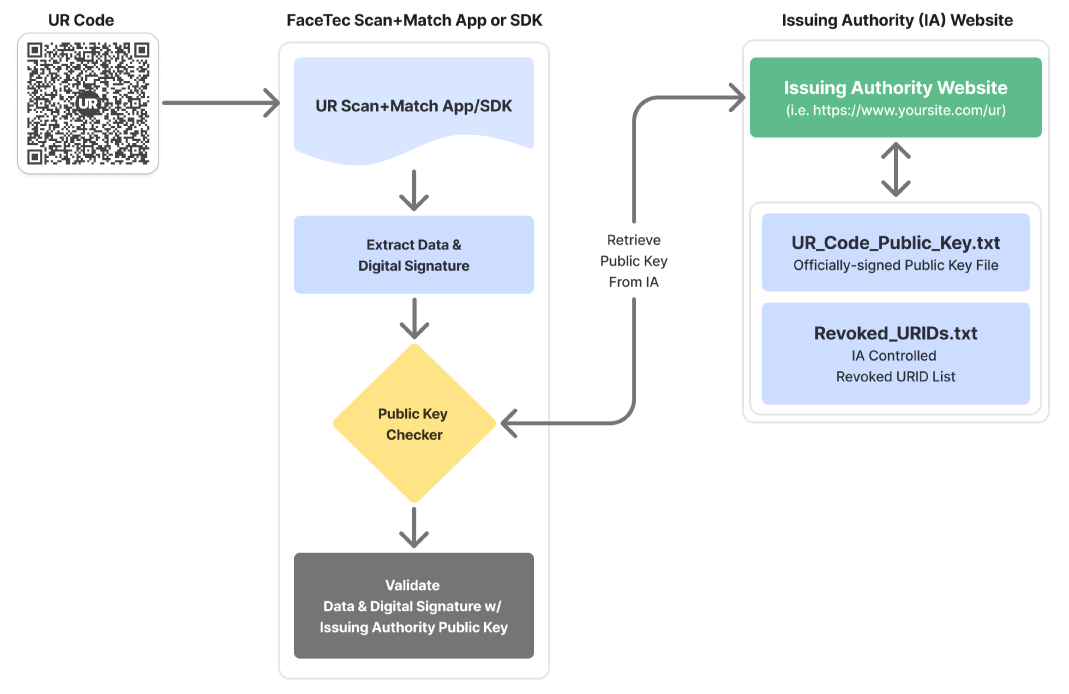
Public Key Checker Process Overview:
- The process starts when a UR Code is scanned by the FaceTec UR Scan+Match App or SDK, or processed by a Backend-Hosted UR Encoder and UR Matcher SDKs.
- The URL of the Issuing Authority is extracted from the UR Code.
- The Public Key Checker inside the UR Code SDKs retrieves the hosted Public Key (UR_Code_Public_Key.txt ) and Revoked URID List (Revoked_URIDs.txt) .TXT files from the /ur folder of your Website via the Public Internet.
- The UR Codes SDKs validate the FaceTec-signed Public Key to ensure its authenticity, then use it to validate the data and signature of the UR Code itself.
- The Public Key Checker stores the verified FaceTec-signed Public Key in a local cache on the Device UR Scan+Match App or Hosted UR Encoder+Matcher SDKs in order to validate the UR Codes in the future if there is no network connectivity.
Important Note: The URL used in the UR Codes and for hosting Your FaceTec-signed Public Key must always start with "https" and end with "/". Your designated Webmaster is responsible for uploading the UR_Code_Public_Key.txt and Revoked_URIDs.txt files from Your UR Code Dev Account to the /ur/ folder in the Root Directory of Your Website/Domain.
UR Code Public Key Map
The Hosted UR Encoder+Matcher SDKs can be configured to use specific Public Keys to validate specific domains. This approach can be taken if you have specific, known Issuing Authorities you would like to validate UR Codes for, and if you do not want to enable outbound network requests from the SDKs.
The /set-ur-code-public-key-map API is used to specify the Public Keys that can be used to validate a UR Code’s Digital Signature. The UR Code Public Key Map is set by providing a JSON of URLs to validate, and for each URL, a list of each of the valid Public Keys* to use for Digital Signature Validation. When a UR Code is scanned, the URL from the UR Code is used to look up the Public Key(s) specified in the Public Key Map to try and validate the UR Code.
* These should be Public Keys without the FaceTec Digital Signature. FaceTec-Signed Public Keys should be validated and then have their Digital Signature removed before they are added to the Public Key Map.
FaceTec's Testing URL & Public Key
By default, the /set-ur-code-public-key-map API adds FaceTec’s Testing URL and Public Testing Key to the Public Key Map. FaceTec’s Public Testing Key is used to validate Test-Only UR Codes that were generated with the FaceTec UR Code Generator Demo (encode.urcodes.com). This manner of updating the Public Key Map is ideal for cases where the Public Key cannot be sent as a parameter in the API Request itself.
Public Key Checker Callbacks and Configuration
The Public Key Checker contains code that allows you to control and inspect aspects of the Public Key Checker system.
When enabled, the Public Key Checker Callback (onGetPublicKeyCheckerFromURL) is invoked with BaseURL of a UR Code. A Network Request is pre-configured to attempt to retrieve the FaceTec-signed Public Key. This behavior can be modified if needed.
When the once retrieved, the Public Key is returned in the function call, passing the Public Key into the UR Code SDK core library.
Based on the results, a status message (URCodePublicKeyCheckerStatus) is returned. The status will either indicate a success scenario, or scenarios like network connectivity issues, and errors parsing and retrieving FaceTec-signed Public Keys.
If there is no network connectivity, the Public Key Checker attempts to retrieve and use a FaceTec-signed Public Key from the Local Cache.