Updating the UR Encoder Desktop (Windows)
Learn how to update the UR Encoder Desktop on a device that already has it installed.
New Installations
If you are installing the UR Encoder Desktop for the first time, please see the UR Encoder Desktop (Windows) Guide.
The UR Encoder Desktop (Windows) Guide provides a comprehensive, step-by-step procedure and video to assist your team in installing the UR Encoder Desktop for the first time.
Updating the UR Encoder Desktop
There are five steps to updating the UR Encoder Desktop:
Step 1: Test the Current UR Encoder Desktop Installation
Step 2: Store the Private Key in a Safe and Secure Location
Step 3: Create a Backup of the Current UR Encoder Desktop Installation
Step 4: Download & Run the Latest Version of the UR Encoder Desktop
Step 5: Apply Your Organization's Custom Configurations
Step 1: Test the Current UR Encoder Desktop
Before updating the UR Encoder Desktop, it is important to verify that your organization's current installation is operating as expected.
You can verify this by generating a Valid UR Code with the UR Encoder Browser Sample App.
Launch Docker Desktop:
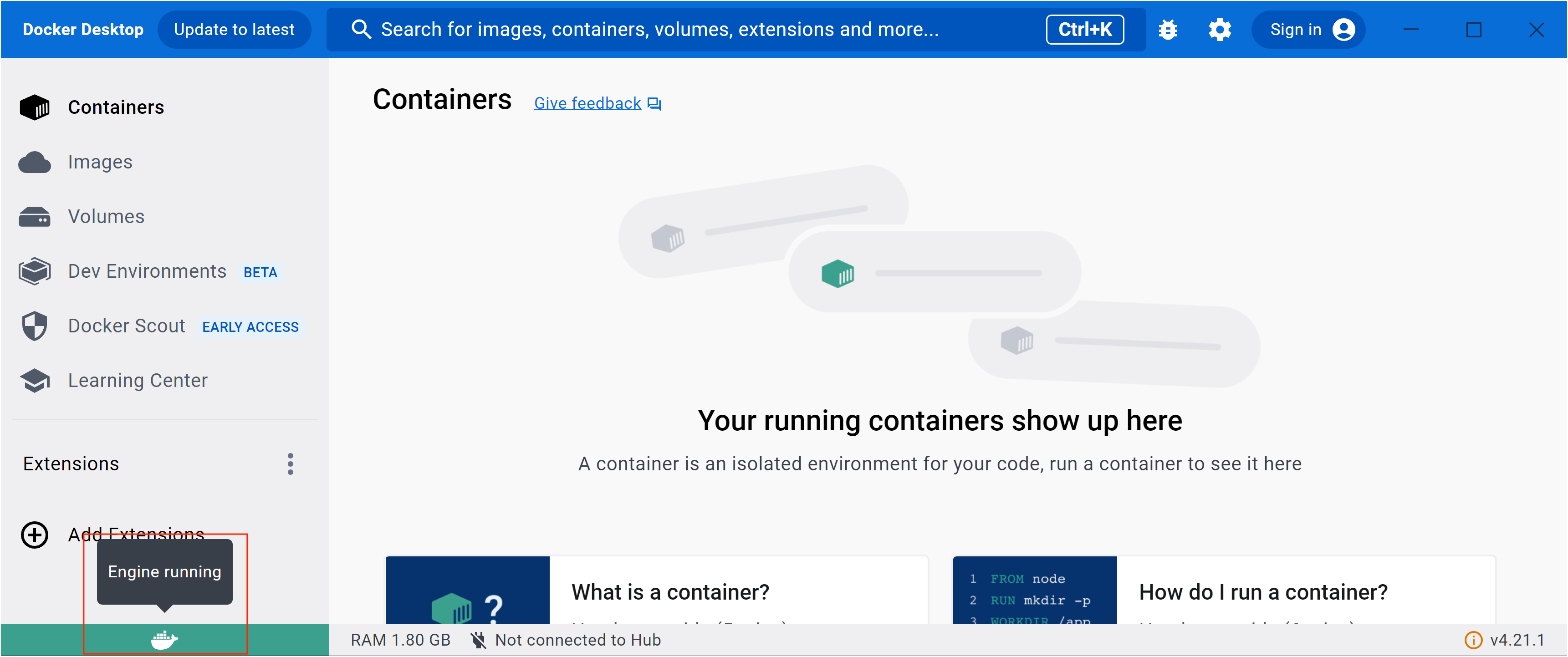
Before starting the UR Encoder Browser Sample App, you will need to launch Docker Desktop. You can launch Docker Desktop by double-clicking on the Docker Desktop Icon. Launching Docker Desktop will also launch the Docker Engine, which you can confirm by checking in the bottom-left corner of the Docker Desktop Screen.
Launch the Sample App:
You can launch the UR Encoder Browser Sample App by double-clicking the UR Encoder Desktop Icon.
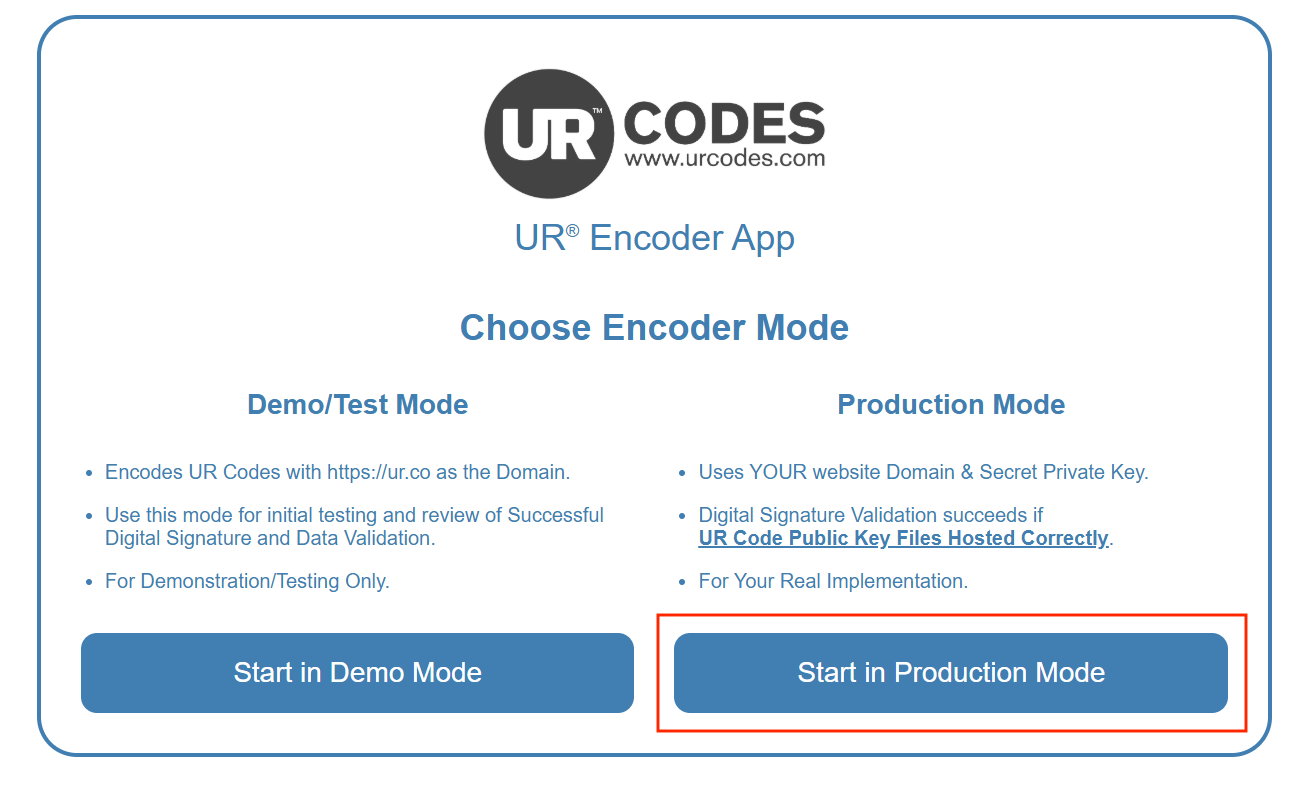
Choose "Start in Production Mode":
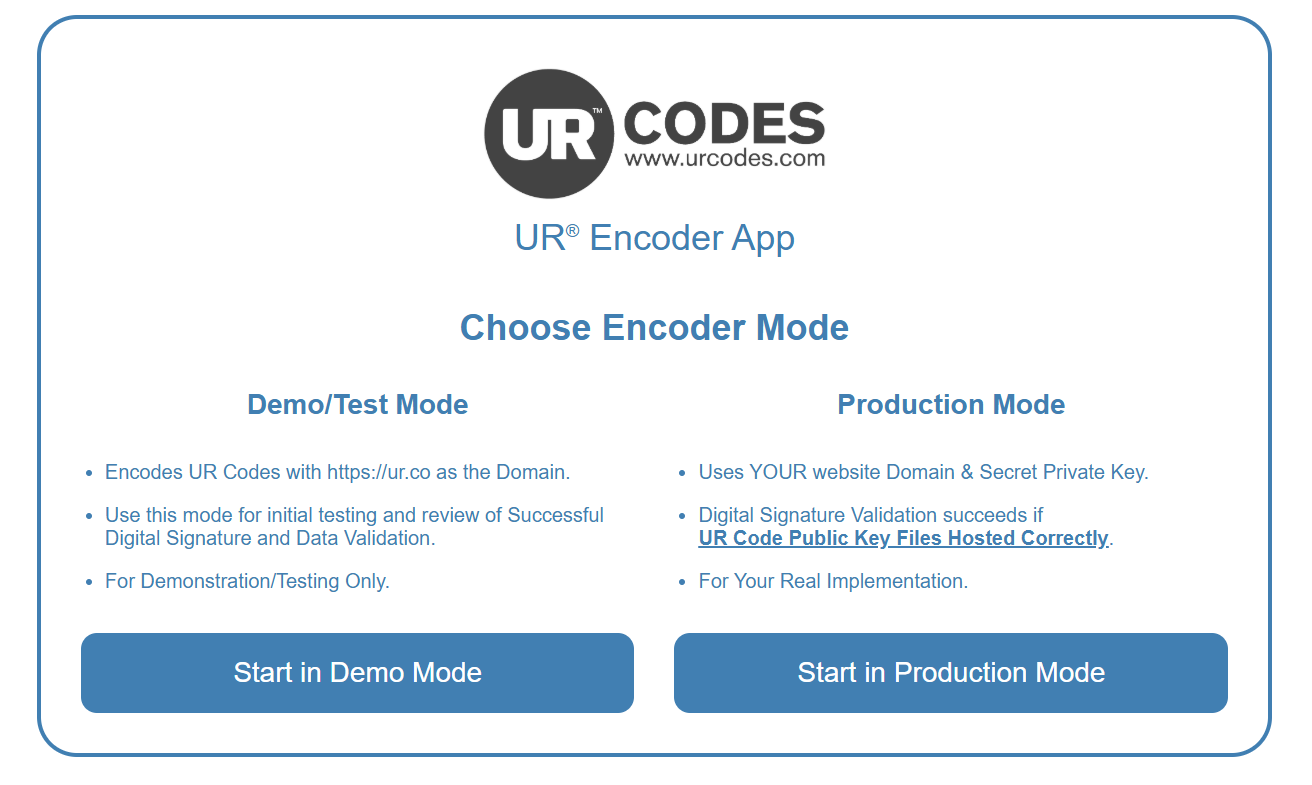
The UR Encoder Browser Sample App has two modes: Demo/Test Mode and Production Mode. Click the "Start in Production Mode" Button to create UR Codes using Your Website Domain and Secret Private Key.
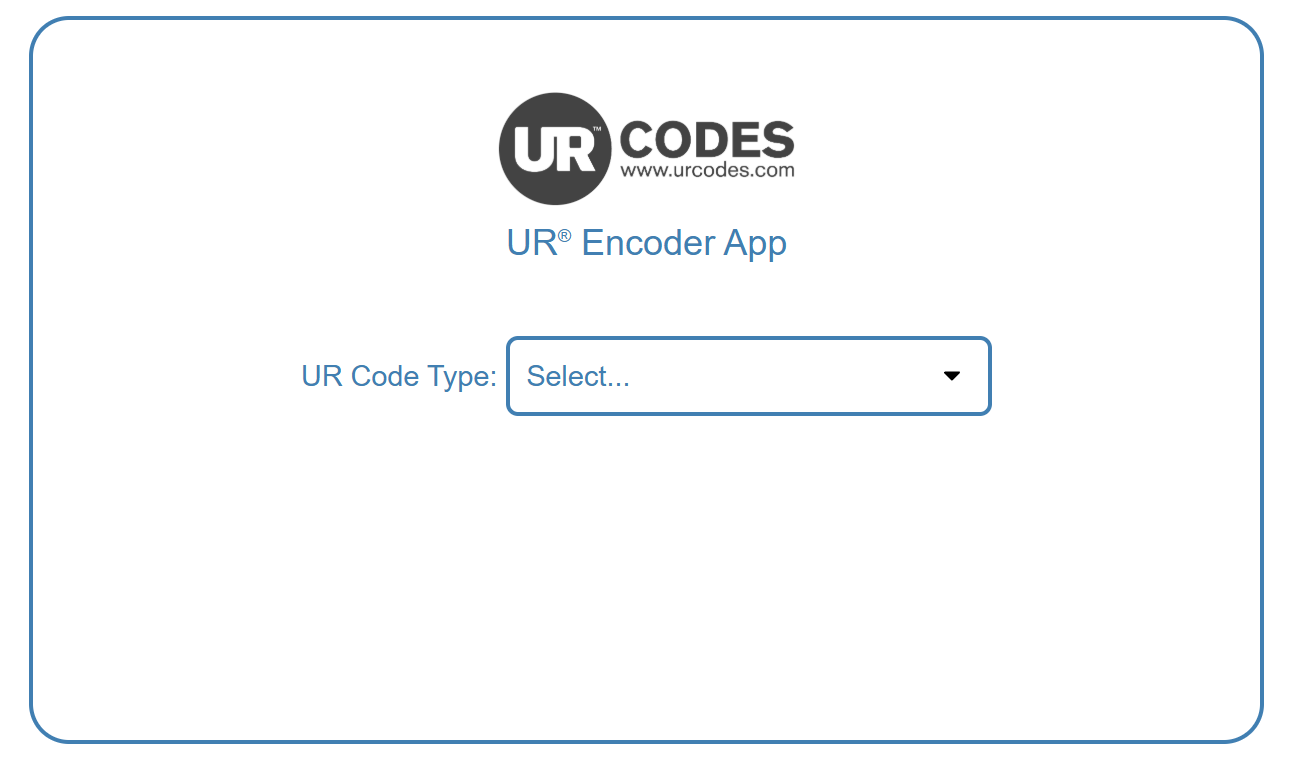
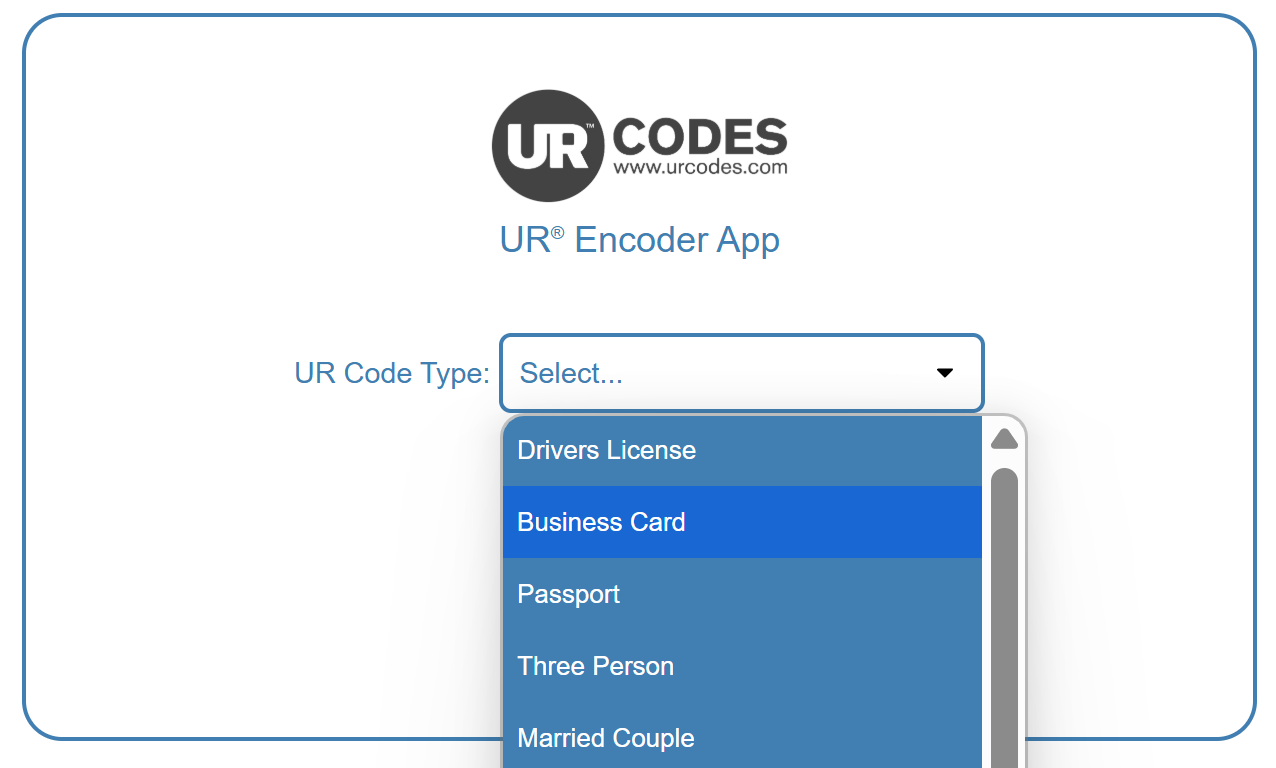
Select a UR Code Type:
To begin creating a UR Code, first select the UR Code Type. Each UR Code Type corresponds to a unique UR Code Template, which is used to define the data structure of the UR Codes.
For more information on UR Code Templates, please see UR Code Templates & Metadata Minification.
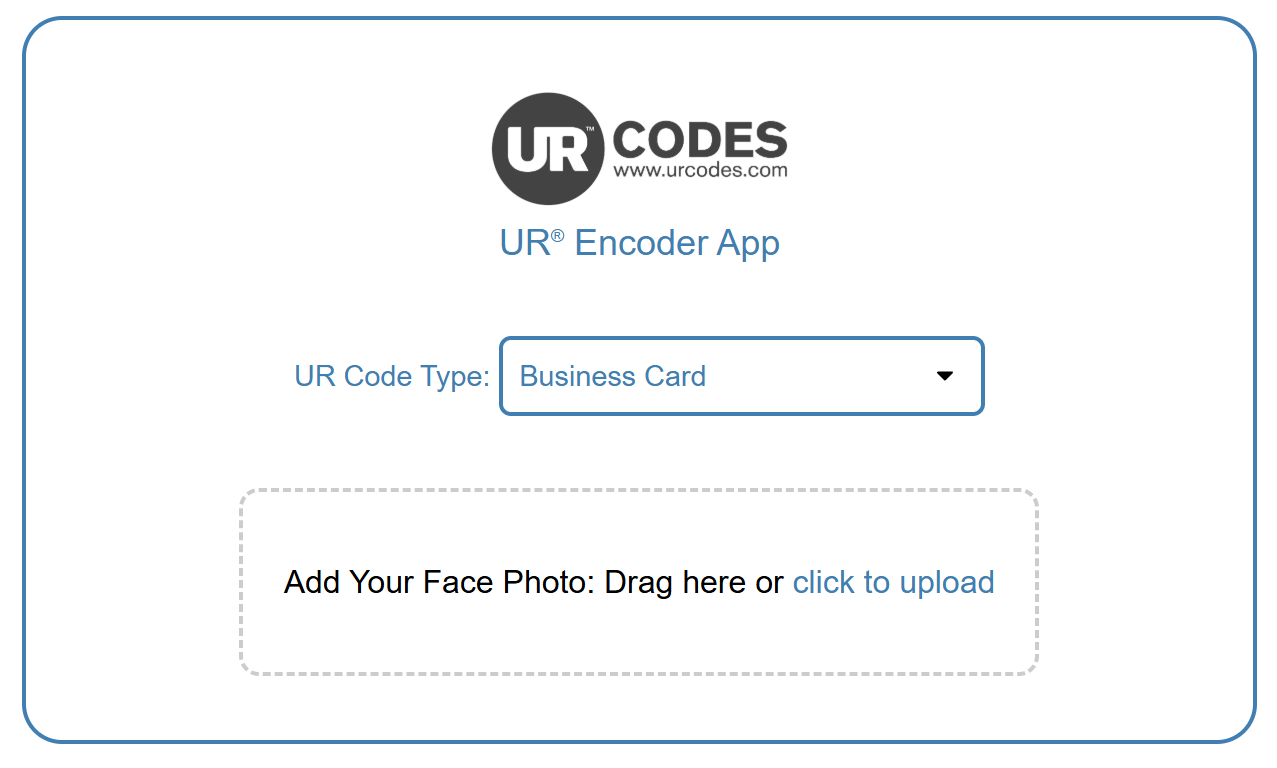
Upload the Face Image:
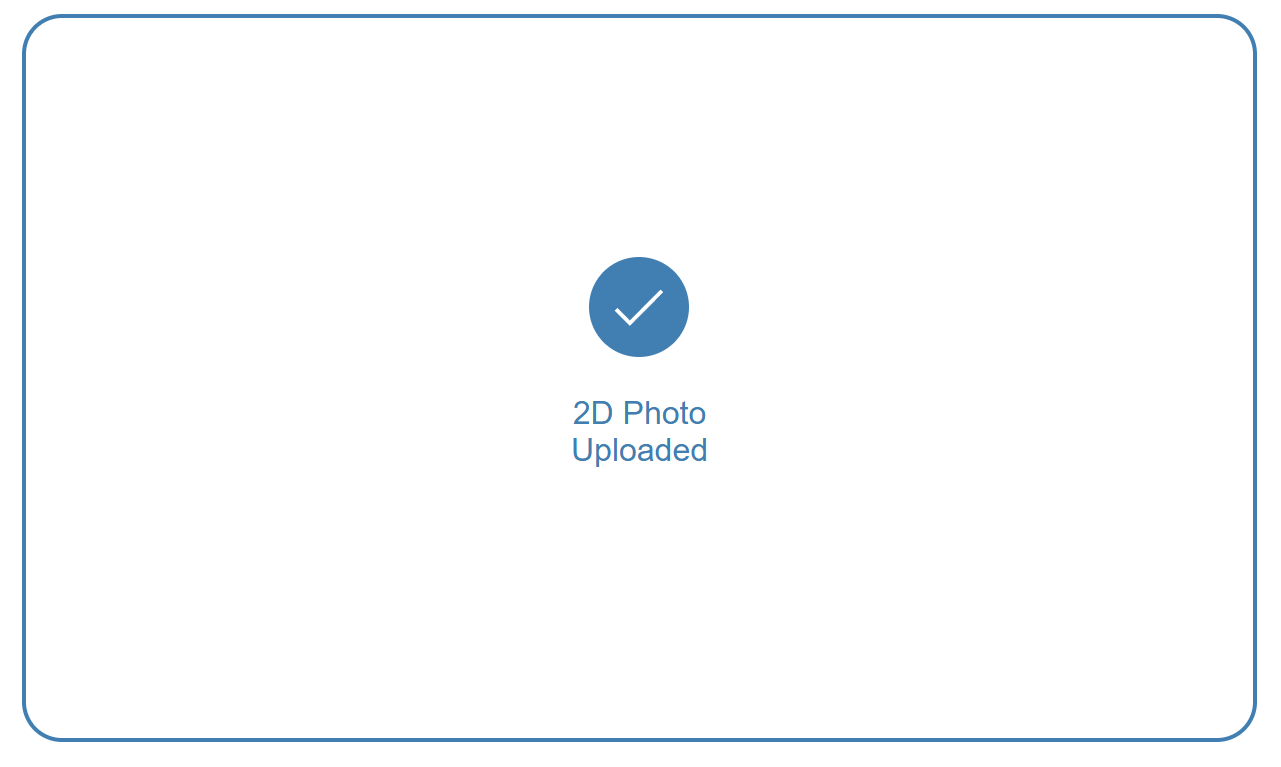
Once the UR Code Type has been selected, choose the Face Image to use. You will be prompted with the "2D Photo Uploaded" Screen if the Face Image was uploaded successfully.
Specify the UR Code Information (Metadata):
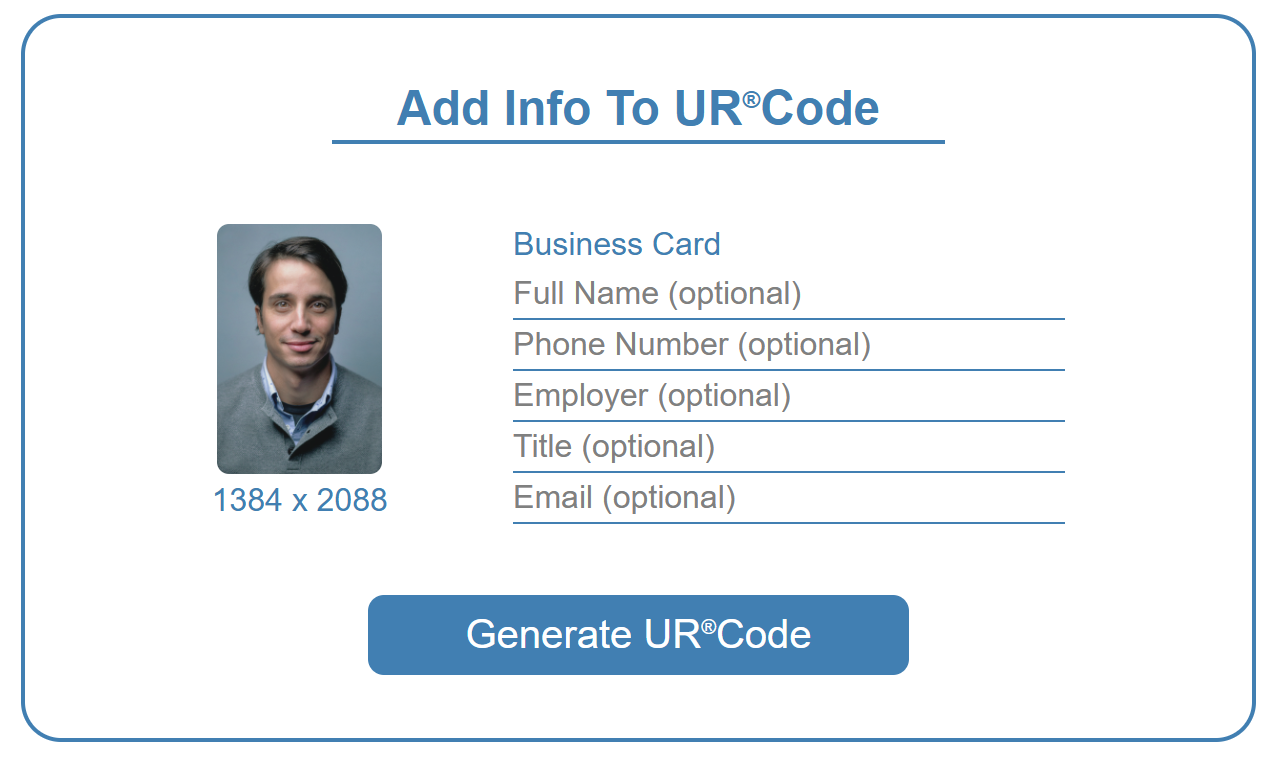
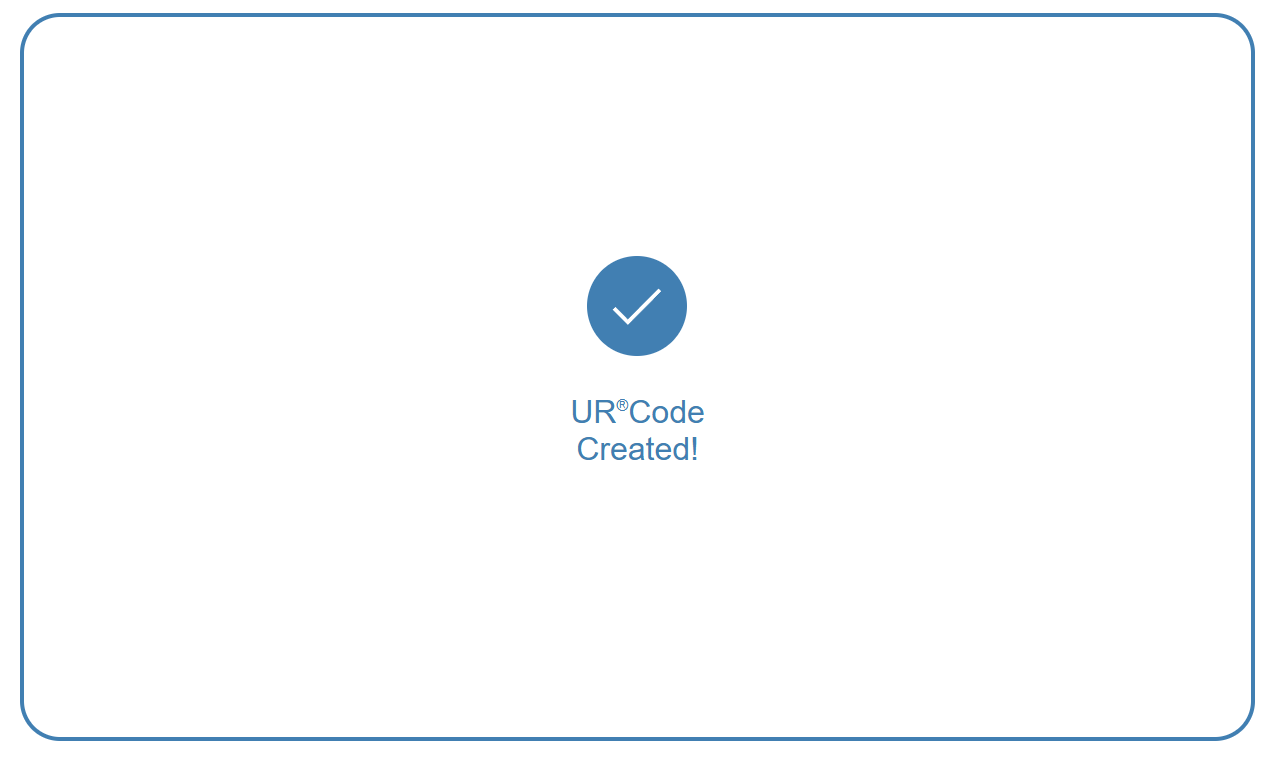
After the Face Image has been uploaded, specify the Information (i.e. the Metadata) for the UR Code. You can press the "Generate UR Code" Button once you have finished. You will be prompted with the "UR Code Created!" Screen if the UR Code was created successfully.
Download the UR Code:
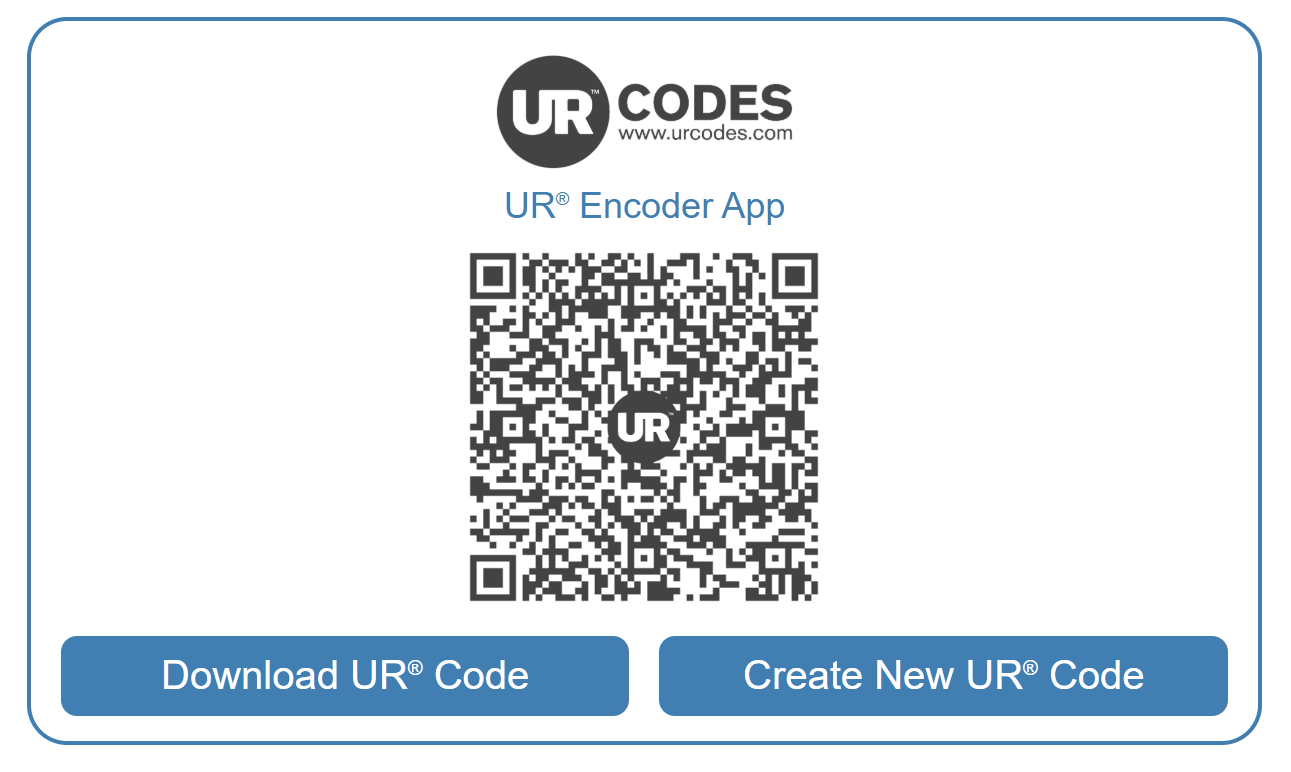
The UR Code should now be created. You can now download the UR Code and scan it.
Scan and Validate the UR Code:
If you have not already, you can download the Free UR Scan+Match App for Android and iOS to scan the UR Code. If everything is working correctly, you will be able to validate the Digital Signature and retrieve the MetaData/PII that is stored in the UR Code.
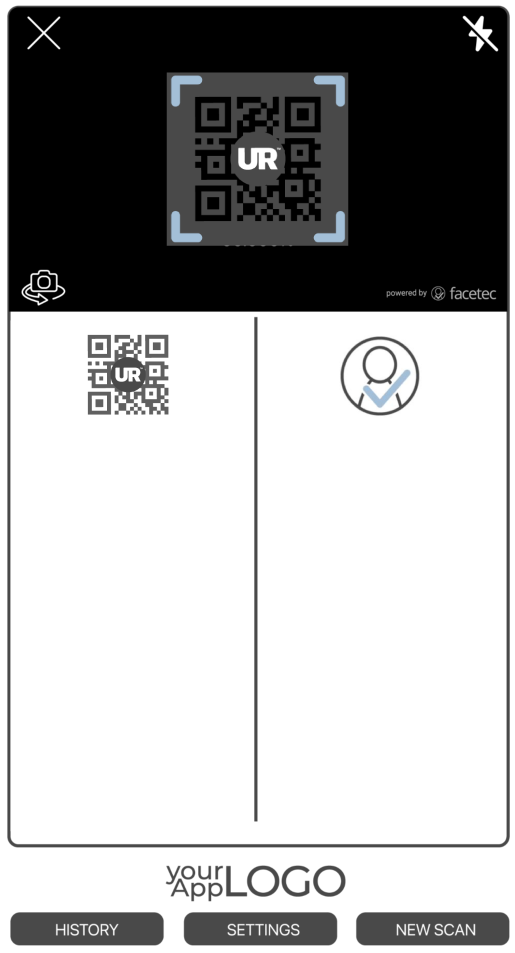
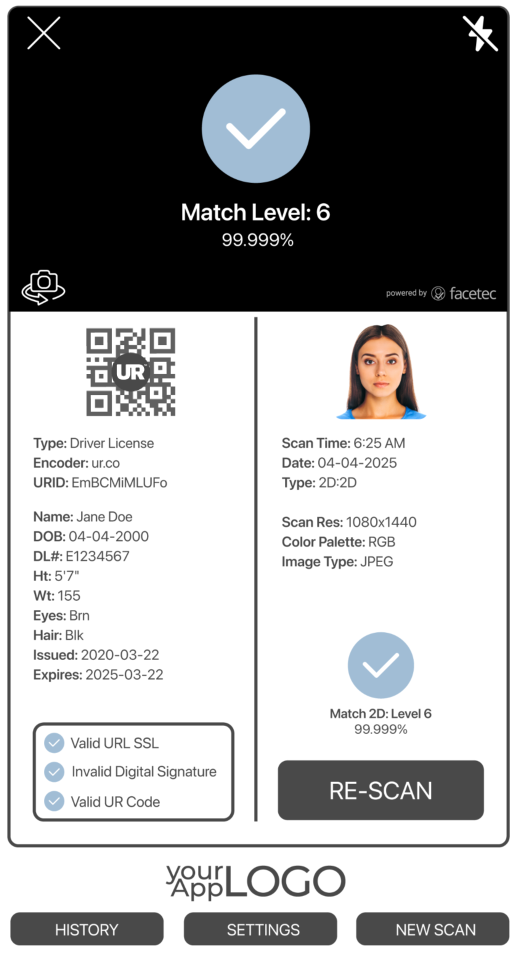
Step 2: Store the Private Key in a Safe and Secure Location
Before updating the UR Encoder Desktop, it is extremely important that your organization's private key is stored in a safe and secure location.
All of your organization's UR Codes need to be signed with this private key, so these UR Codes can later be verified with the Public Key that is hosted on your organization's website. The Digital Signature Verification of your organization's UR Codes is crucial for confirming that the UR Code was generated by your organization (and not by a Bad Actor or Fraudster pretending to be your organization).
To ensure the continued reliability of existing UR Codes, it is important to ensure that your organization's private key is never inadvertently exposed to untrusted individuals/parties. It is also important to ensure your private key is never accidentally deleted during a software update, as any new UR Codes that your organization creates in the future will still need to be signed with this same private key.
Please do not proceed with the update of your organization's UR Encoder Desktop Installation until you have ensured that the private key is being stored in a safe and secure location.
Step 3: Create a Backup of the Current UR Encoder Desktop Installation
The simplest way to create a backup is to copy the UR_Encoder Directory.
Once there is a copy of the UR Encoder Desktop, you should rename it to something that is easy for your organization to recognize as a backup. One naming convention that your team may want to consider is UR_Encoder_Backup_[yyyymmdd] where [yyyymmdd] is the current date.
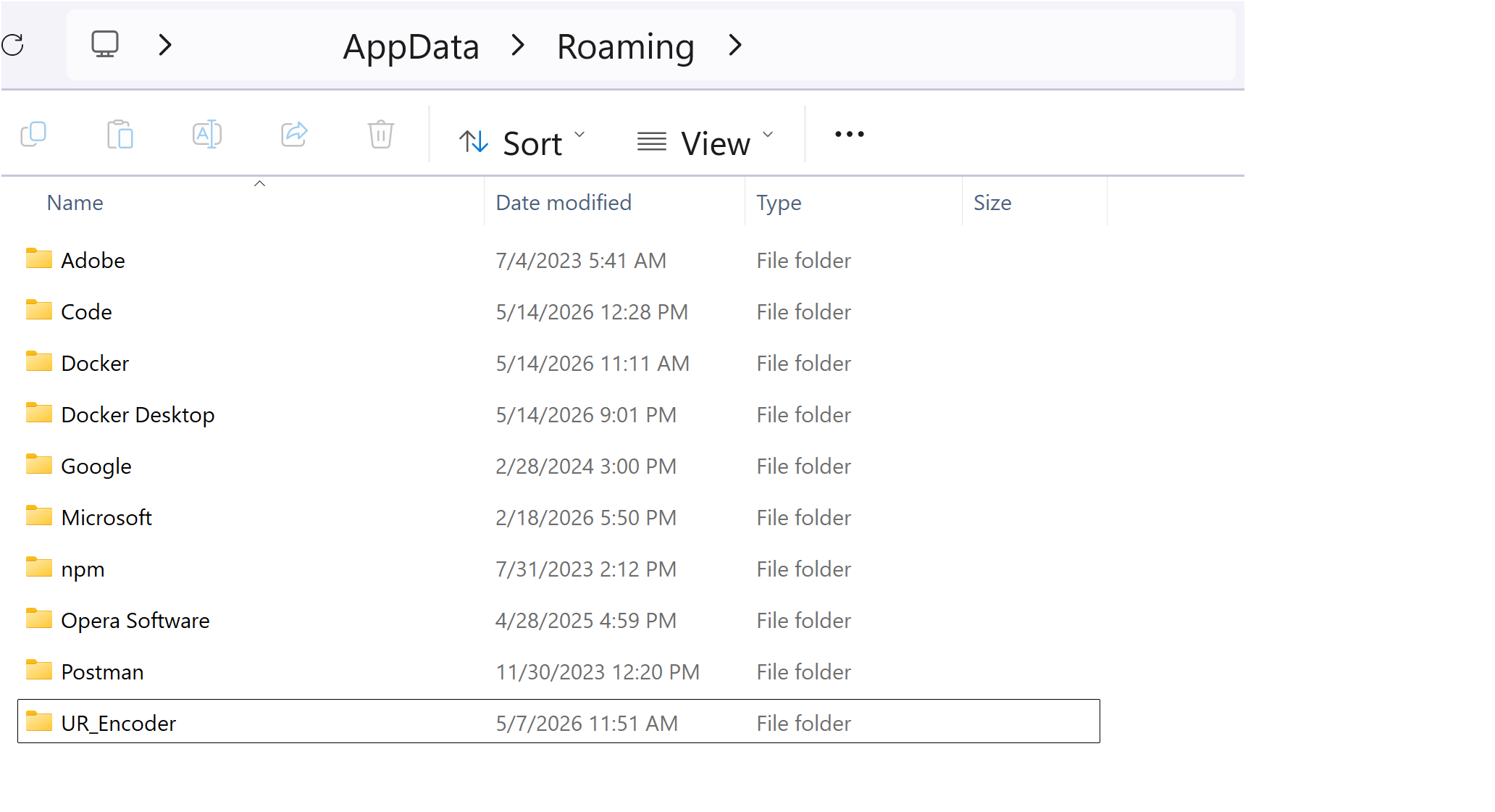
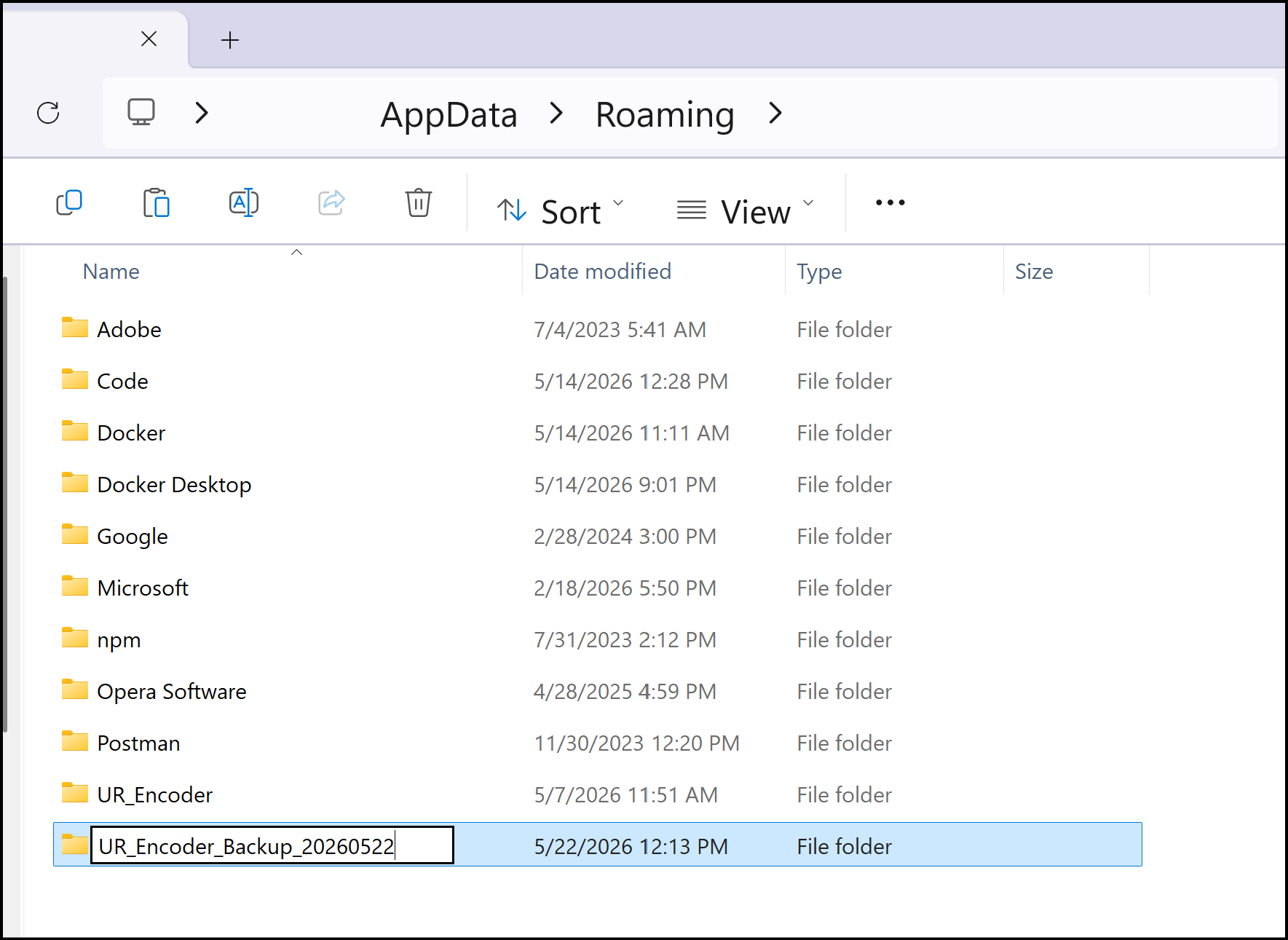
Step 4: Download & Run the Latest Version of the UR Encoder Desktop
The latest version of the UR Encoder Desktop can be accessed from the Downloads Page of your organization's UR Codes Developer Account. Once it has been downloaded, your organization can update the UR Encoder Desktop by using the Default Setup Application and specifying the existing UR Encoder Directory as the installation path.
Download the UR Encoder Desktop:
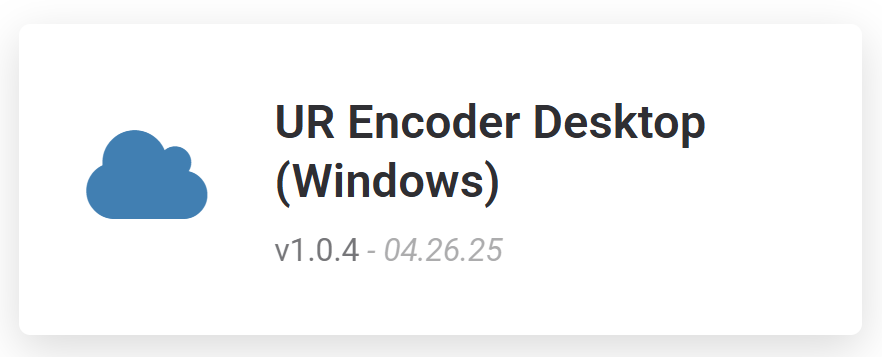
Press the "UR Encoder Desktop (Windows)" Button on the Downloads Page. After the download is complete, extract the ZIP file to a new directory, then double-click on the .exe file (i.e. FaceTecSDK-UR-Encoder-***.exe) to start the UR Encoder Desktop Installation.
Once the download is completed, extract the ZIP file to a new directory.

Important Note: You may see an alert screen that says the following:
Windows protected your PC
Microsoft Defender SmartScreen prevented an unrecognized app from starting. Running this app might put your PC at risk.
More InfoClick "More Info" and click the [Run Anyway] Button to continue the install.
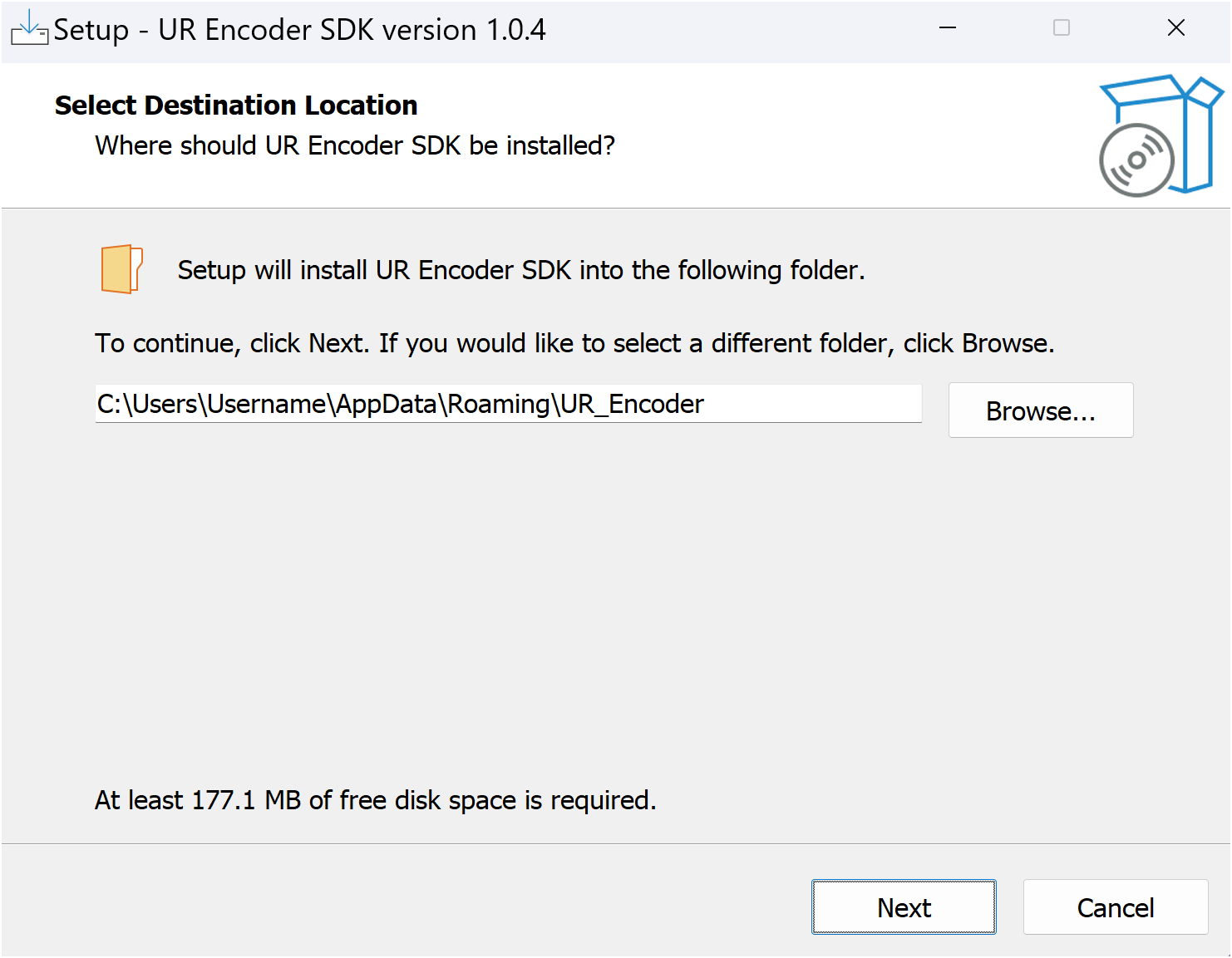
Choose the Same Installation Folder:
To properly update the UR Encoder Desktop, you must specify the same path and folder of where the UR Encoder Desktop is currently installed.
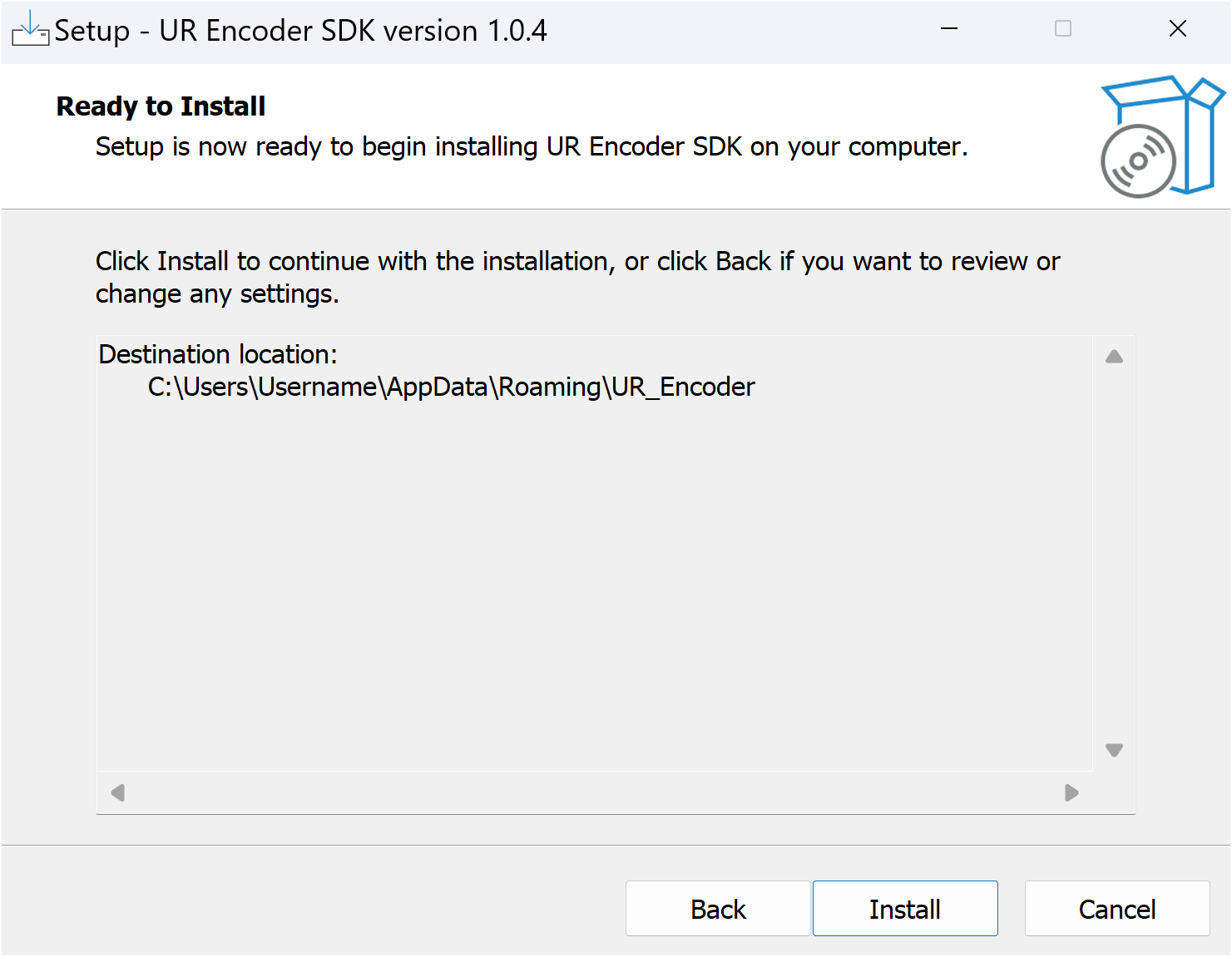
Run the Installation & Setup:
Once you have specified the Installation Directory, the UR Encoder Desktop will begin the update. The update may take several minutes to complete, as it will need to perform several tasks.
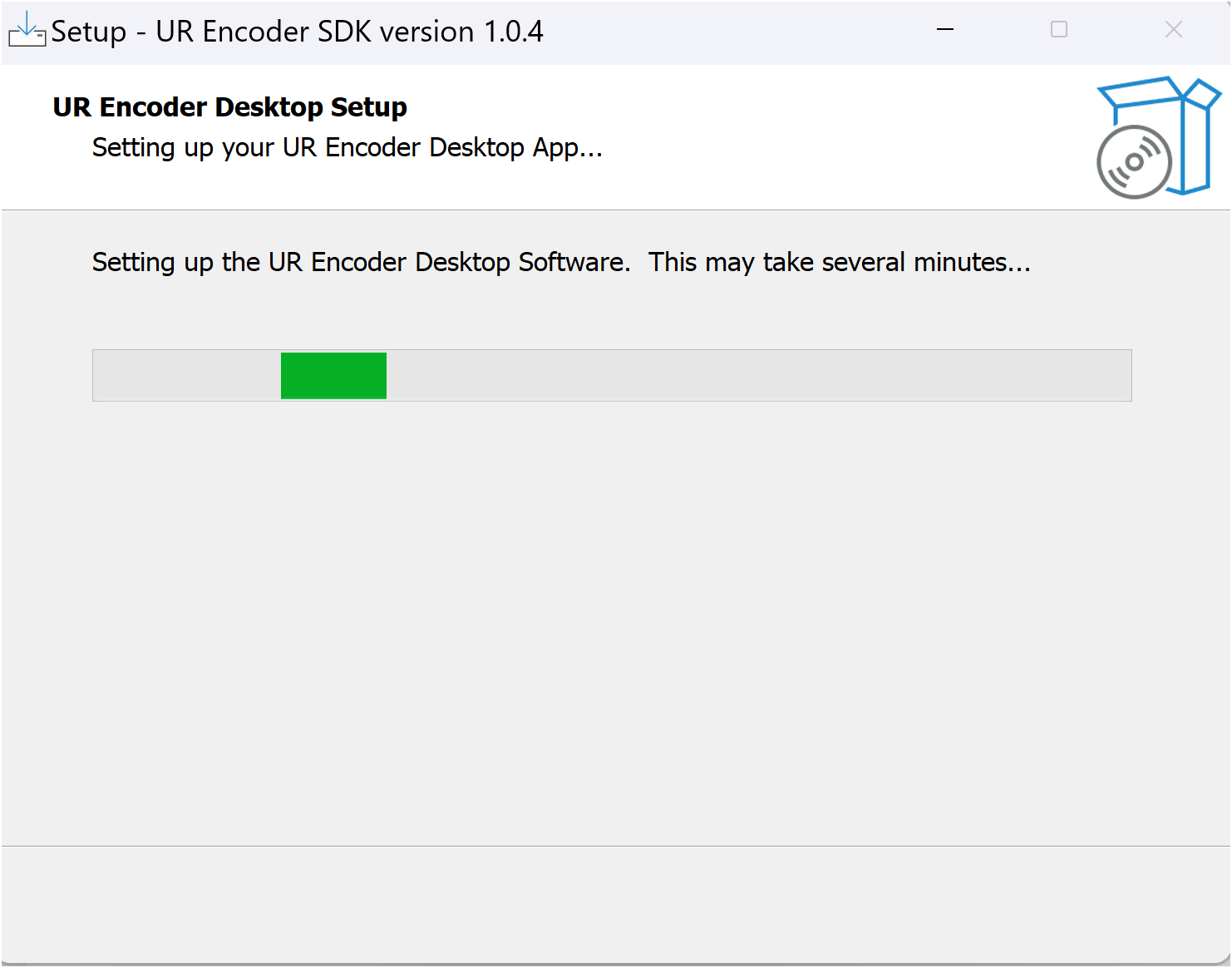
Important Note: If your organization is using an Enterprise VPN or Next-Generation Firewall, then it may interfere with the update of the Docker Container for the UR Encoder Browser Sample App. To proceed, your team may need to follow the steps in Running the Sample App with an Enterprise VPN or Next-Generation Firewall.
Launch the Sample App:
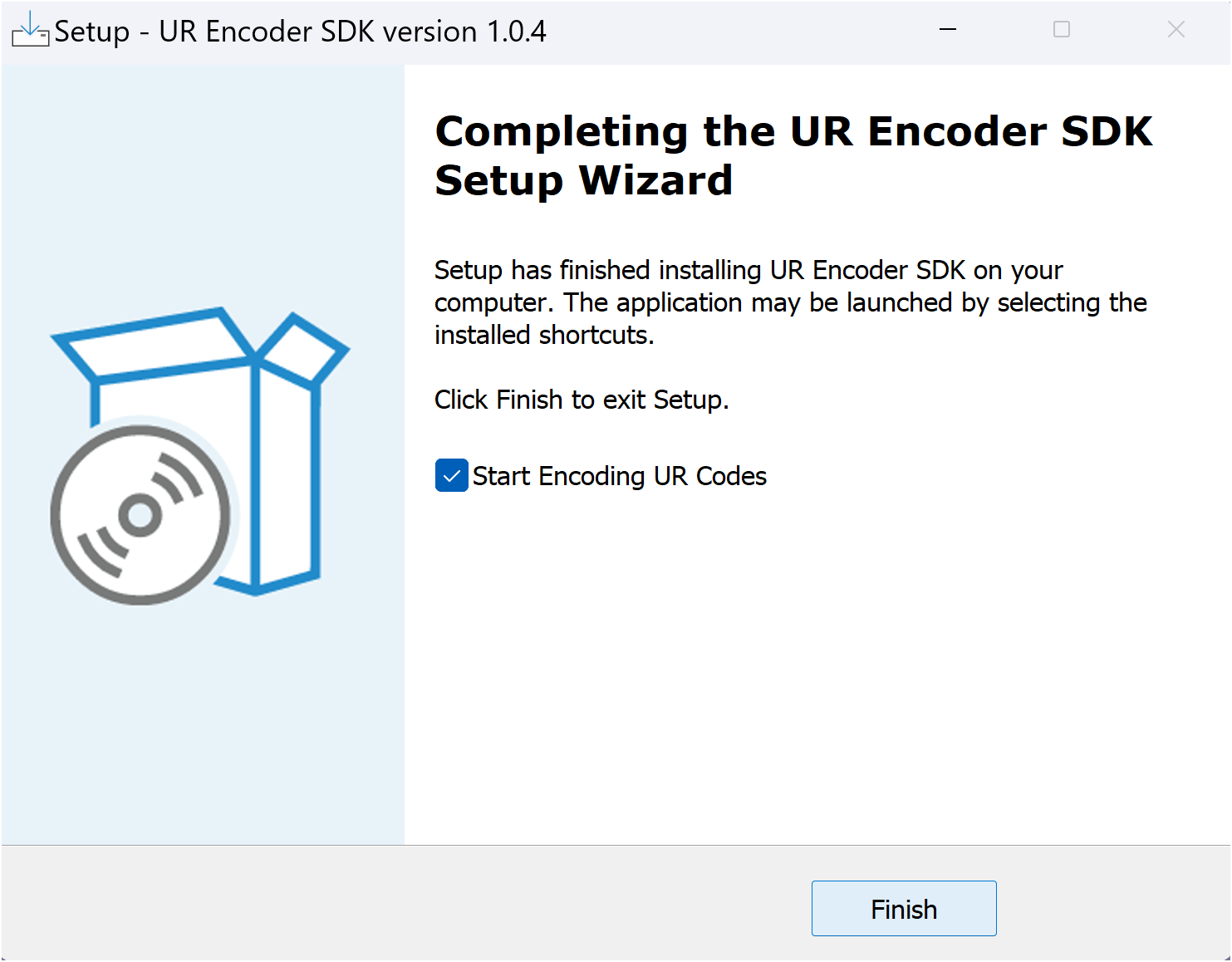
After the update is completed, you will be prompted with a screen showing that the UR Encoder SDK Setup Wizard has finished. To launch the UR Encoder Browser Sample App, confirm that "Start Encoding UR Codes" is checked and press the "Finish" Button.
Test the Latest Version:
Important Note: Before testing, you should confirm that the private key has not changed in the UR Encoder Desktop. You can verify this by confirming that the private key used in UR_Encoder is the same as the Private Key from Step 2: Store the Private Key in a Safe and Secure Location.
It is important to confirm that the update was successful by confirming that a new UR Code can be created. In order to do this, you should repeat Step 1: Test the Current UR Encoder Desktop Installation with this updated version of the UR Encoder Desktop.
Step 5: Apply any Custom Configurations from the Backup
The next step is to import your organization's code customizations into the latest version of the UR Encoder Desktop.
Important Note: Do not copy and replace files. Any file in the UR Encoder Desktop can receive important updates and changes. By copying and pasting your organization's previous files, you risk overwriting these important changes, which can result in undefined references and missing features.
Identify Areas with Custom Configurations:
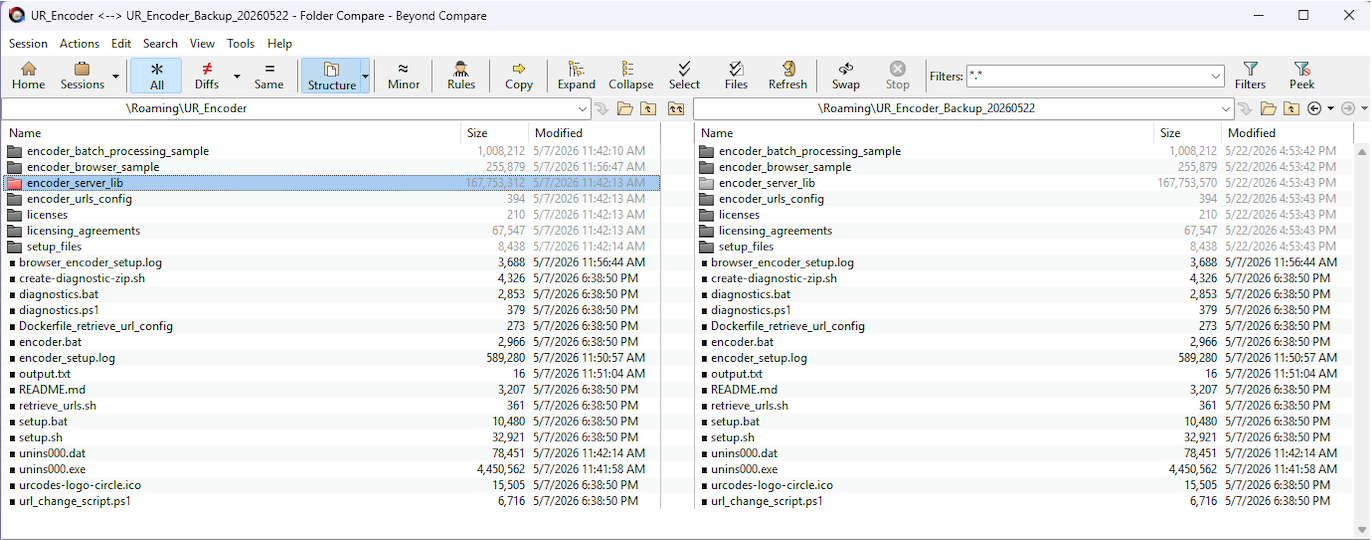
The backup that was made in Step 3: Create a Backup of the Current UR Encoder Desktop Installation can be used to identify your organization's previous customizations. There are several file comparison tools that can be used in order to identify folders with customizations or changes in them.
Apply Custom Code Configurations:
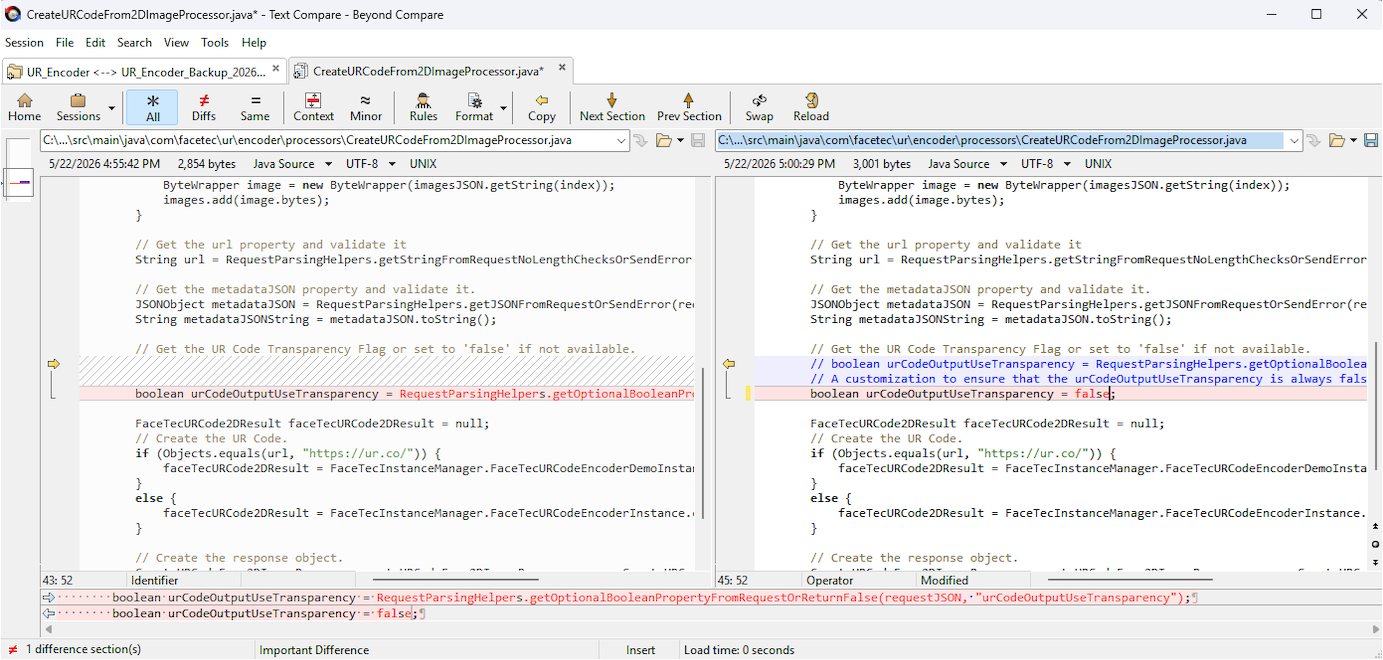
In each folder with file differences, you will need to determine if the file differences are the result of your organization's code customizations or the results of the updates that were made in the latest versions of the UR Encoder Desktop. You should not revert any of the updates that were made in the latest version of the UR Encoder Desktop. However, this does not apply to your organization's own code customizations to the UR Encoder Desktop.
For your organization's code customizations, you will need to determine which of these should be brought into the latest version of the UR Encoder Desktop. Like in the step above, you can use a file comparison tool to import these changes on a line-by-line basis.
Frequently Asked Questions
Should I update the private key when updating the UR Encoder Desktop?
Your organization's Private Key should only be updated if there is a reason to believe that its security has been compromised. If your organization creates a new Private Key, then a new FaceTec-Signed Public Key will need to be generated and added to your organization's domain.
Your organization can generate and host a new FaceTec-Signed Public Key by performing the following steps:
- Uploading the new Public Key to Your Account.
- Downloading the new UR Hosting Files.
- Hosting the new UR Hosting Files on your organization's domain.
For more details on how to perform these steps, please see UR Encoder Desktop (Windows) - Step 7: Host the FaceTec-Signed Public Key.
Should I update the UR Encoder Desktop (Windows) License?
Your organization should only update the UR Encoder Desktop License if a Domain Name needs to be added, removed, or updated.
Please send FaceTec a Support Request to make updates to the Domain Names.
Once the Domain Names are updated, Your Team can update the license by downloading and installing a new instance of the UR Encoder Desktop from Your Account.