UR Encoder Desktop (Windows)
Learn how to configure and launch the UR Encoder SDK with the UR Encoder Desktop.
If you are updating the UR Encoder Desktop, please see Updating the UR Encoder Desktop (Windows).
Introduction
The UR Encoder Desktop is a Browser Application for Encoding UR Codes with a Simple Installation. Once installed, the UR Encoder Desktop Icon is created, which can then be used to launch the UR Encoder SDK.
Important Note: The UR Encoder SDK is also launched as a part of the Installation Process.
System Requirements
- PC with Windows 10 or later
- Docker Desktop (with Administrative or "Docker User" Privileges)
Getting Started
Use the video and steps below to install and launch the UR Encoder Desktop.
Step 1: Install & Launch Docker Desktop
Step 2: Download the UR Encoder Desktop
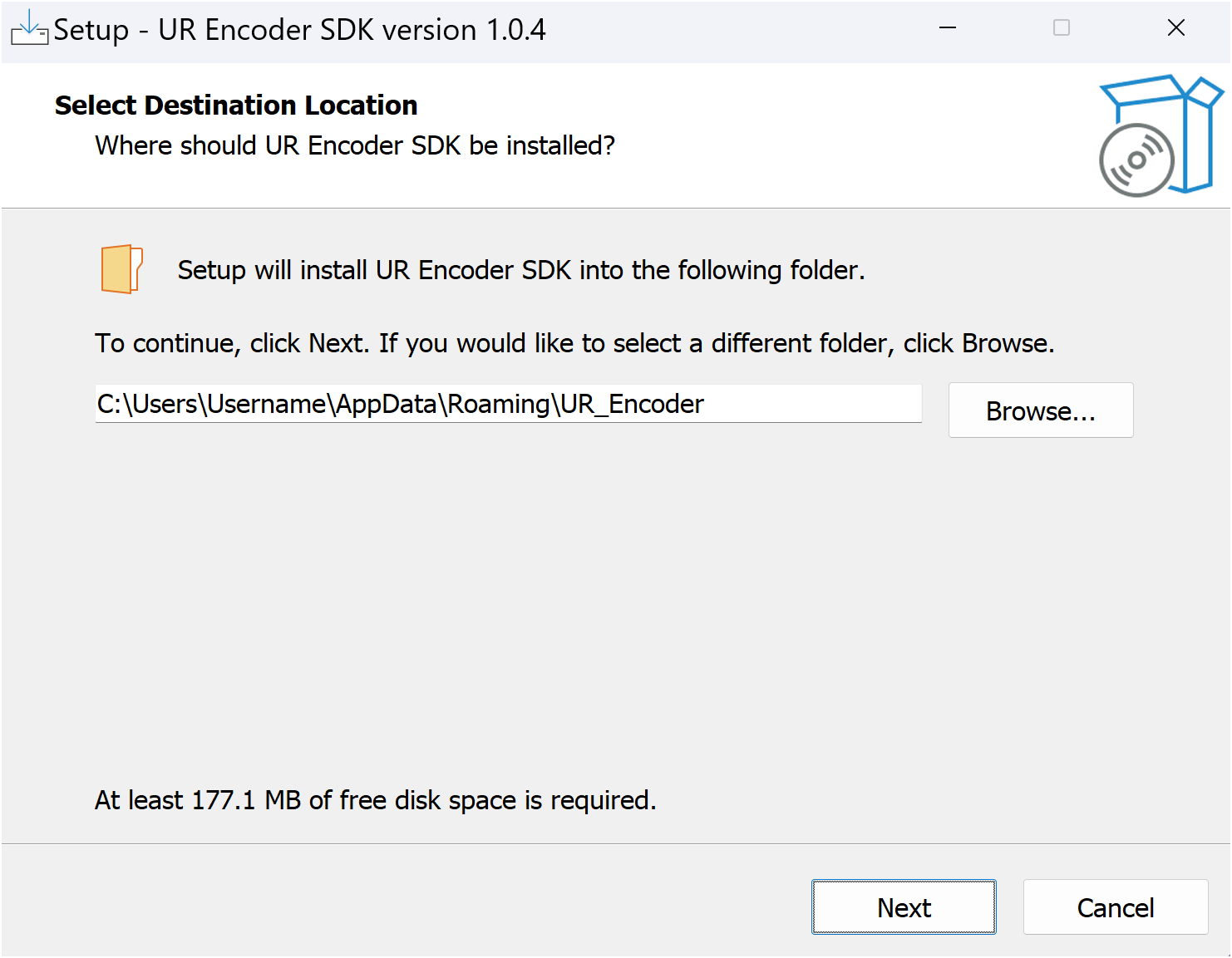
Step 3: Choose the Installation Folder for the UR Encoder SDK
Step 4: Run the UR Encoder Desktop Installation & Setup
Step 5: Launch the UR Encoder Browser Sample App
Step 6: Create a UR Code
Step 7: Host the FaceTec-Signed Public Key
Step 1: Install & Launch Docker Desktop
Download & Install Docker Desktop:
Docker Desktop is required to install and run the UR Encoder Desktop. To configure Docker Desktop, please see the Configuring Docker Desktop Guide.
Launch Docker Desktop:
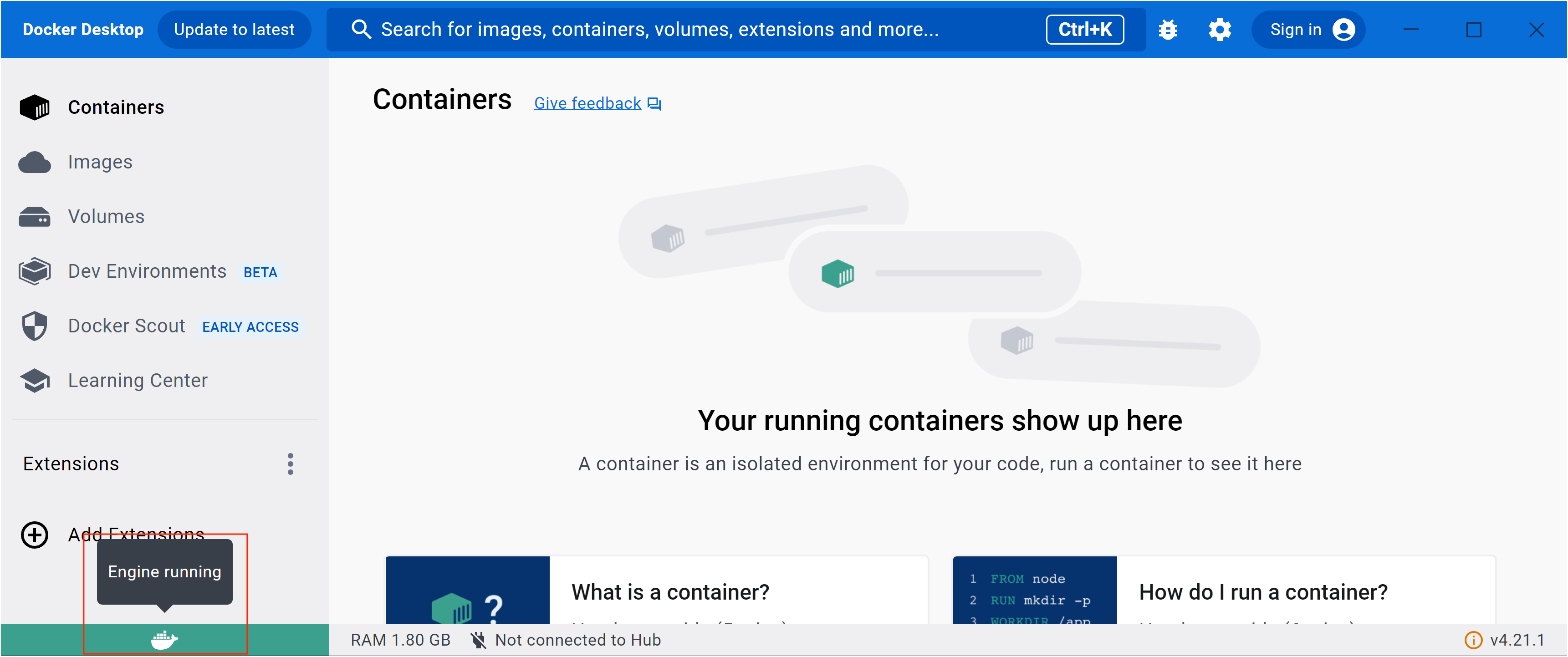
Once downloaded and installed, Docker Desktop can be launched by double-clicking on the Docker Desktop Icon. Docker Desktop will launch the Docker Engine, which you can confirm by checking in the bottom-left corner of the Docker Desktop Screen.
Step 2: Download the UR Encoder Desktop
Request Access to the UR Encoder Desktop:
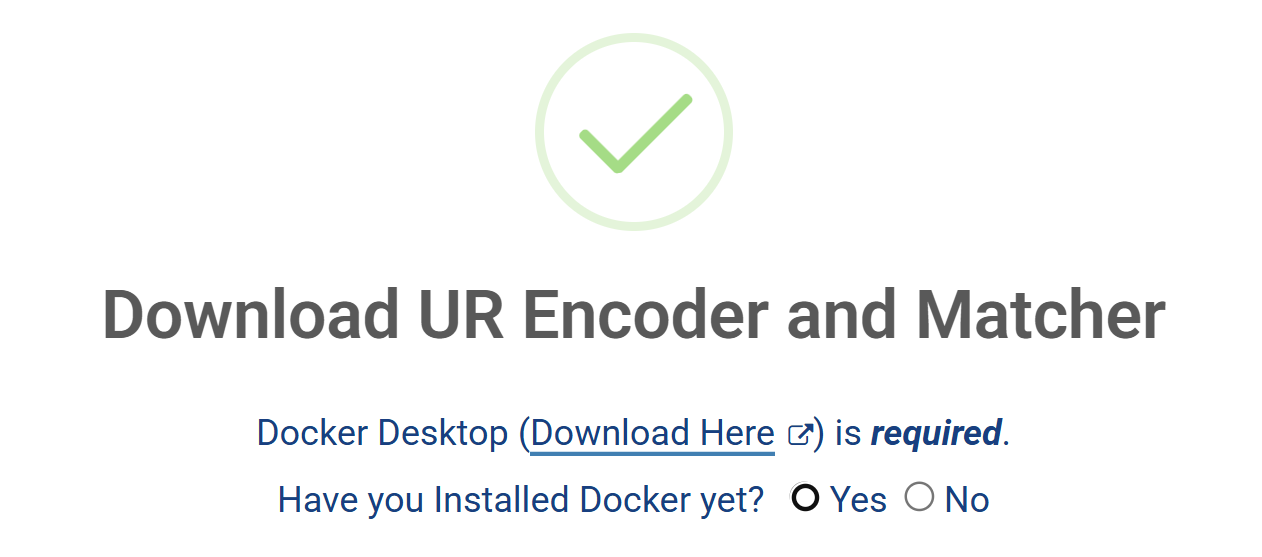
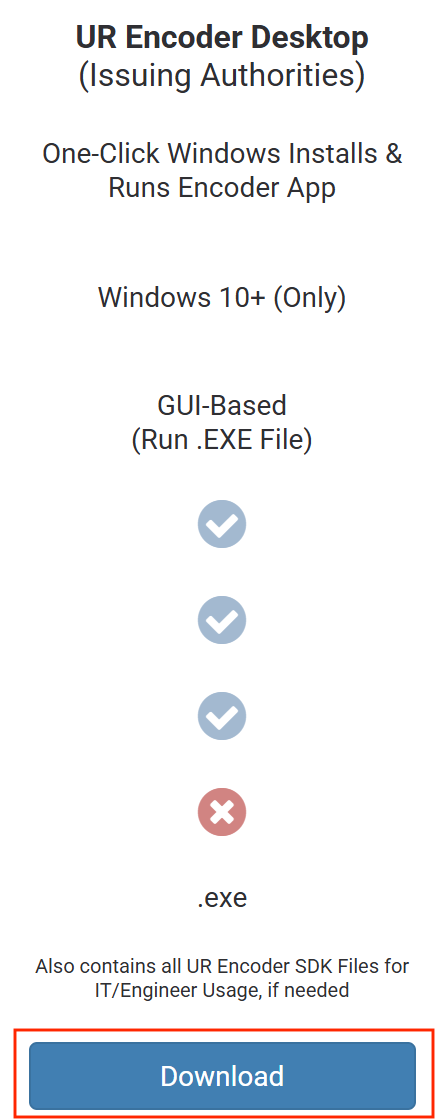
You can request access by pressing the "UR Encoder Desktop (Windows)" Button on the Downloads Page. Before proceeding, you will need to confirm that you have downloaded Docker Desktop.
Specify Your Domain Names:
Once confirmed, you can continue by clicking on the "Download "Button underneath the "UR Encoder Desktop" Column. To continue with Your Request, you will need to specify the Domain(s) that you will be using to create UR Codes. You will also be asked if you have spoken to a FaceTec Team Member about UR Codes. Once you have finished answering, you can click the "Request Access" Button to proceed.
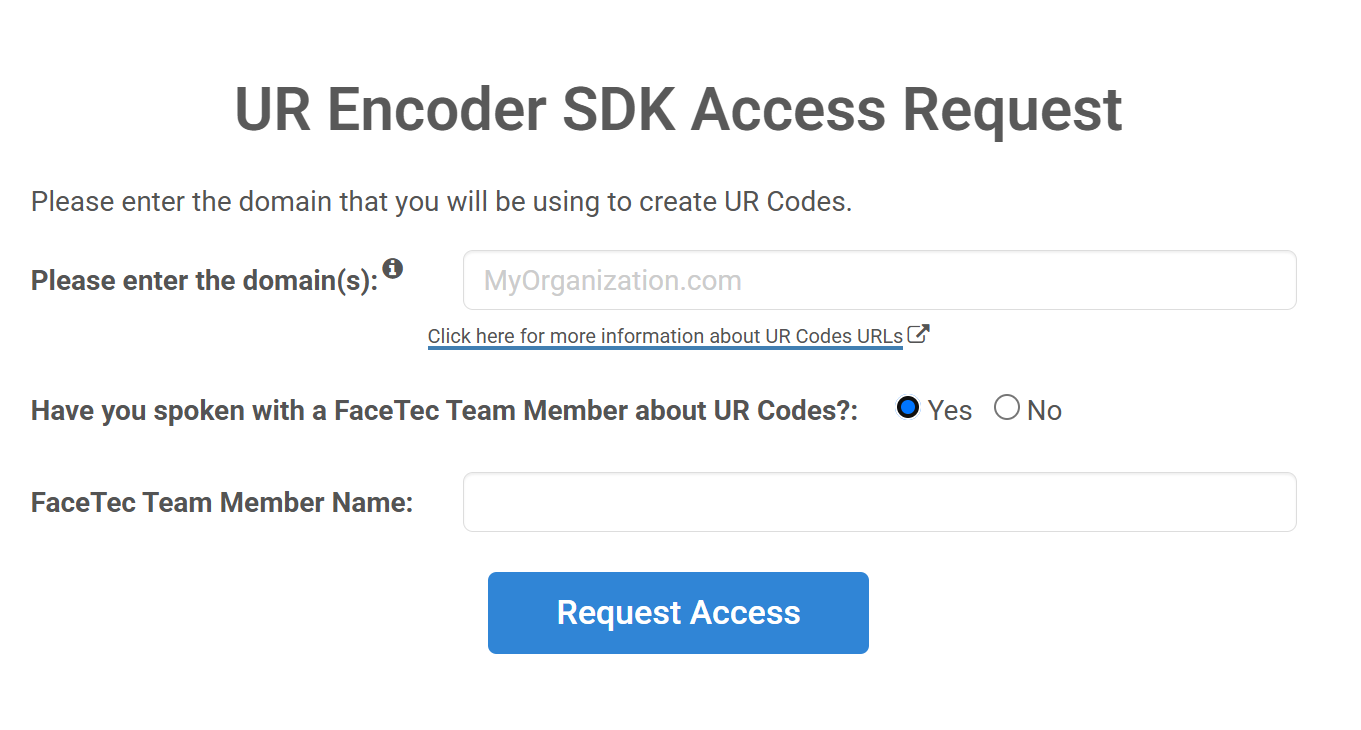
Important Note: The "/ur" code suffix will be automatically added to the end of your Website's Domain URL as the path to store your FaceTec-Signed Public Key. You can send a request to FaceTec to remove the "/ur" suffix and use your own custom URL to host the FaceTec-Signed Public Key.
Submit Your Request:
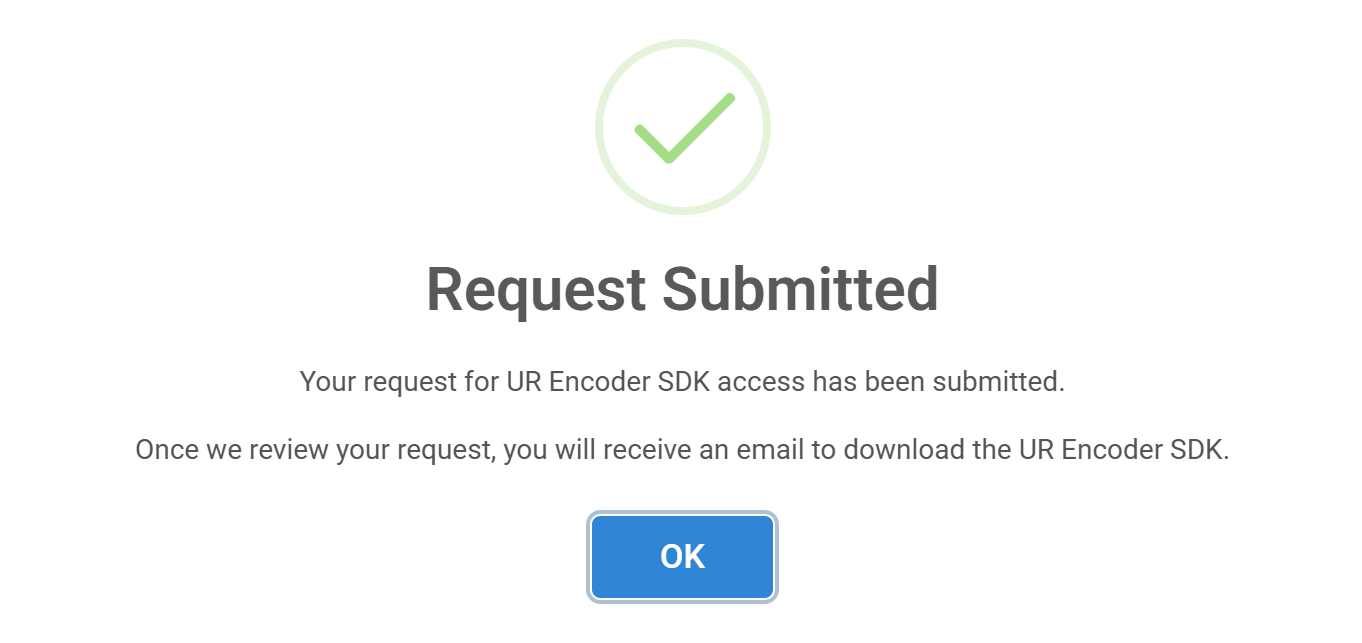
Upon the Submission of Your Request, you will be prompted with a "Request Submitted" Prompt. When Your Request is approved, you will be notified via an Access Approval Email.
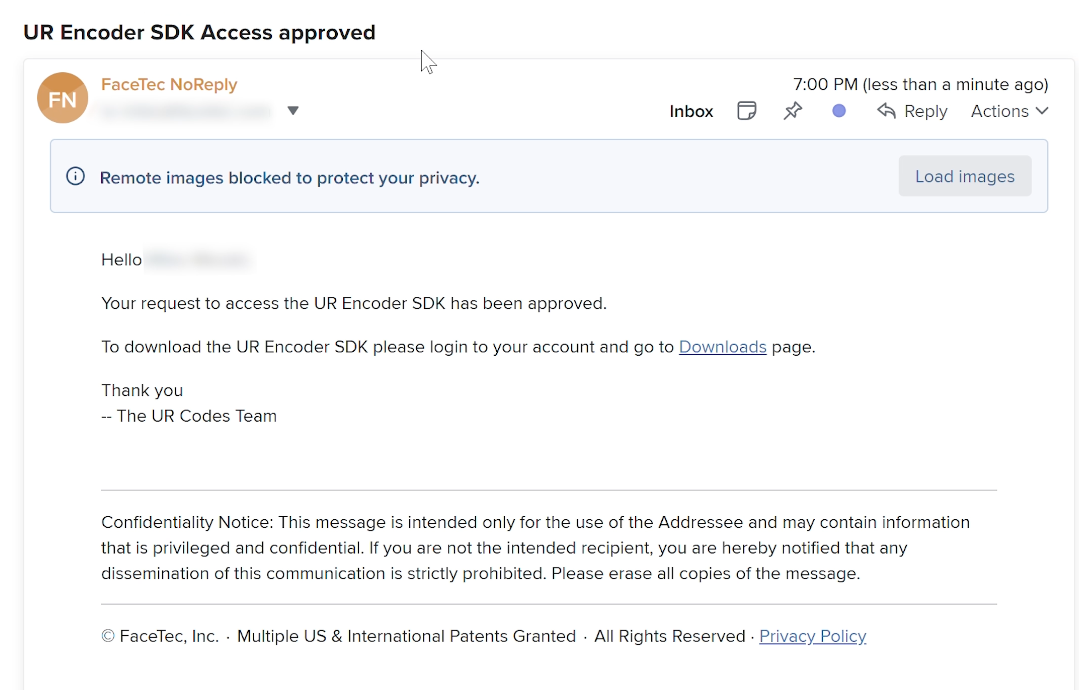
Download the UR Encoder Desktop:
Once granted access, click again on the "UR Encoder Desktop (Windows)" Button and repeat Step #2 to download the UR Encoder Desktop. With the download completed, extract the ZIP file to a new directory, then double-click on the .exe file (i.e. FaceTecSDK-UR-Encoder-***.exe) to start the UR Encoder Desktop Installation.

Important Note: You may see an alert screen that says the following:
Windows protected your PC
Microsoft Defender SmartScreen prevented an unrecognized app from starting. Running this app might put your PC at risk.
More InfoClick "More Info" and click the [Run Anyway] Button to continue the install.
Step 3: Choose the Installation Folder for the UR Encoder SDK
Choose the Installation Folder:
When you start the UR Encoder Docker Installation, you will be prompted to specify the Installation Directory. The Default Location is normally recommended.
Step 4: Run the UR Encoder Desktop Installation & Setup
Run the Installation & Setup:
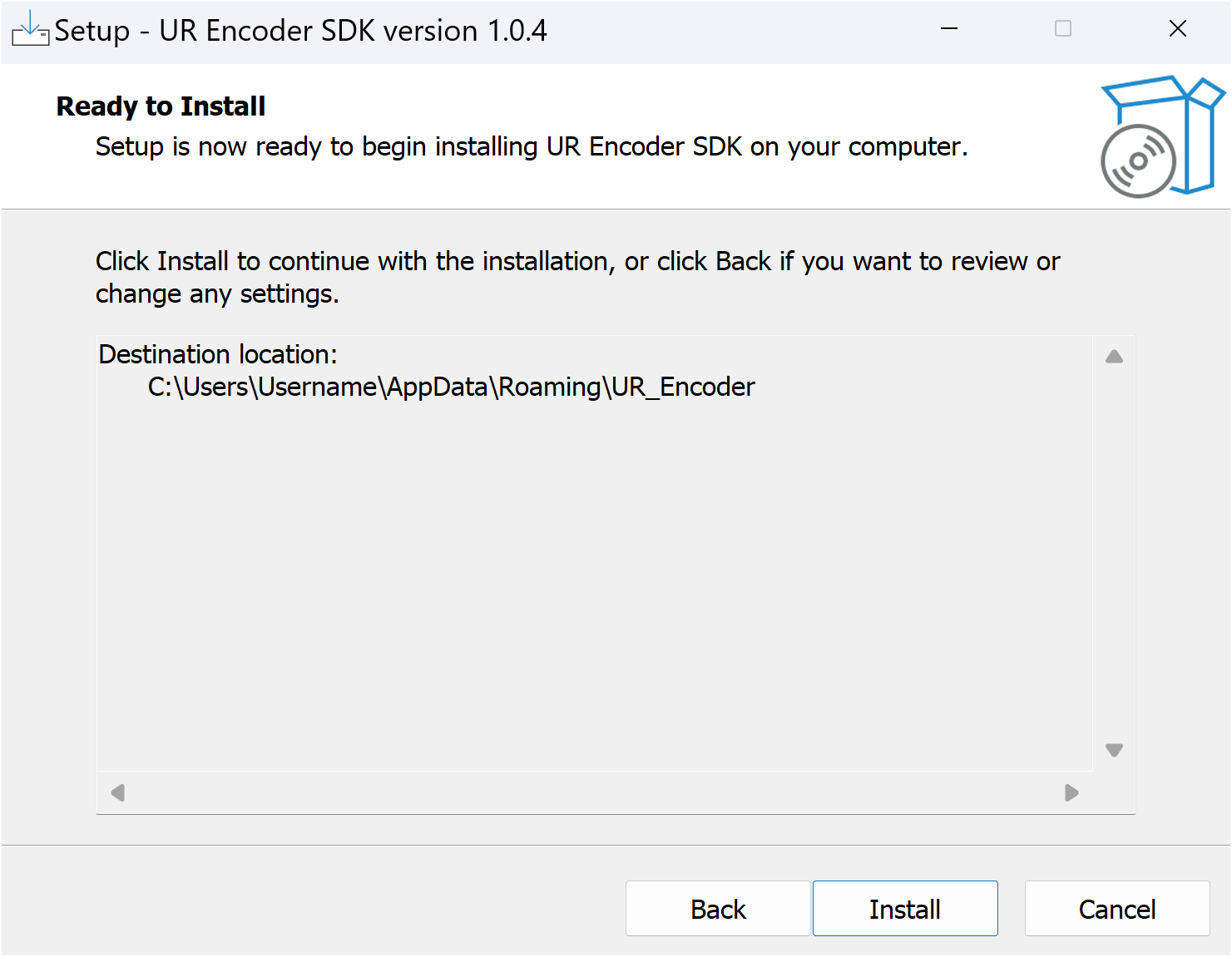
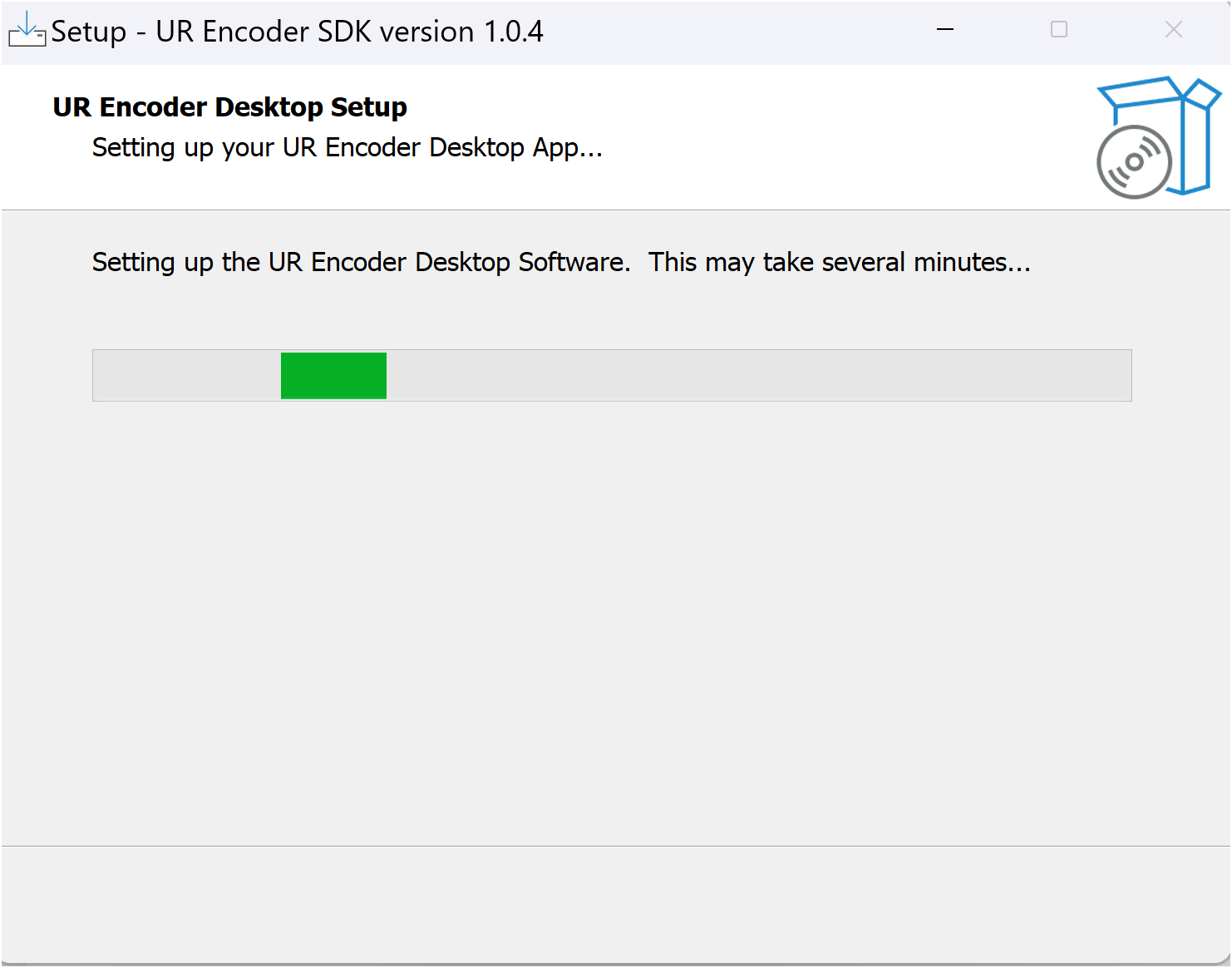
Once you have specified the Installation Directory, the UR Encoder Desktop will begin its Installation and Setup. The Installation may take several minutes to complete, as it will need to perform several tasks.
Important Note: If your organization is using an Enterprise VPN or Next-Generation Firewall, then it may interfere with creation of the Docker Container for the UR Encoder Browser Sample App. To proceed, your team may need to follow the steps in Running the Sample App with an Enterprise VPN or Next-Generation Firewall.
Step 5: Launch the UR Encoder Browser Sample App
Launch the Sample App:
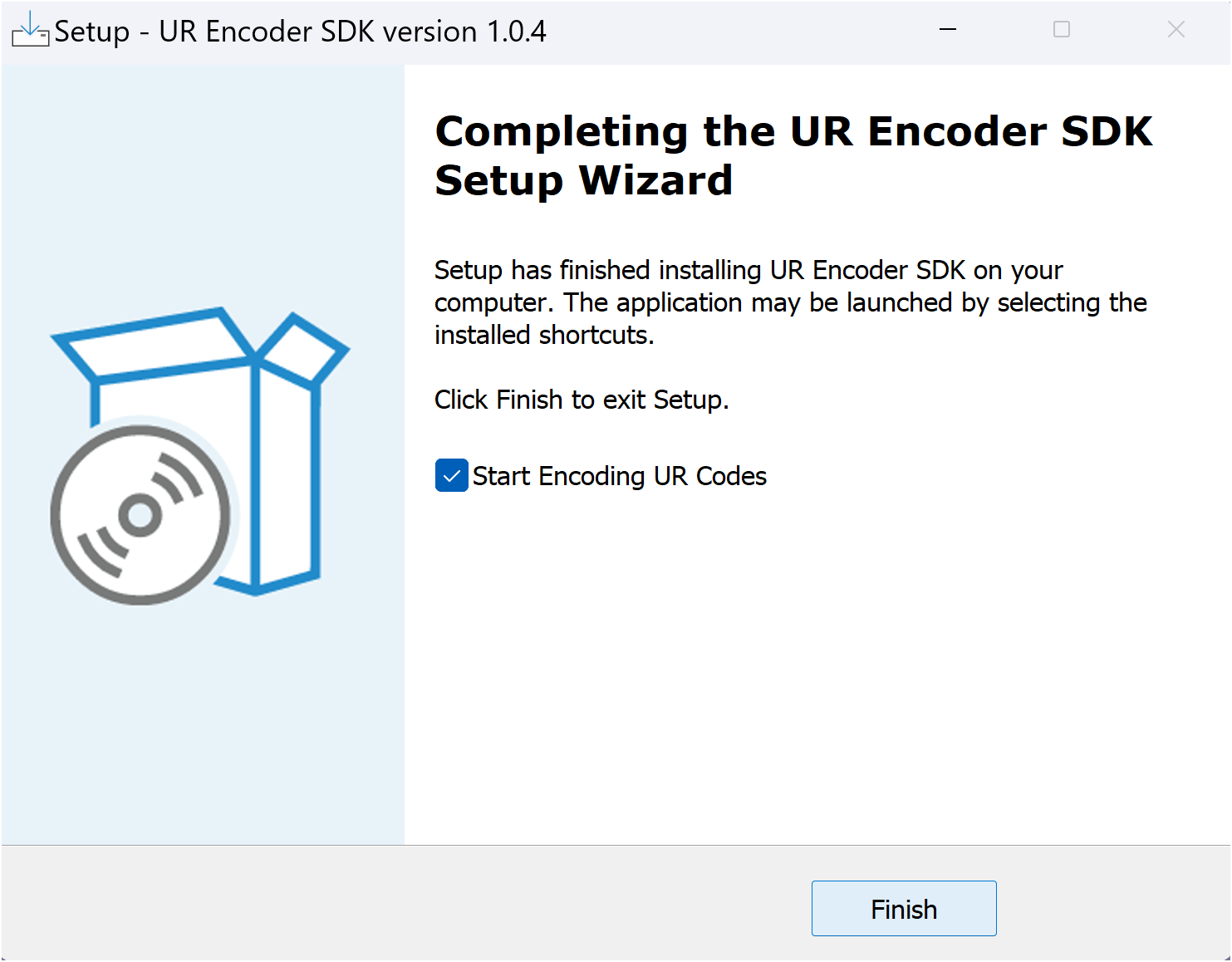
When the Installation and Setup is completed, you will be prompted with a screen showing that the UR Encoder SDK Setup Wizard has finished. To launch the UR Encoder Browser Sample App, confirm that "Start Encoding UR Codes" is checked and press the "Finish" Button.
Step 6: Create a UR Code
Launch the Sample App:
If the UR Encoder Browser Sample App is not already launched, then the UR Encoder Desktop Icon can be used to launch it.
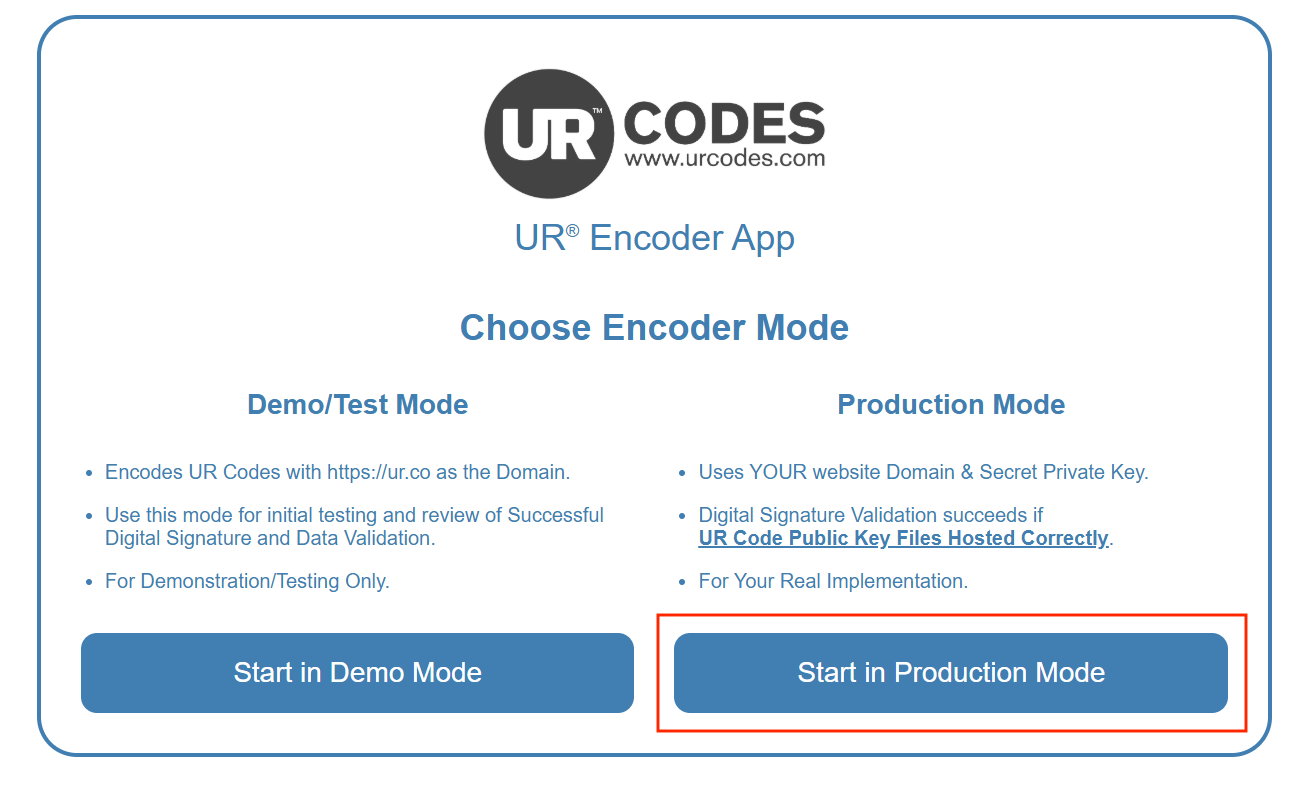
Choose "Start in Production Mode":
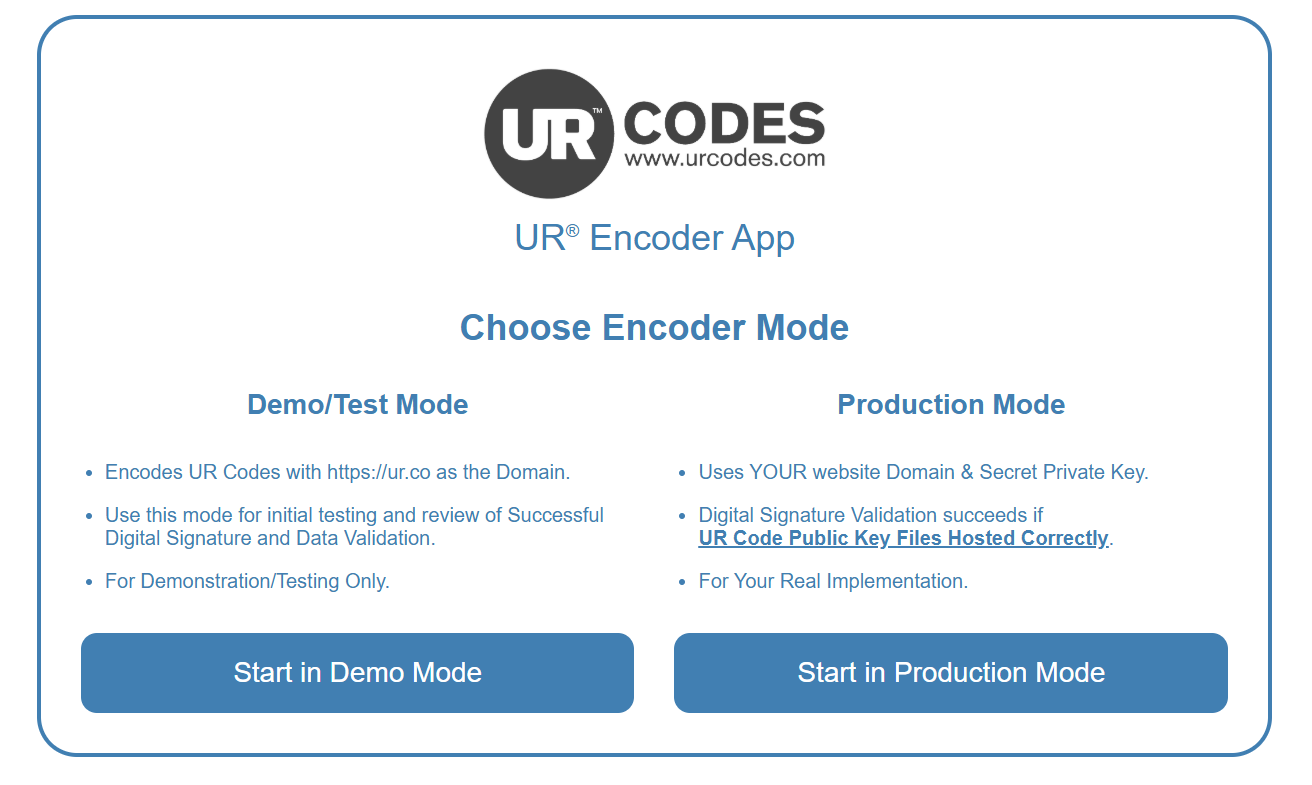
The UR Encoder Browser Sample App has two modes: Demo/Test Mode and Production Mode. Click the "Start in Production Mode" Button to create UR Codes using Your Website Domain and Secret Private Key.
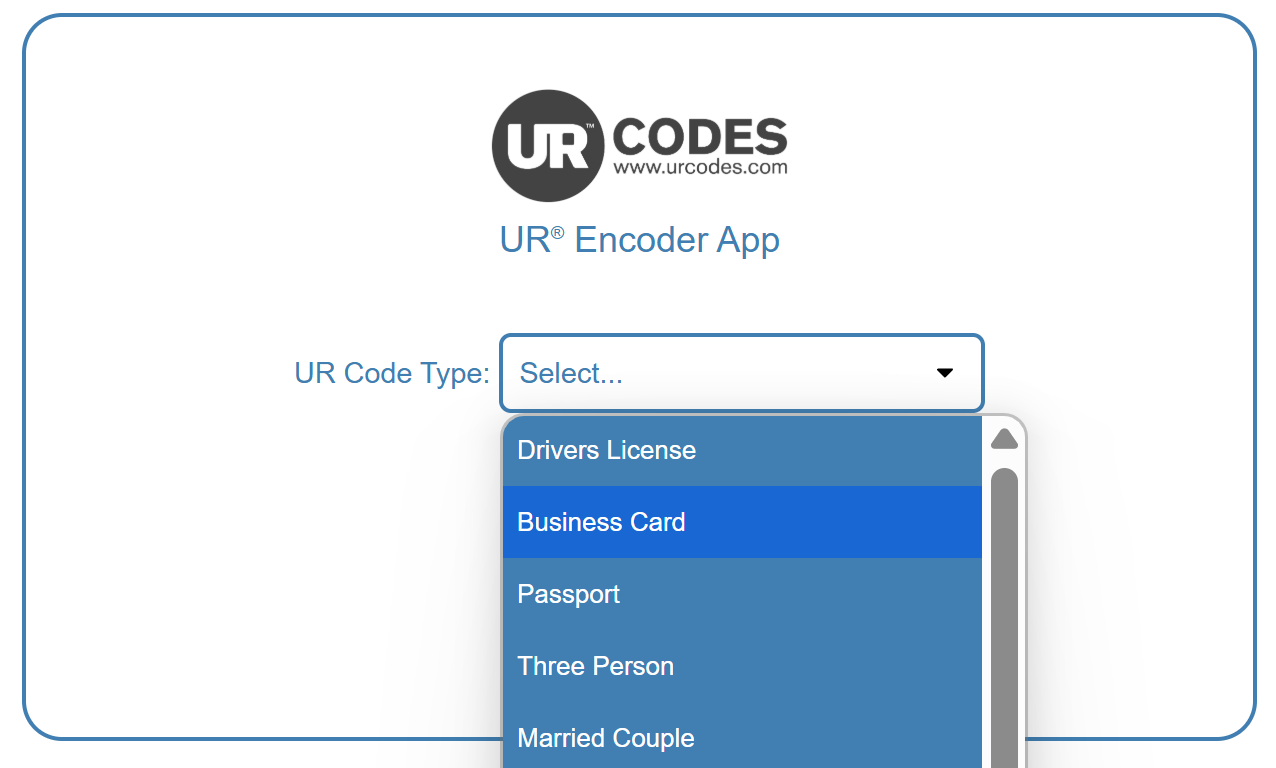
Select a UR Code Type:
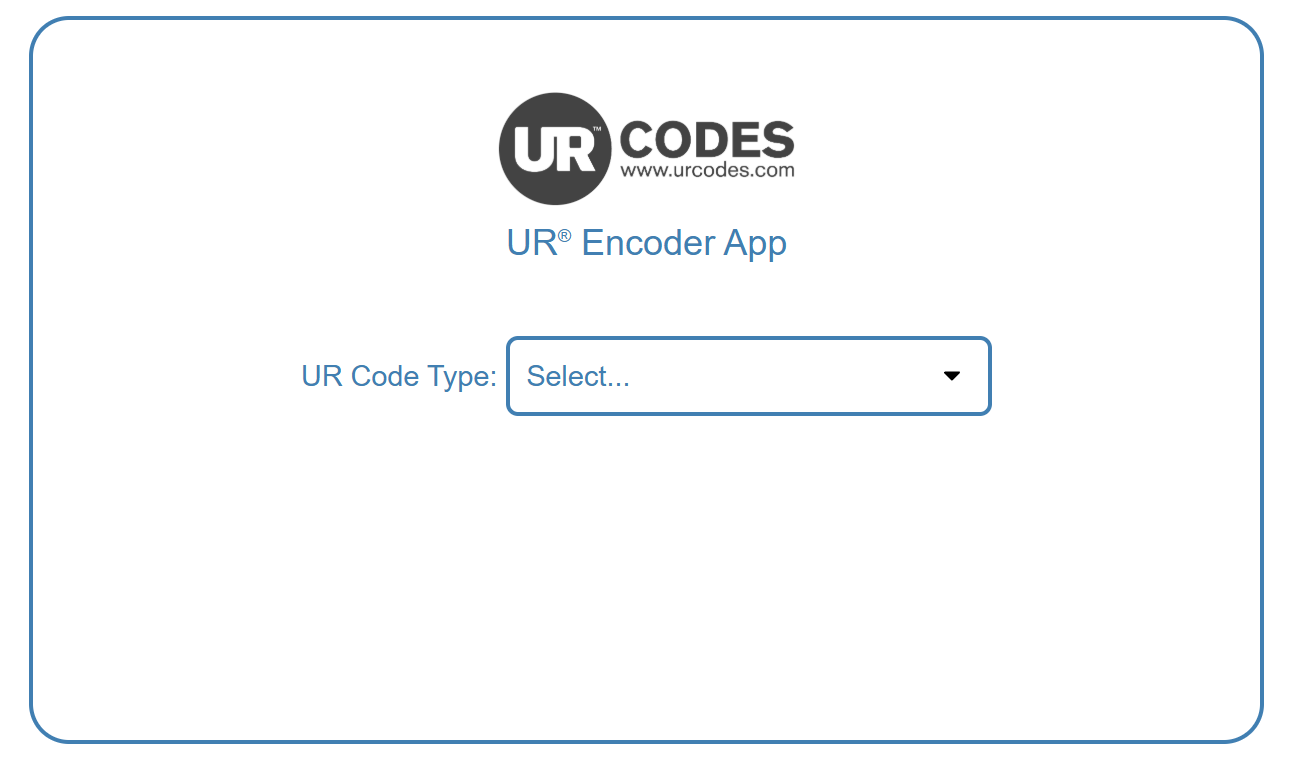
To begin creating a UR Code, you will first need to select the UR Code Type. Each UR Code Type corresponds to a unique UR Code Template, which is used to define the data structure of the UR Codes.
For more information on UR Code Templates, please see UR Code Templates & Metadata Minification
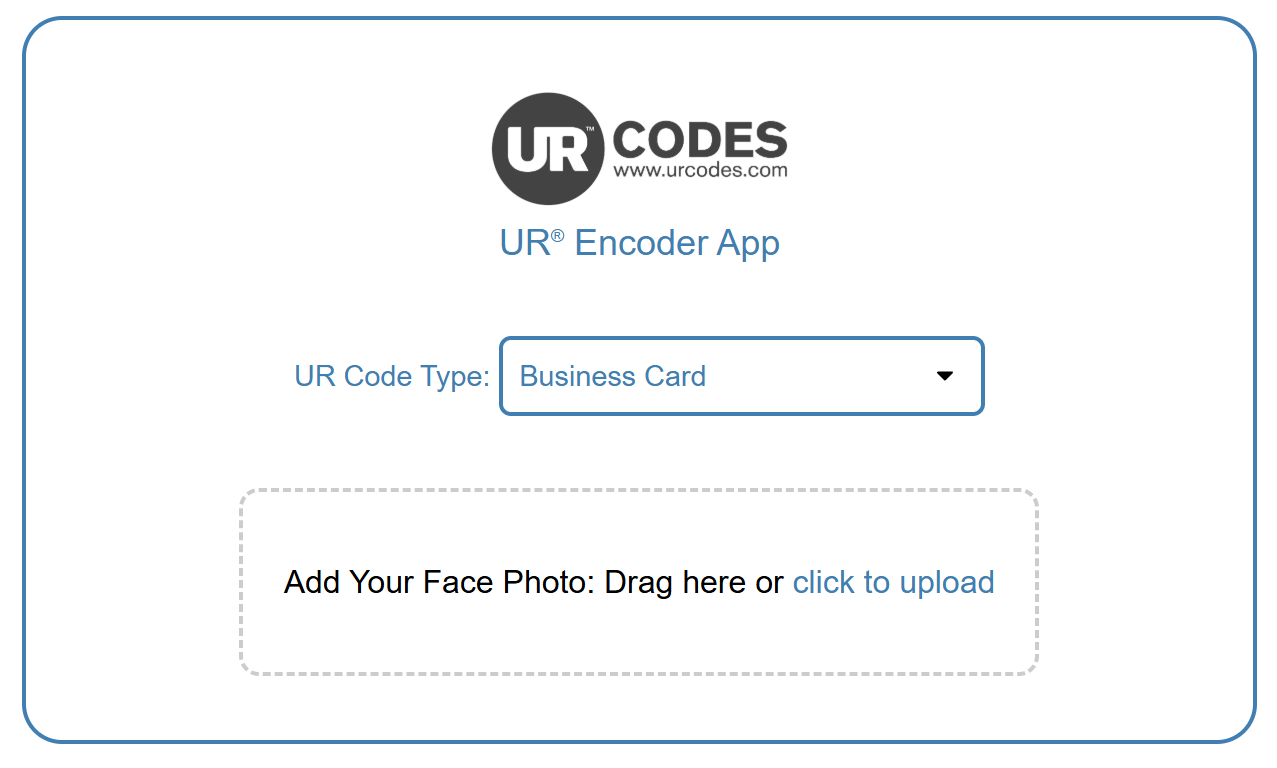
Upload the Face Image:
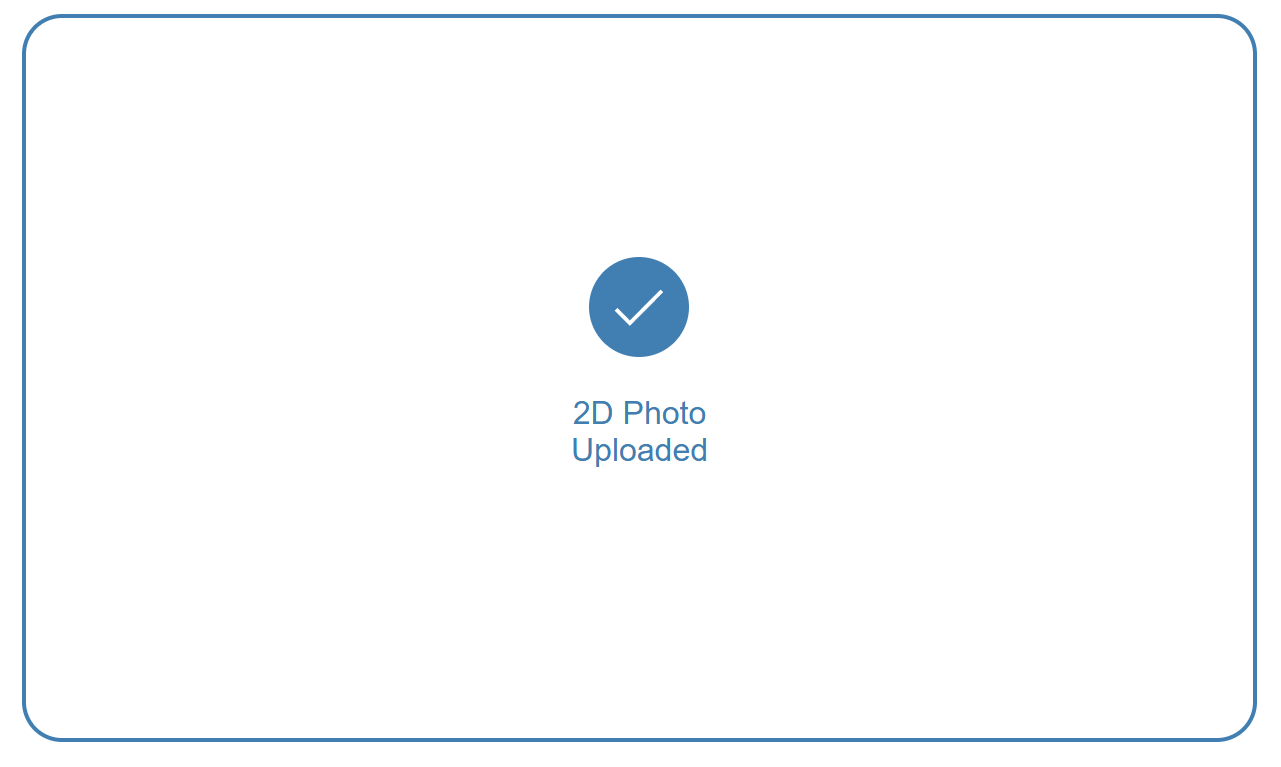
Once the UR Code Type has been selected, you will need to choose the Face Image to use. You will be prompted with the "2D Photo Uploaded" Screen if the Face Image was uploaded successfully.
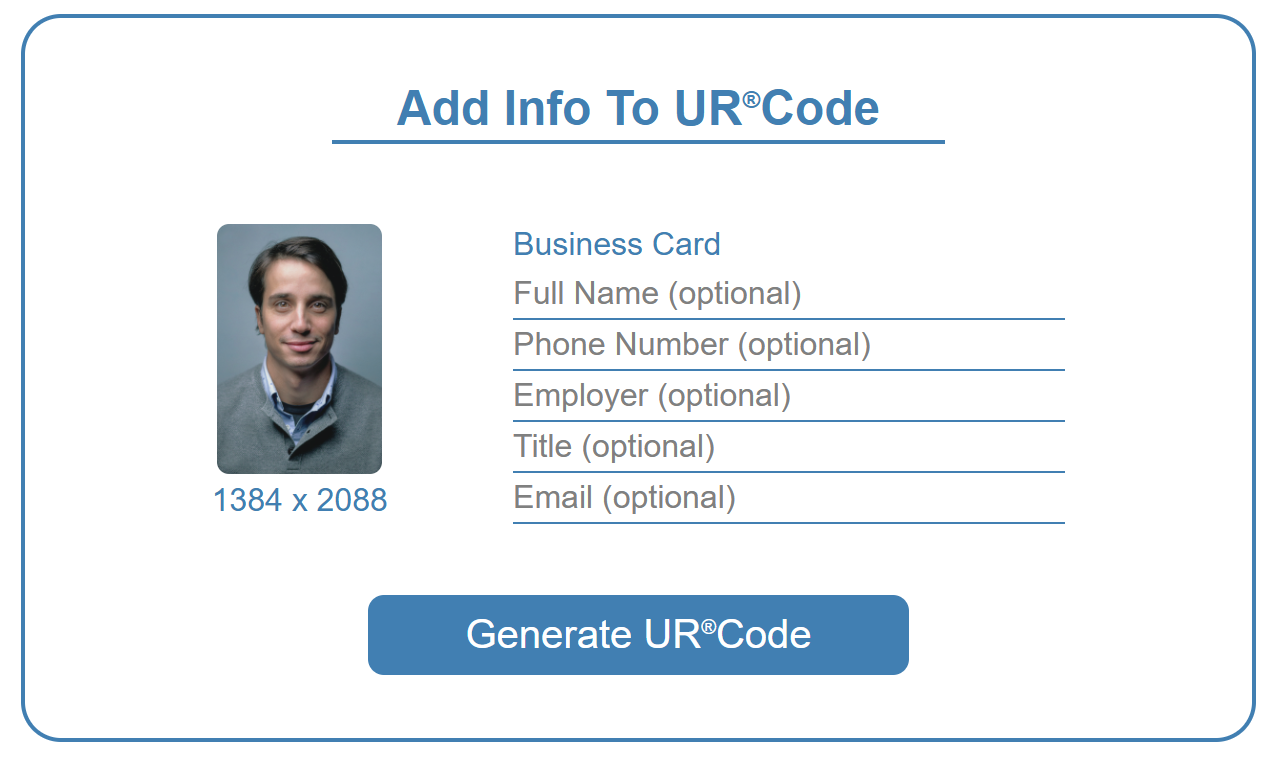
Specify the UR Code Information (Metadata):
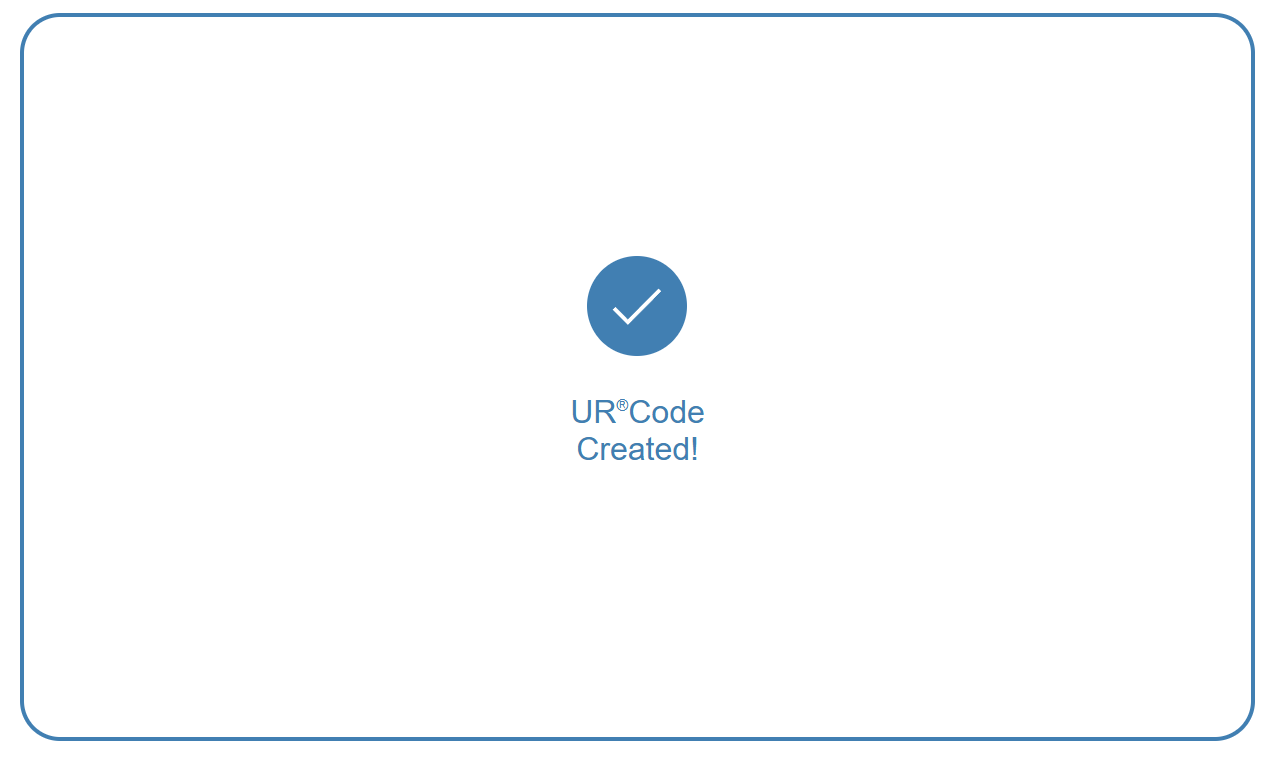
After the Face Image has been uploaded, you will need to specify the Information (i.e. the Metadata) for the UR Code. You can press the "Generate UR Code" Button once you have finished. You will be prompted with the "UR Code Created!" Screen if the UR Code was created successfully.
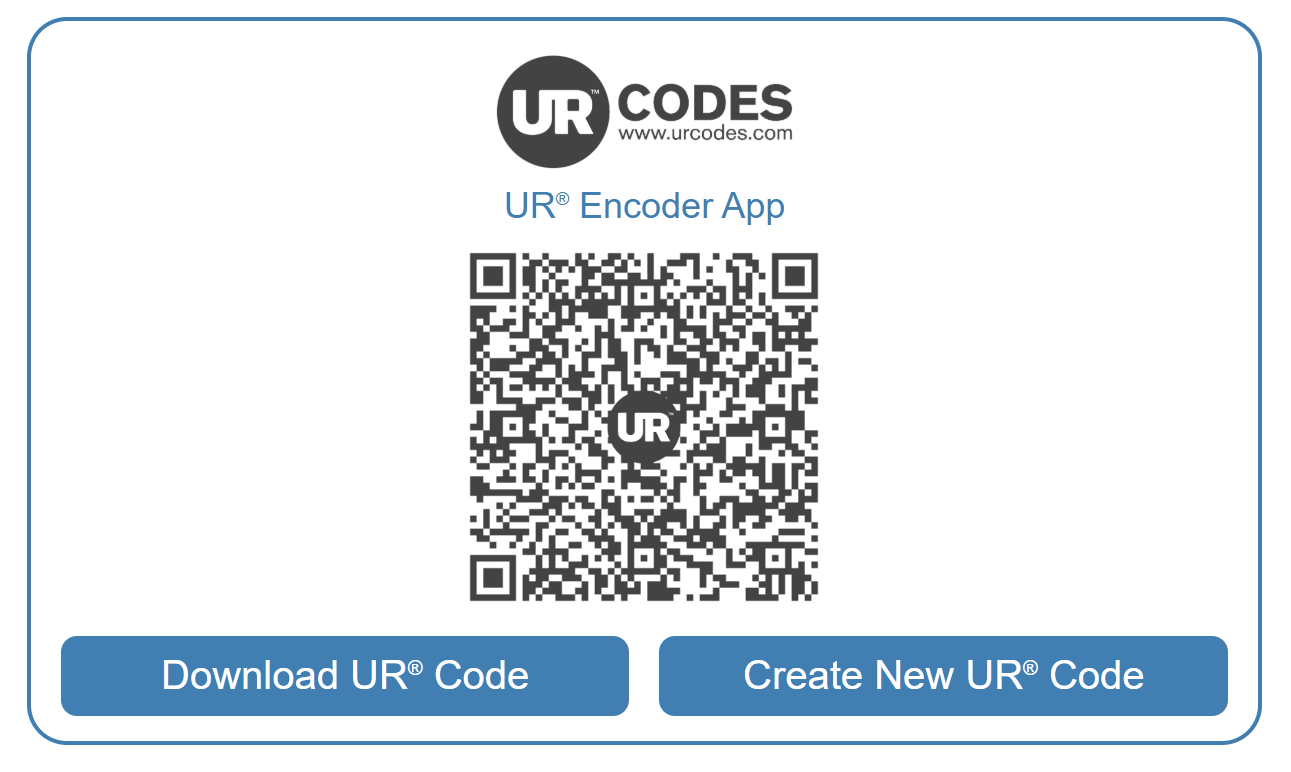
Download the UR Code (or Create a New UR Code):
Congratulations! Your UR Code has been created. Your team can now download the UR Code or choose to create a new UR Code.
Step 7: Host the FaceTec-Signed Public Key
Find the Public Key:
Your Public Key needs to be hosted on Your Domain for Relying Parties to validate your team's UR Codes. The UR Encoder Desktop generates the UR Code Public Key during its installation.
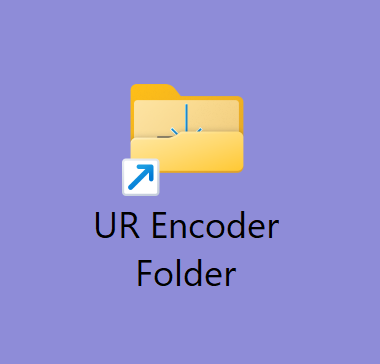
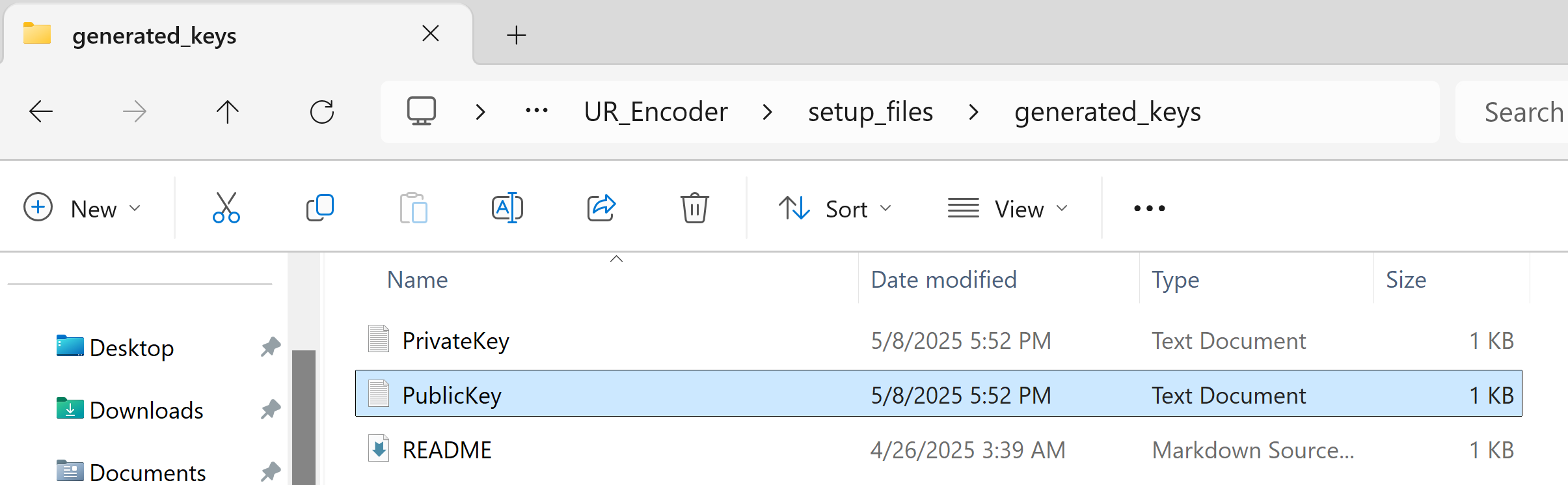
By default, the UR Encoder Desktop is installed in the Roaming Directory and can be accessed via its Desktop Shortcut (UR Encoder Folder). In UR Encoder Folder, you can find Your Public Key by navigating to \UR_Encoder\setup_files\generated_keys\PublicKey.txt.
Upload the Public Key:
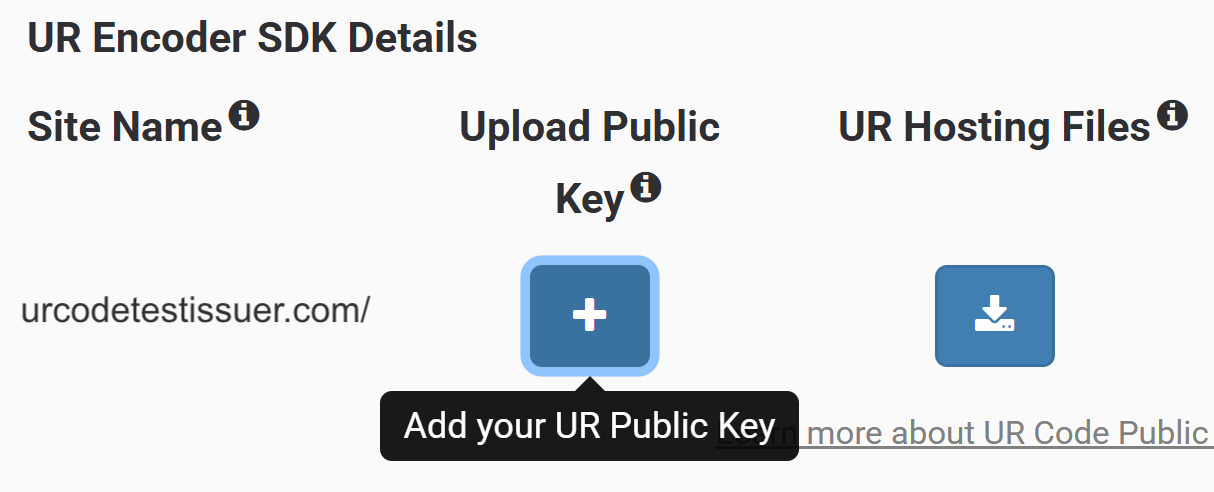
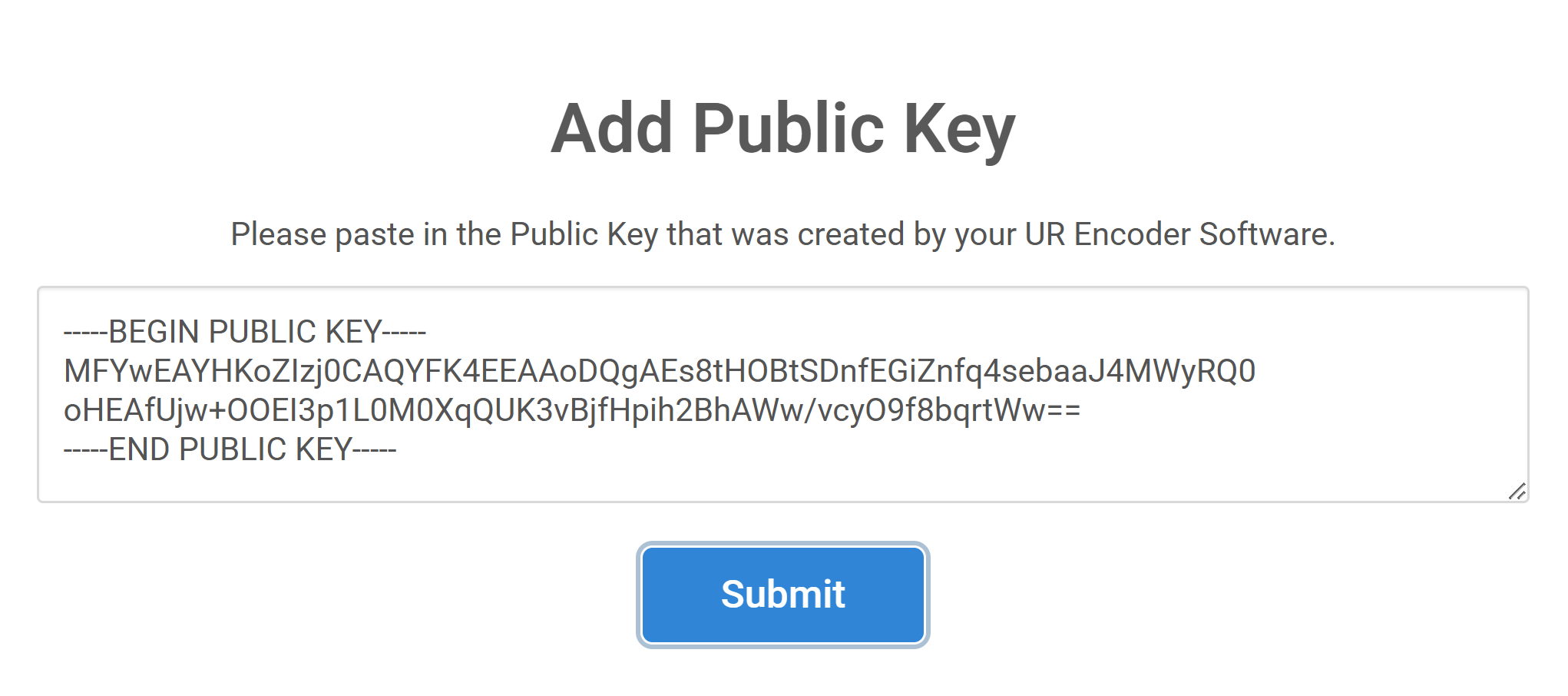
Once you have Your Public Key, you can upload it by going to Your Account, pressing the Upload Public Key Button, and copying the entire Public Key Text (PublicKey.txt) into the Text Box.
Download the UR Hosting Files:
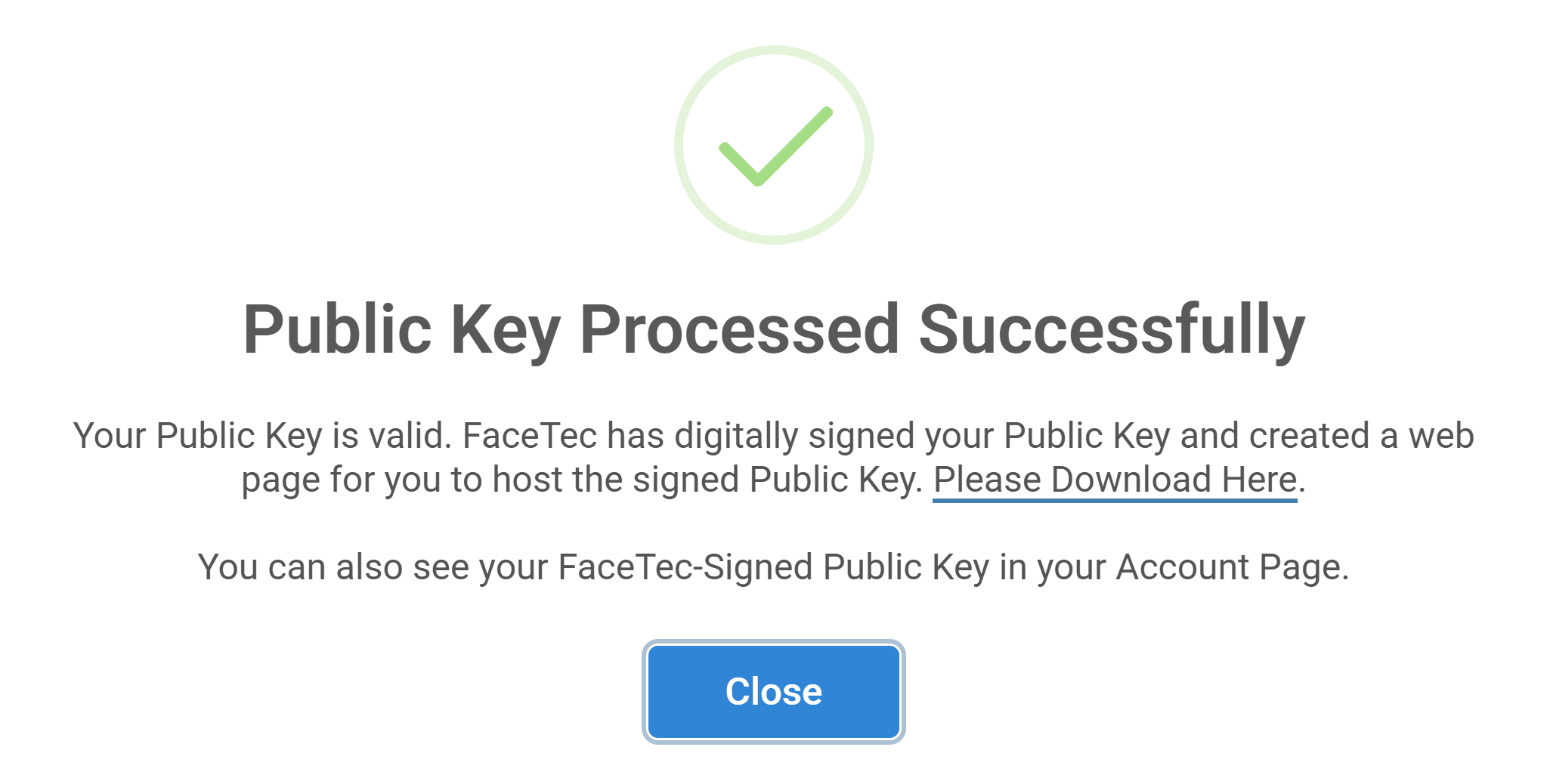
If the Public Key is processed successfully, then it will be signed by FaceTec to ensure the Key itself can be validated.
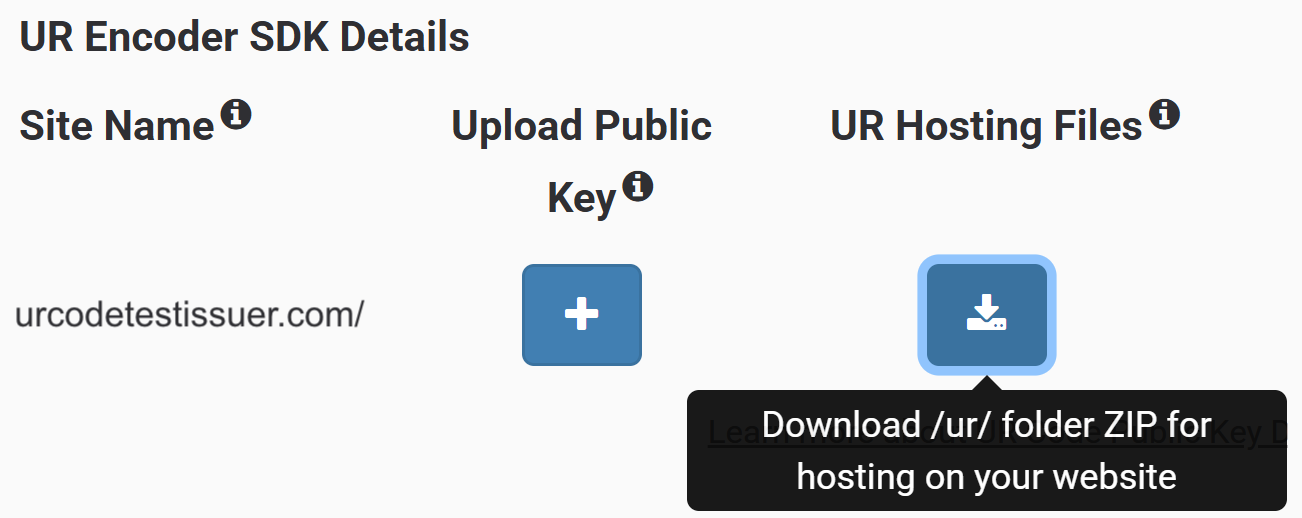
The next step is for Your Webmaster to upload the UR Hosting Files, which include the FaceTec-Signed Public Key, to Your Domain. Your Webmaster can download the ZIP of the UR Hosting Files from Your UR Code Dev Account and extract it to the /ur/ folder in the Root Directory of Your Website's Hosted Files.
Important Note: The size of the UR Code Data may increase if you host the /ur/ folder in a different directory. UR Codes store the URL of its associated Public Key, which is located in the /ur/ folder. Since the URL is stored in the UR Code, the size of the URL may impact the size of the UR Code Data itself. To minimize the size of the URL, the /ur/ folder should be saved in the Root Directory of Your Website's Hosted Files.
Step 8: Scan and Validate your UR Code
After completing all the previous steps, you can download the Free UR Scan+Match App for Android and iOS to scan your UR Codes, validate their Digital Signatures, retrieve and display the Metadata/PII stored, and perform a Match to confirm everything was configured and working as expected.
Overview
During Installation, the UR Encoder Desktop does the following in the background:
- Generates Your Public/Private Key Pair
- Configures the UR Encoder SDK & Browser Sample App
- Initializes & Launches the UR Encoder Server SDK
- Initializes & Launches the UR Encoder Browser Sample App
Once the Installation has been completed, the UR Encoder Desktop Icon is added to Your PC. The Desktop Icon can then be used to launch the UR Encoder Server SDK and Browser Sample App (via its Docker Containers).
Important Note: Docker Desktop must be running to install the UR Encoder Desktop and to use the UR Encoder Desktop Icon.
Docker Desktop - Configuration
Docker Desktop is required for the UR Encoder Desktop.
Installing Docker Desktop requires a User with Administrator Access.
After Installation, Docker Desktop can be used without Administrator Privileges if the User has been added to the docker-users group. If you would like to create UR Codes as a Non-Admin User, then you will need to be added to the docker-users group
Adding a Windows User to docker-users
If a User is not an Administrator, then they must be added to the docker-users group to run Docker Desktop.
Important Note: Administrators can run Docker Desktop without being added to the docker-users group. Only Non-Admin Users need to be added to the docker-users group.
Administrator Privileges are required to add a User to the docker-users group. The following command can be used from a Command Prompt (with Administrator Privileges) to add a Windows User to the docker-users group:
net localgroup docker-users "<WINDOWS_USER_ID>" /ADDOnce the User has been added, they will need to log out and log back into the Windows Machine for their Docker Privileges to be updated.
Frequently Asked Questions
Why isn't Docker Desktop Installing?
To install Docker Desktop, a Windows User must have Administrator Privileges.
Why isn't Docker Desktop launching?
To launch Docker Desktop, a Windows User must either:
a. Have Administrator Privileges.
b. If the User is a Non-Admin User, then the User must be added to the docker-users User Group by an Administrator.
Can I use the UR Encoder Desktop on a PC with Linux?
No, the UR Encoder Desktop is designed to run on a PC with Windows.
To configure and launch the UR Encoder SDK on a PC with Linux, please see the UR Encoder SDK's Getting Started Guide.
How do I update my Encoder Desktop (Windows) License?
Your team can update the license by downloading and installing a new instance of the UR Encoder Desktop from Your Account.
Do I need to update my Encoder Desktop (Windows) License if I am updating the Domains?
Yes, your team will need to update the license if your team is updating the Domains. To make updates to the Domain Names, please send FaceTec a Support Request.
Once the Domain Names are updated, your team can update the license by downloading and installing a new Instance of the UR Encoder Desktop from Your Account.
How do I retrieve the logs for UR Encoder Desktop?
The following steps can be used to retrieve the logs for UR Encoder Desktop:
- Navigate to Your Desktop.
- Click the UR Encoder Folder Shortcut.
- Open encoder_setup.log and browser_encoder_setup.log.
How do I change the URL being embedded in UR Codes?
The URL can be updated with the URL Change Script (url_change_Script.ps1). For more details, please see Changing Encoded URLs.
How do I retrieve the UR Encoder Desktop folder to send to FaceTec for analysis?
During installation, you can choose where to install the UR Encoder Desktop in your system. By default, the UR Encoder Desktop is installed on the "C:\Users\<YOUR_USERNAME>\AppData\Roaming\UR_Encoder".
To send the UR Encoder Desktop folder to FaceTec:
- Open the Windows Explorer (Windows + E) and navigate to the folder where the UR Encoder Desktop was installed.
- In the UR Encoder Desktop installation folder, remove your
PrivateKeyand any sensitive information from your config.yaml, located in the "/encoder_server_lib/FaceTec-UR-Code-Encoder-Server-X.X.XX folder. - After removing all sensitive information, ZIP the entire UR Encoder Desktop installation folder, and send it to FaceTec.
Important Note: For security and data privacy reasons, please make sure your PrivateKey and all other sensitive information are properly removed before submitting any data to FaceTec.