UR Encoder SDK
Learn more about the UR Encoder SDK and how to use it to create and generate UR Codes.
Introduction
The UR Encoder SDK uses the /create-ur-code-from-2d-image API to generate and create UR Codes. This is the primary API for creating UR Codes.
To learn more about how UR Codes are created, please see "How are UR Codes Created?".
Important Note: UR Codes created with the UR Code Generator Demo are signed with FaceTec's Private Testing Key and are only intended for Testing & Demo Purposes.
The UR Encoder SDK should only be used if Your Organization needs to create UR Codes. The UR Matcher SDK, UR Scan+Match Device SDKs, and the UR Code Scan+Match Apps should be used if Your Organization only requires UR Code Scanning and Matching.
System Requirements
- PC with Linux, Windows, or MacOS
- System Administrative Privileges
- Command Line/Terminal Access
- Web Hosting Access
- Docker, Docker Compose, Node Package Manager (npm), and jq
Additional Requirements for Windows:
Additional Requirements for Apple Silicon Mac:
- Disabling Rosetta in Your Docker Installation
- In Your Docker Desktop, go to
Settings > General > Virtual Machine Options > Use Rosetta for x86_64/amd64 emulation on Apple Siliconand ensure this setting is unchecked.
- In Your Docker Desktop, go to
Getting Started
Use the video and steps below to configure and deploy the UR Encoder SDK with the UR Encoder Setup Script.
Step 1: UR Code Developer Account - Sign In/Sign Up
Step 2: Download the UR Encoder SDK
Step 3: Start the Setup Script
Step 4: Generate Your Public/Private Key Pair
Step 5: Retrieve Your UR Hosting Files
Step 6: Build the UR Encoder Server & Browser Sample App
Step 7: Generate Your First UR Code
Step 8: Validate Your First UR Code
Step 9: Verify Your Website's Public Key File Configuration
Step 10: Test with Postman
Step 1: UR Code Developer Account - Sign Up/Sign In
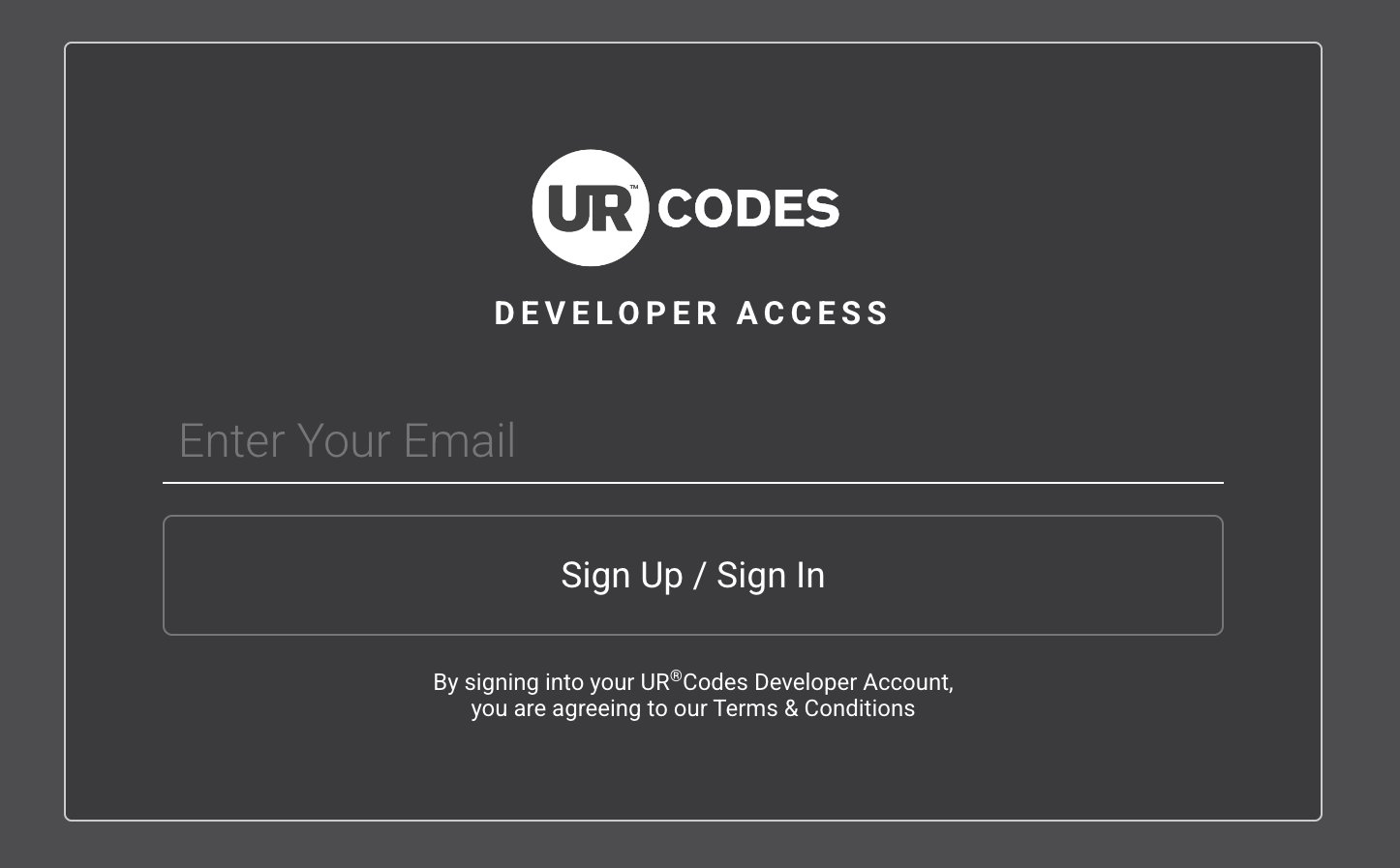
Sign In/Sign Up:
To download the UR Encoder SDK, you will first need to Sign-Up/Sign-In with a UR Codes Developer Account.
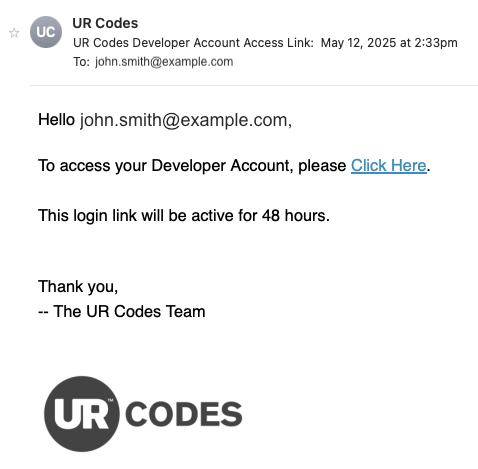
After creating an account and signing in, you will receive an email with a Login Link to Your Developer Account.
Step 2: Download the UR Encoder SDK
Request Access to the UR Encoder SDK:
The UR Encoder SDK can be downloaded from the Downloads Page. To request access, you will need to click on the "UR Encoder SDK " Button and confirm that you have installed Docker Desktop.

Specify Your Domain Names:
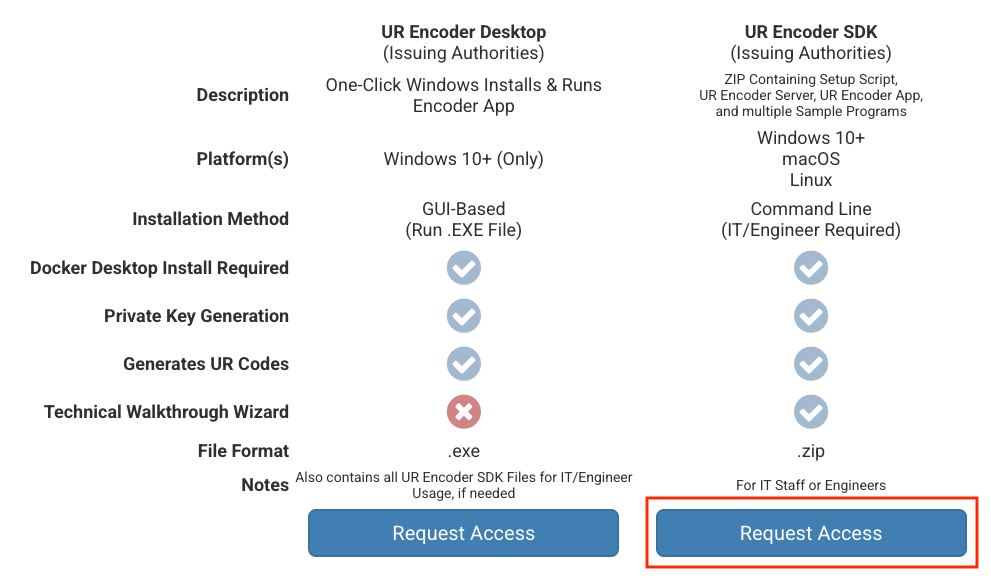
To continue making Your Request, click on the "Request Access" Button in the "UR Encoder SDK" Column. You will be asked for the Domain(s) that will be used to create Your Organization's UR Codes. This must be specified before you can proceed.
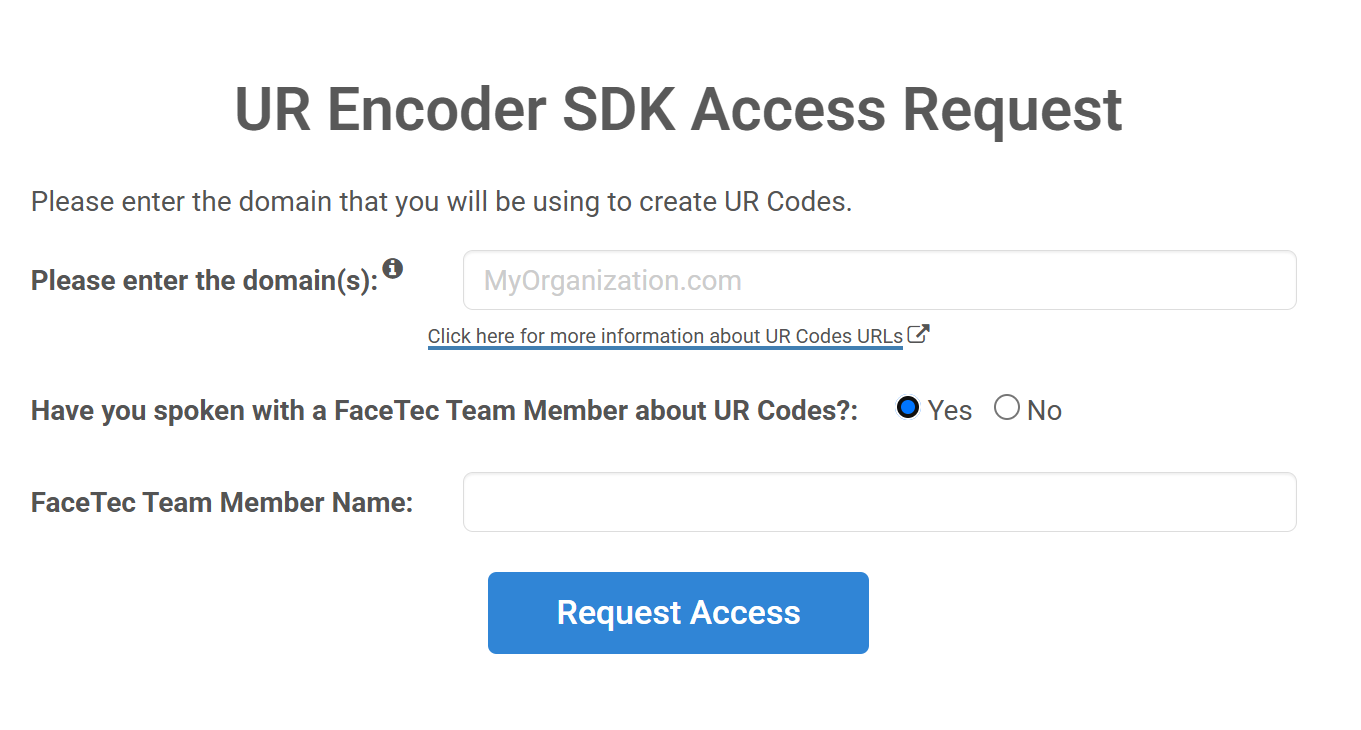
Important Note: The "/ur" code suffix will be automatically added to the end of your Website's Domain URL as the path to store your FaceTec-Signed Public Key. You can send a request to FaceTec to remove the "/ur" suffix and use your own custom URL to host the FaceTec-Signed Public Key.
Submit Your Request:
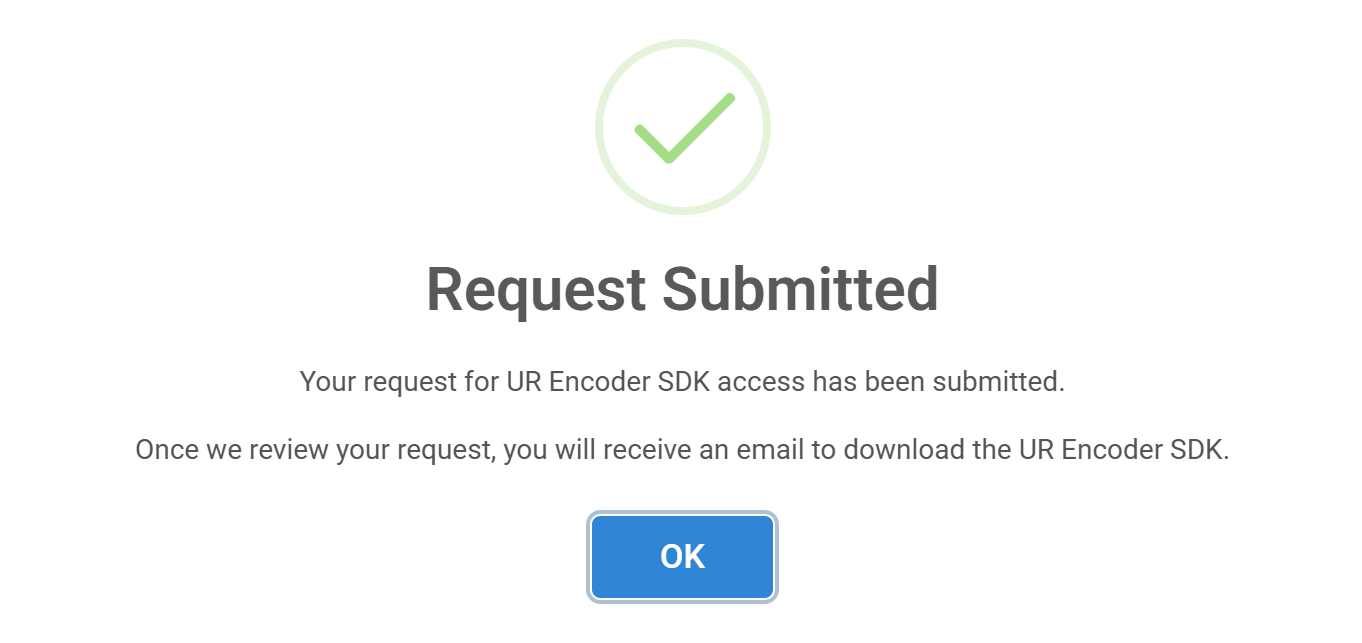
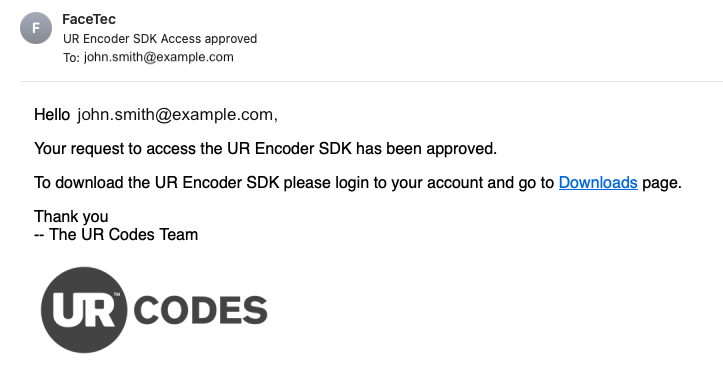
Once you have completed Your Submission, you will receive a "Request Submitted" Notification. FaceTec will then process Your Request and notify you via email if Your Request is approved.
Download the UR Encoder SDK:
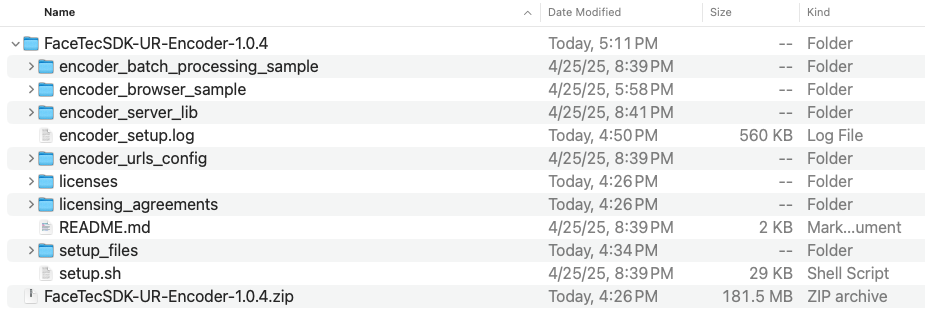
Once you have UR Encoder SDK Access, click on the "UR Encoder SDK" Button once more to download the UR Encoder SDK. As in the previous steps, you will first need to confirm that Docker Desktop has been installed. Afterwards, the UR Encoder SDK Column's "Request Access" Button will be replaced with the "Download" Button for downloading the UR Encoder SDK (FaceTecSDK-UR-Encoder-***.zip).
Step 3: Start the Setup Script
Run the Setup Script:
Use the UR Encoder SDK's Setup Script (setup.sh) to launch the Setup Wizard. The UR Encoder Setup Wizard will guide Your Team through the process to configure and deploy the UR Encoder SDK.

Step 4: Generate Your Public/Private Key Pair
& Validate Your Domain:
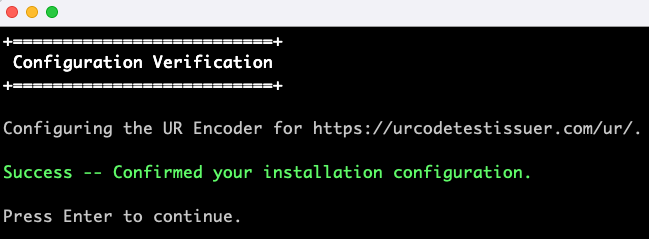
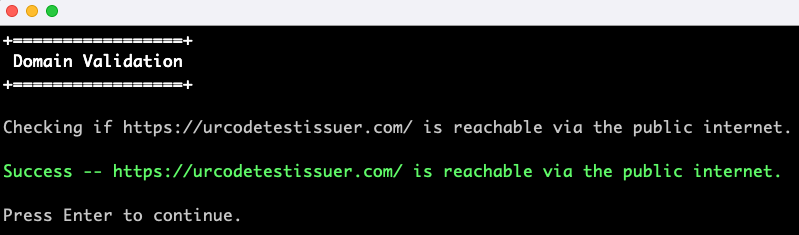
The first step in the Setup Wizard is to configure and validate Your Team's Domain. Once the configuration has been completed, the UR Encoder Setup Wizard will verify that Your Domain is reachable via the public internet.
A Success Message will be printed for both steps if Domain Configuration and Validation is successful.
Generate Your Public/Private Key:
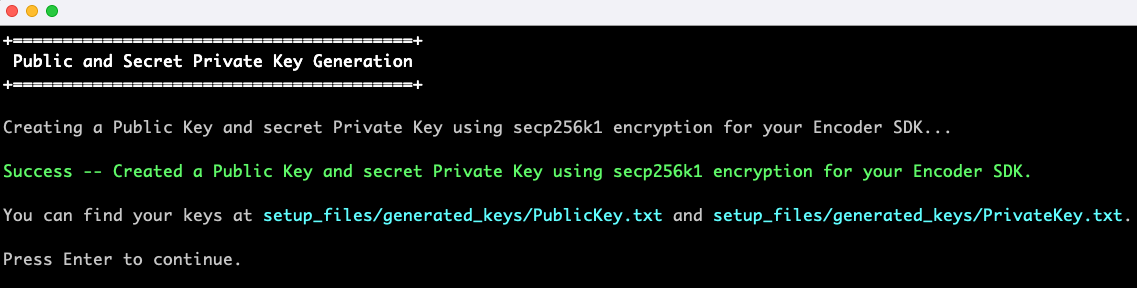
The next step in the UR Encoder Setup Wizard is to generate Your Public and Private Key. Your Public/Private Key Pair will be generated using secp256k1 encryption.
Once generated, the Public and Private Key can be found at setup_files/generated_keys/PublicKey.txt& and setup_files/generated_keys/PrivateKey.txt, respectively.
Read the Secret Private Key Security Notice:
Before proceeding, Your Team will need to read and acknowledge the Secret Private Key Security Notice. The Security Notice explains how Private Keys should be managed in the most secure manner possible and should only be accessible to Highly Trusted Individuals in Your Organization.
For more information on how these keys are used in UR Codes, please see the UR Code - Keys & Digital Signature Guide.

Step 5: Retrieve Your UR Hosting Files
Copy Your Public Key
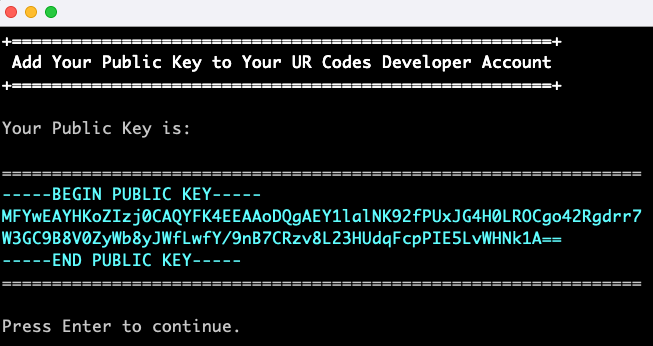
After the keys are generated, the Public Key will be printed to the terminal. The Public Key can be copied from here or from setup_files/generated_keys/PublicKey.txt.
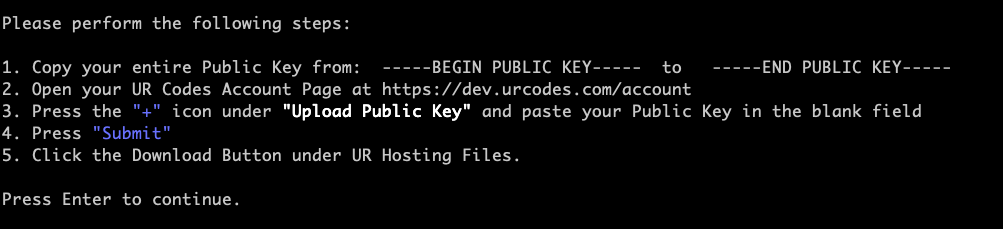
Upload Your Public Key to Your Developer Account
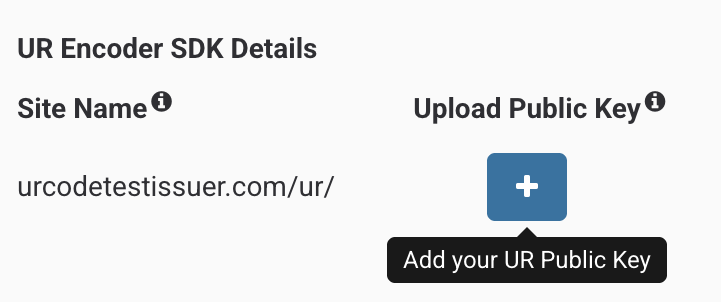
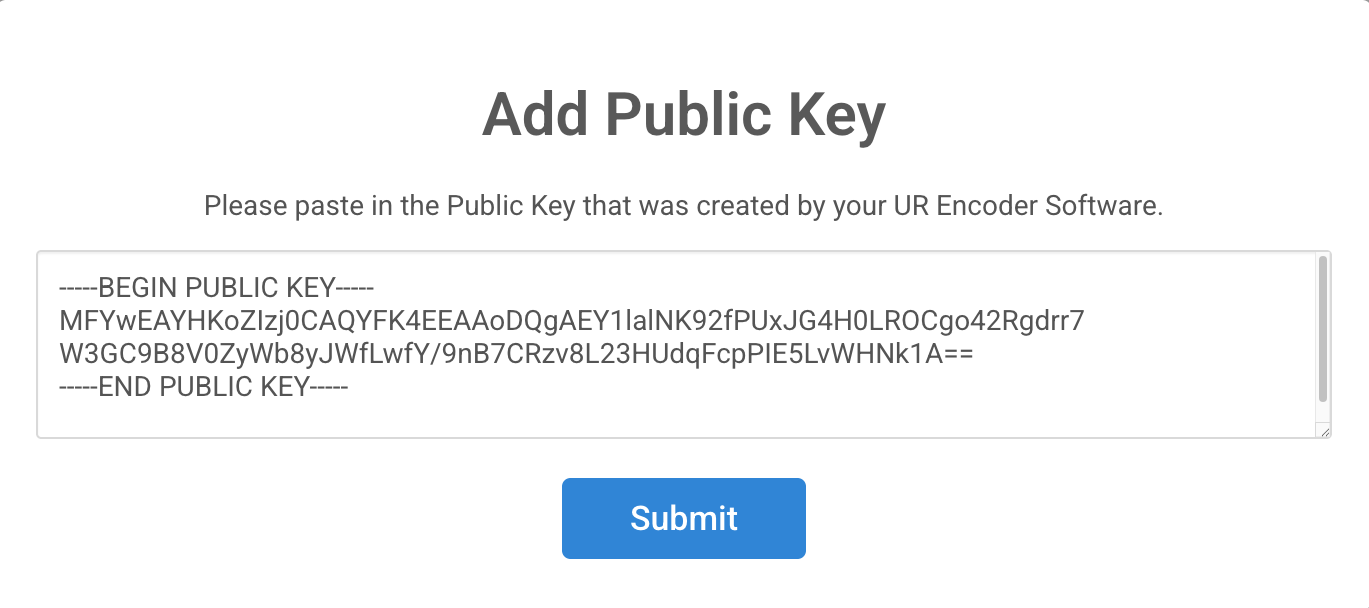
The next step is to add Your Public Key to Your UR Codes Account Page. Your Public Key can be uploaded by clicking on the "Upload Public Key" Button, pasting the Public Key, and clicking on the "Submit" Button.
Download Your UR Hosting Files
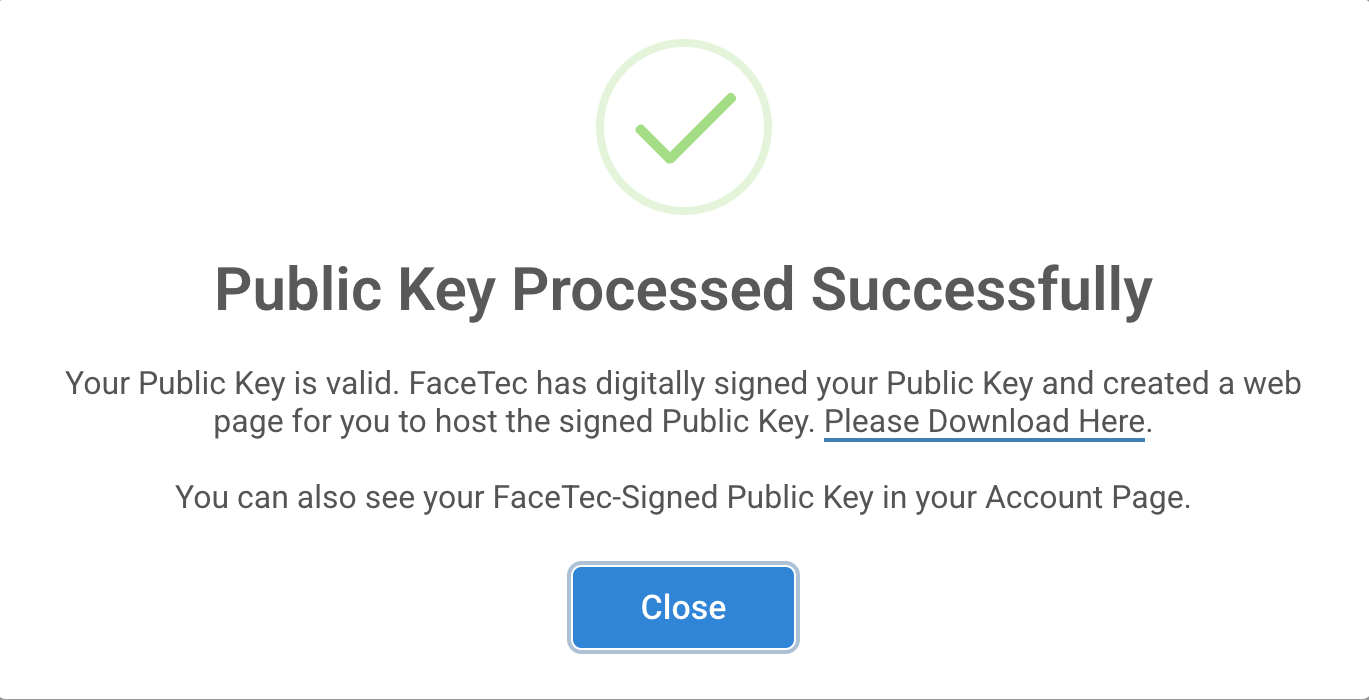
If the Public Key is processed successfully, then it will be signed by FaceTec to ensure the Key itself can be validated.
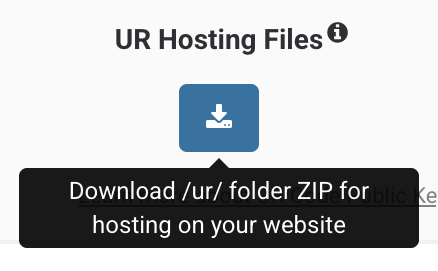
The next step is to download Your UR Hosting Files, which include the Facetec-Signed Public Key. You can download a ZIP of the UR Hosting Files from Your Account. Once it has been extracted, the /ur/ folder should be saved in the Root Directory of Your Website's Hosted Files.
Step 6: Build the UR Encoder Server & Browser Sample App
Configure & Build the UR Encoder Server
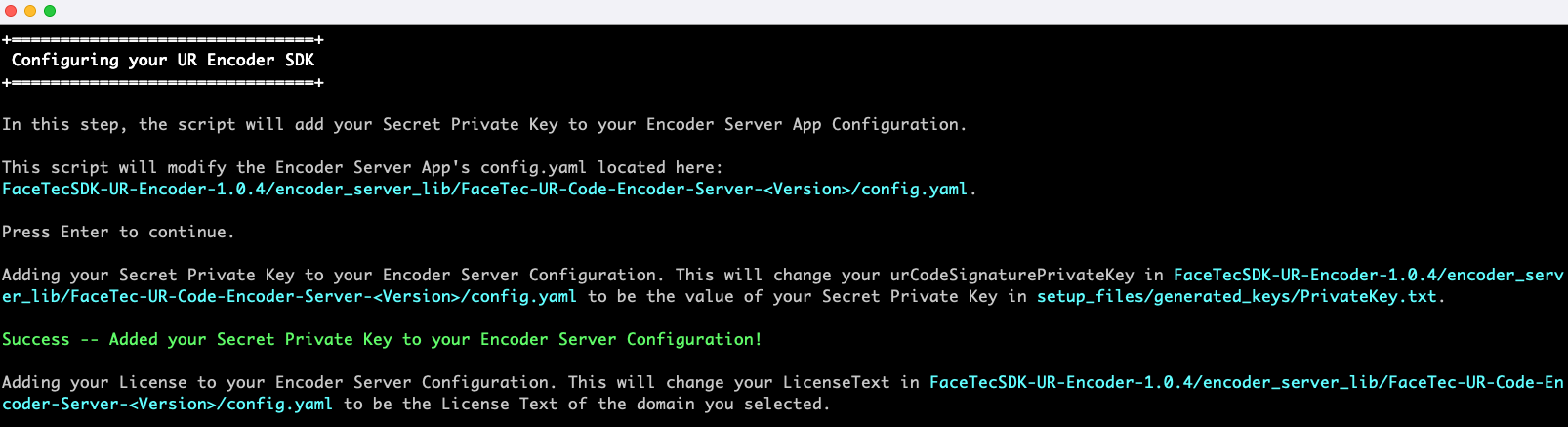
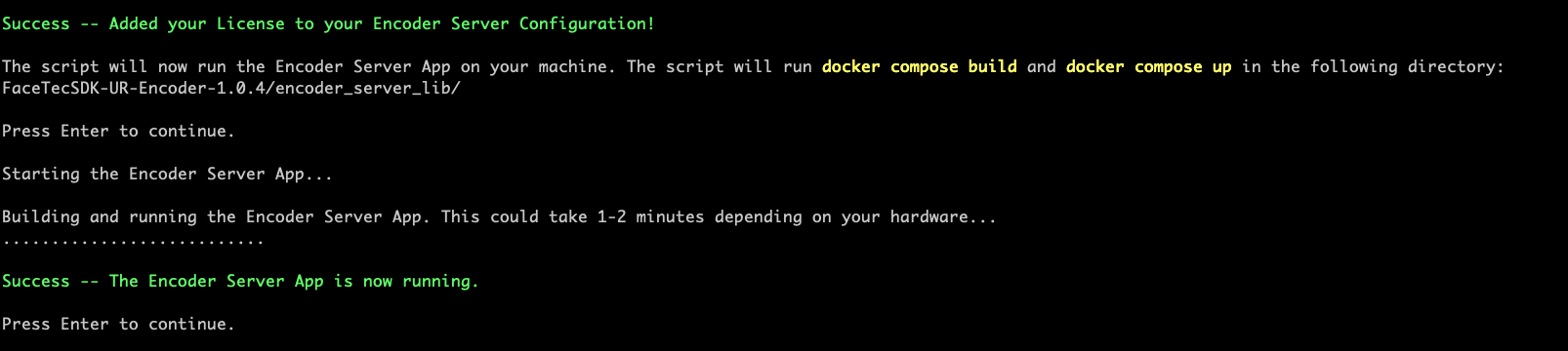
The Setup Wizard first needs to add Your Secret Private Key and License to Your Encoder Server Configuration.
Once both of these have been added, the Setup Wizard will use "docker compose build" and "docker compose up" to build the UR Encoder Server.
Configure & Build the UR Encoder Browser Sample App
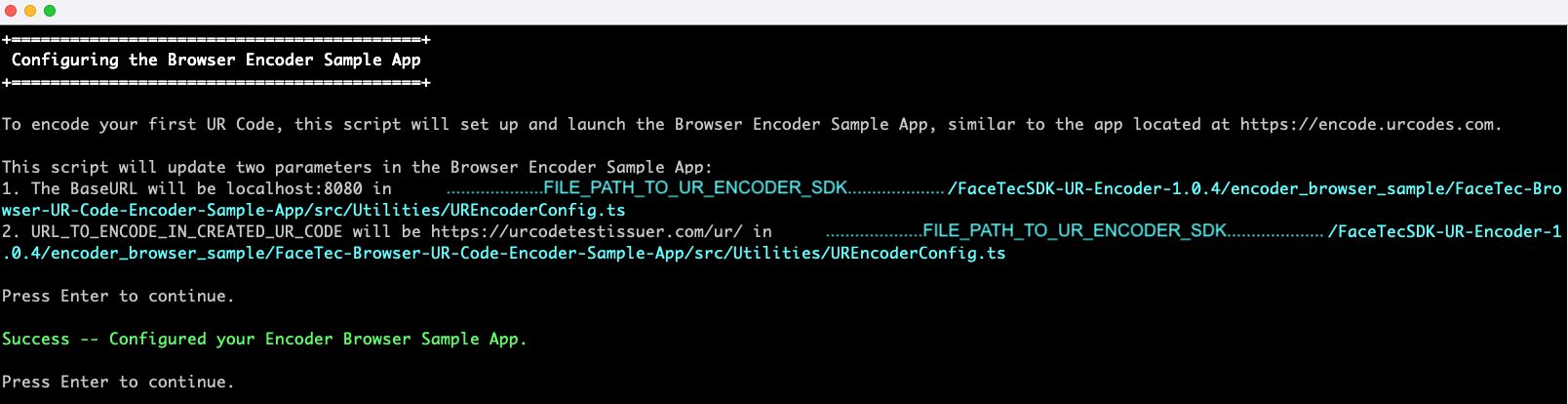
To build the Browser Encoder Sample App, the Setup Wizard will update the Sample App's URL and the URL for encoding into the UR Codes.
Once these parameters have been updated, the Setup Wizard will start the UR Encoder Browser Sample App. If the App does not launch in Your Browser, then you can open it directly with https://localhost:8000/FaceTec-Browser-UR-Code-Encoder-Sample-App.
Configure & Build the UR Encoder Browser Sample App on a Virtual Machine without a User Interface
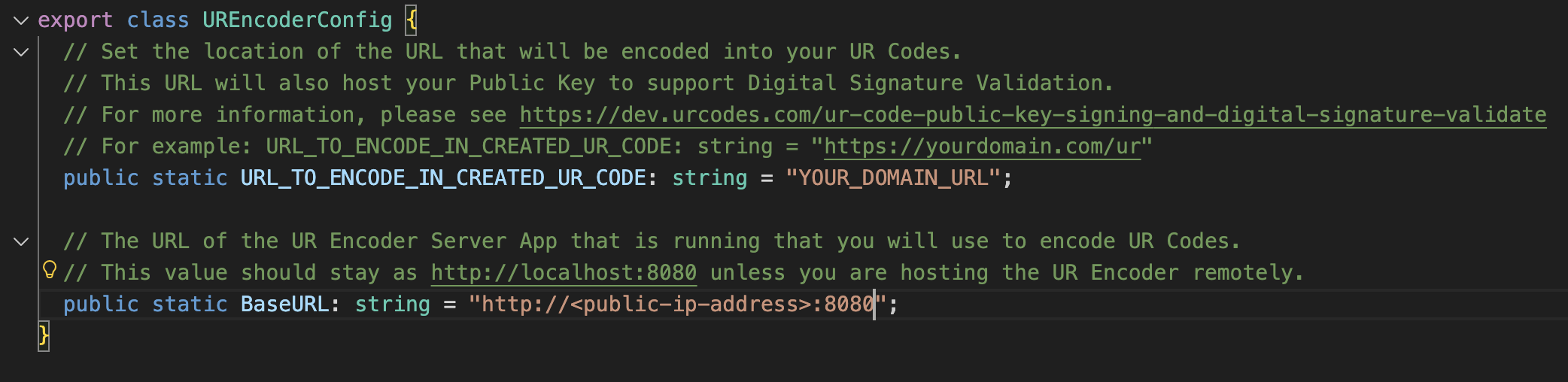
When using a remotely hosted machine with no user interface, you will need to add a custom Base URL to the Browser Encoder Sample App. Navigate to the following path in your extracted UR Encoder SDK, "encoder_browser_sample/FaceTec-Browser-UR-Code-Encoder-Sample-App/src/Utilities/UREncoderConfig.ts" and modify the value of the BaseURL variable to the IP address of your UR Encoder Server.
Once these parameters have been updated, the Setup Wizard will start the UR Encoder Browser Sample App. If the App does not launch in Your Browser, then you can open it directly with https://your-public-ip-address:8000/FaceTec-Browser-UR-Code-Encoder-Sample-App.
Step 7: Generate Your First UR Code
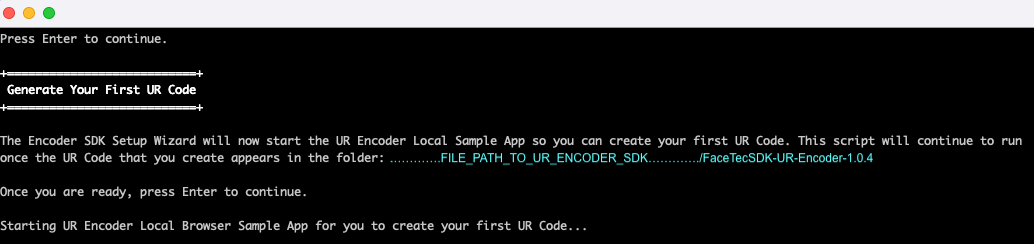
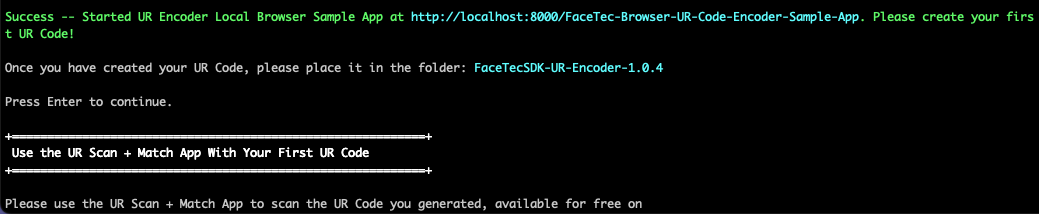
Start the UR Encoder Local Browser Sample App
To create a UR Code, first launch the UR Encoder Local Browser Sample App. By default, the Encoder Setup Wizard will start the UR Encoder Local Sample App at https://localhost:8000/FaceTec-Browser-UR-Code-Encoder-Sample-App.
Choose a UR Code Template
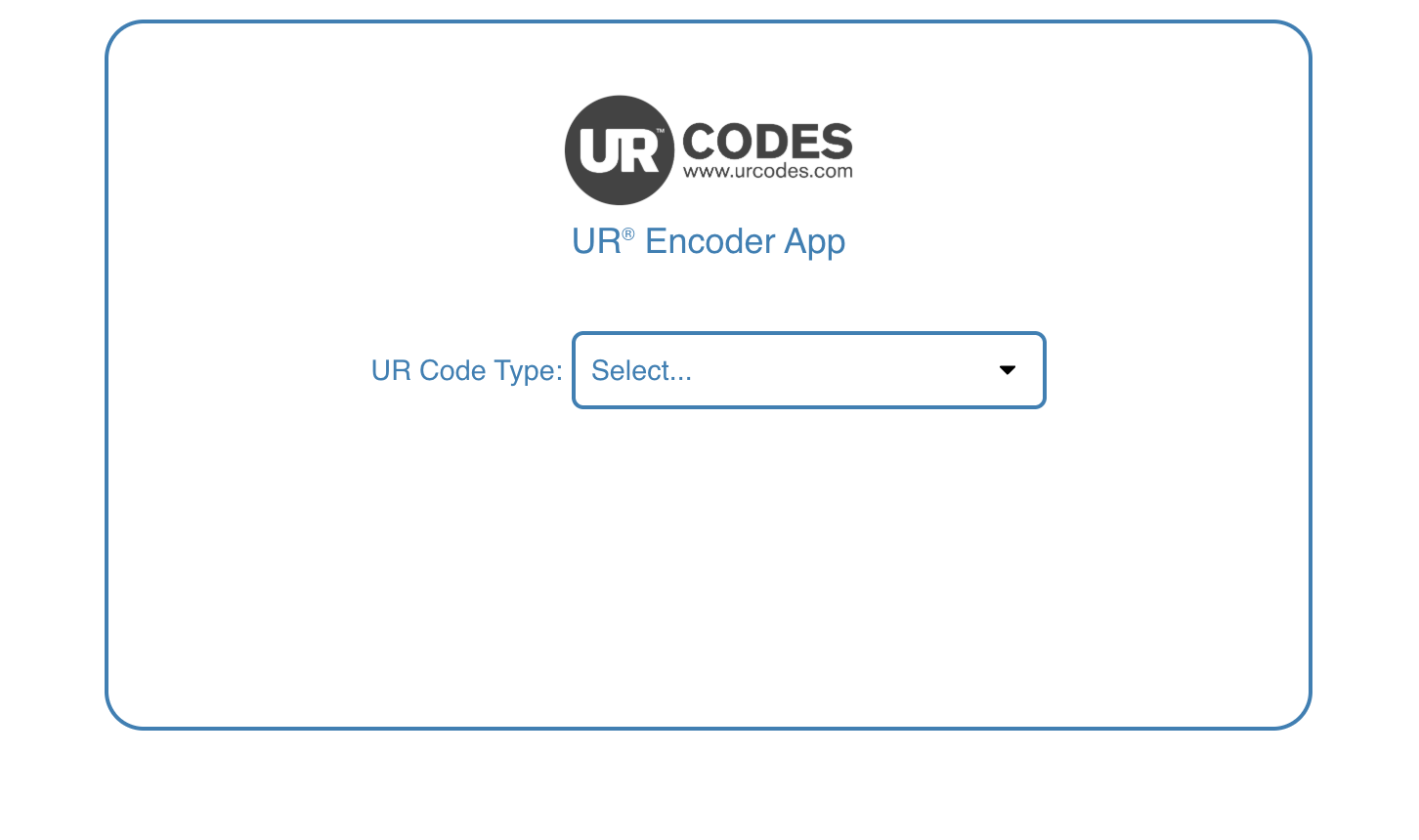
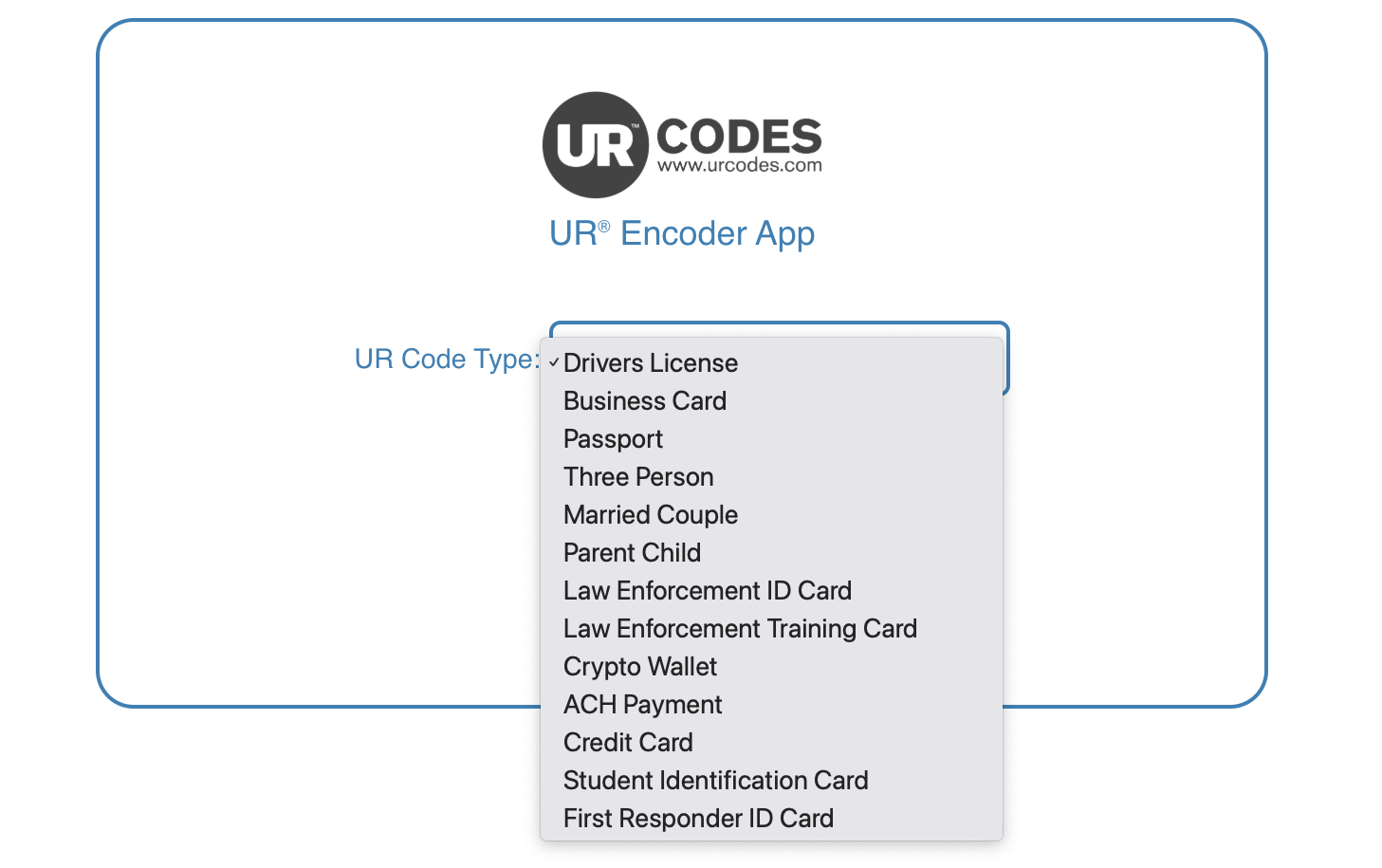
After launching the Browser Sample App, you will be asked to choose the UR Code Type. Each UR Code Type corresponds to a unique UR Code Template, which is used to define the data structure of the UR Codes.
For more information on UR Code Templates, please see UR Code Templates & Metadata Minification.
Choose a Face Image
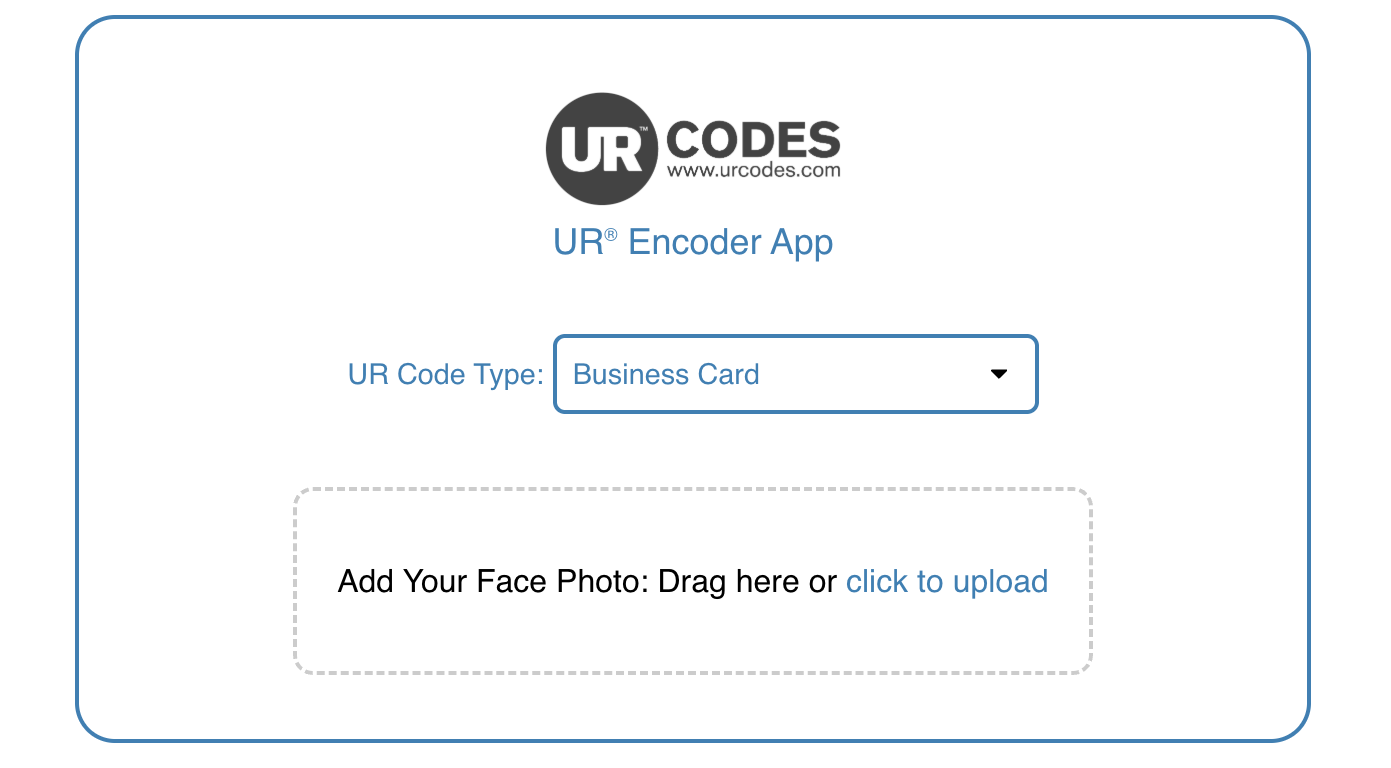
The next step is to choose the Face Image that will be used for generating the UR Code. For the best results, Face Images should adhere to the UR Code 2D Image Guidelines.
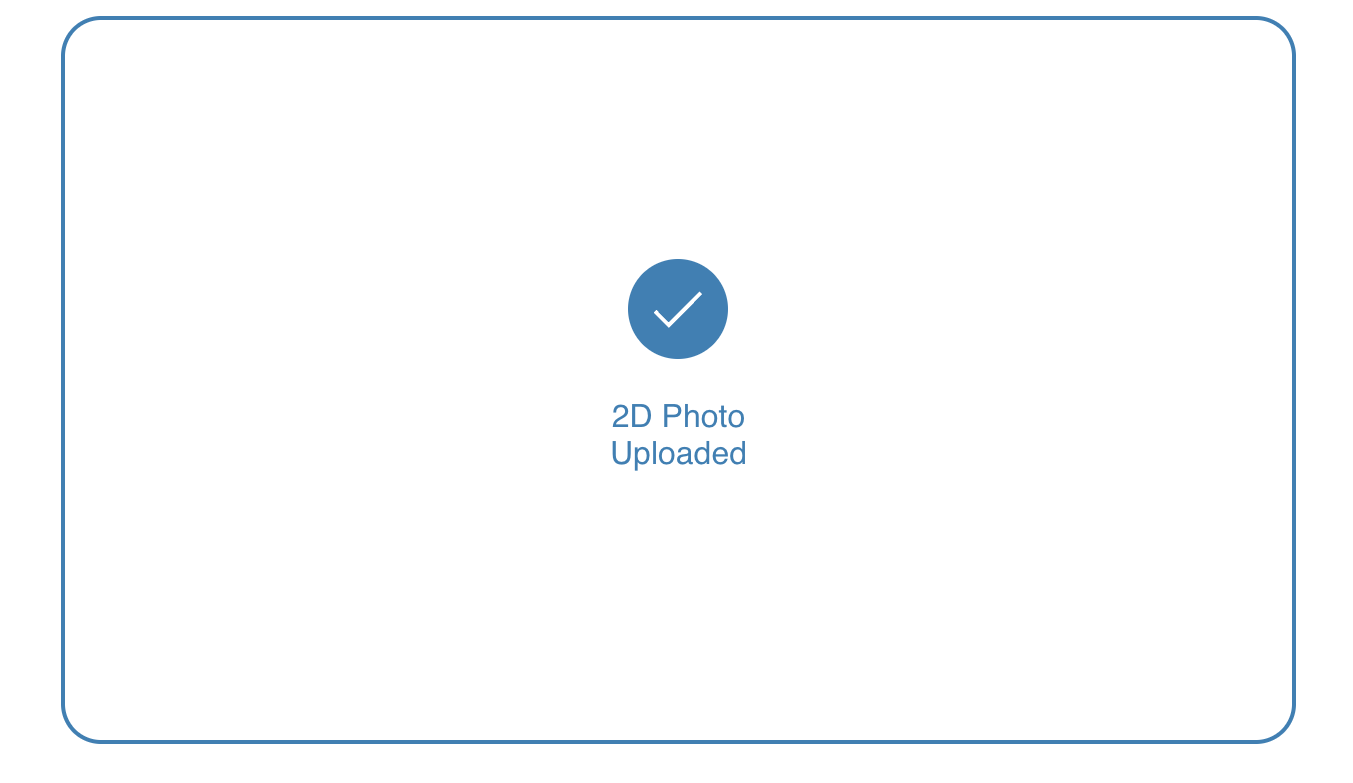
If the Face Image was uploaded successfully, then you will be notified with "2D Photo Uploaded".
Add Metadata to the UR Code
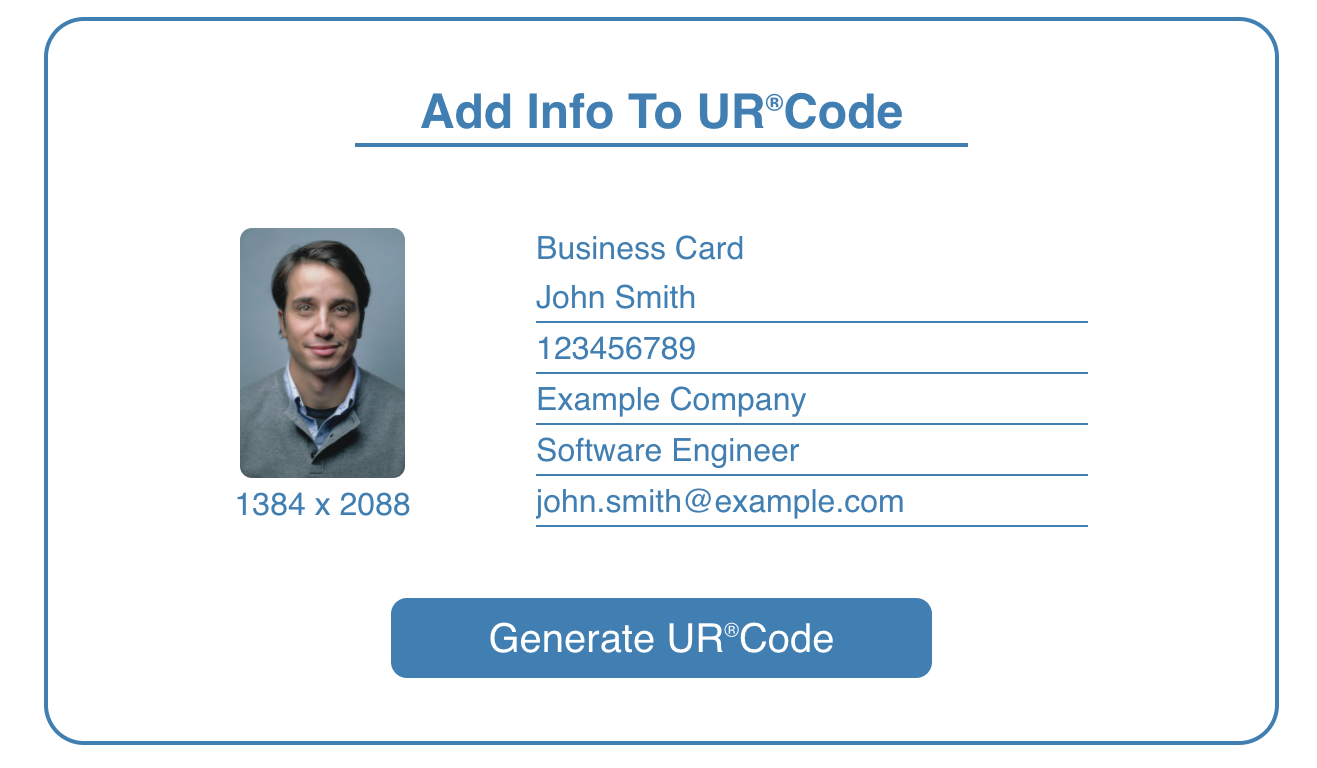
The final step is to specify the information that will be included in the Metadata of the UR Code.
Once the Metadata has specified, you can create the UR Code by pressing the "Generate UR Code" Button.
Download the UR Code
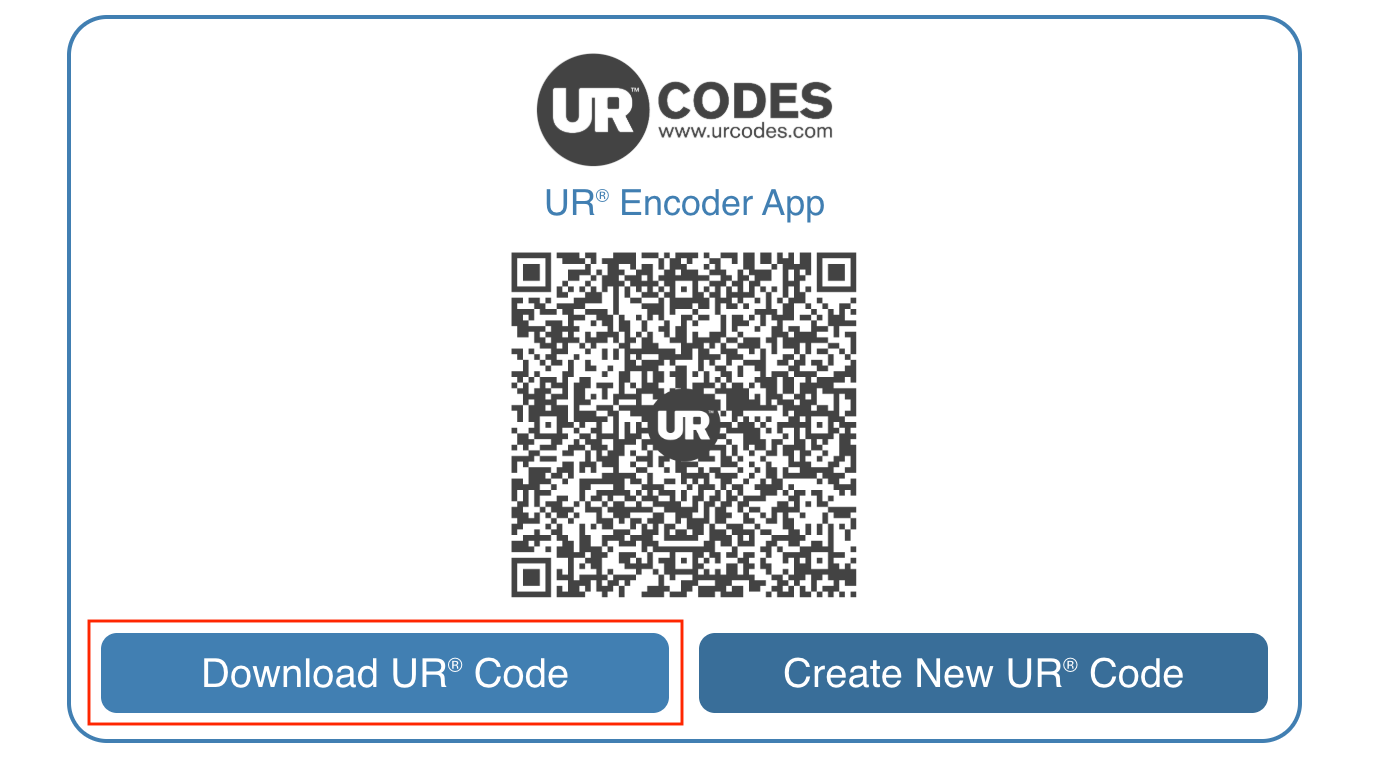
Once the UR Code is created, you will be presented with the option to either Download the UR Code or Create a New UR Code.
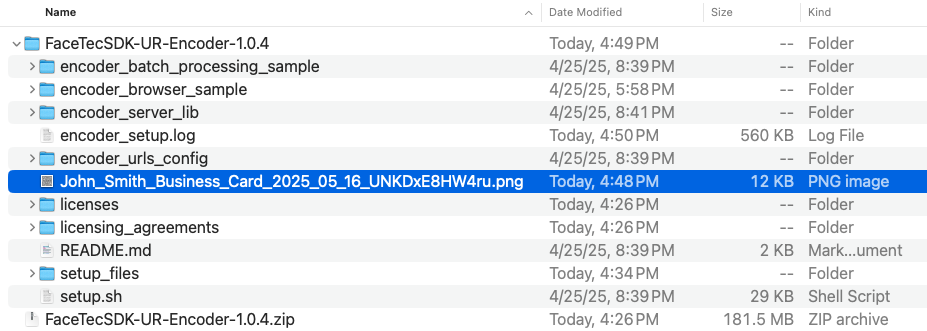
Click on the "Download UR Code" Button and place the Downloaded UR Code into the FaceTecSDK-UR-Encoder-*** Folder.
Step 8: Validate Your First UR Code
Scan the UR Code & Validate the URID
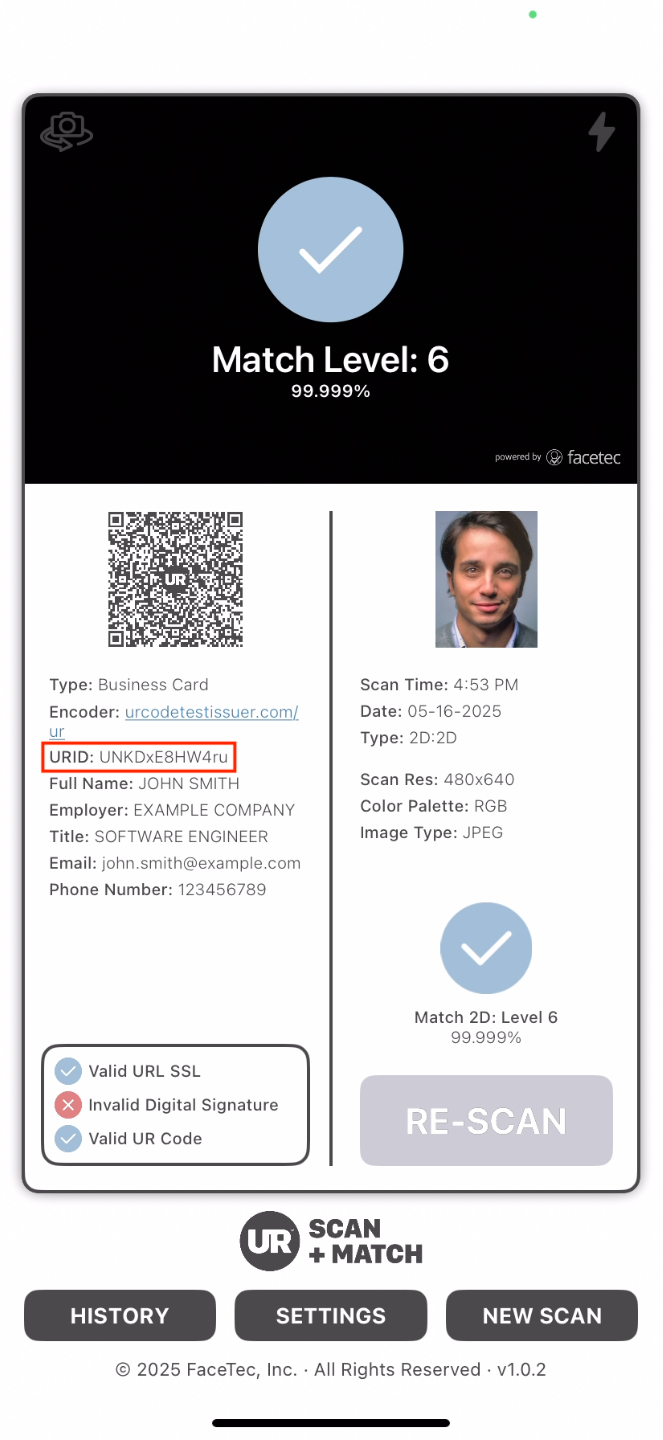
The UR Code that was downloaded in the previous step can be scanned with the UR Code Scan+Match App.
Important Details about the UR Code, such as its Encoder and Metadata, are displayed in the Left-Side Column of the UR Scan+Match App. This is also where the URID is located.
In the UR Encoder Setup Wizard, you can validate the URID by typing the full string into the terminal.


Validate the UR Code's Digital Signature
To validate the Digital Signature of Your UR Codes, the UR Hosting Files from Step 5 need to be added to Your Website's Hosted Files. If these have not yet been added, then the UR Scan+Match App will show that the UR Code's Digital Signature is Invalid.
For more details about how to host these files, please see the UR Code Public Key Distribution Guide.
Once the UR Hosting Files are hosted on Your Team's Domain, you can rescan the UR Code to validate the UR Code's Digital Signature.


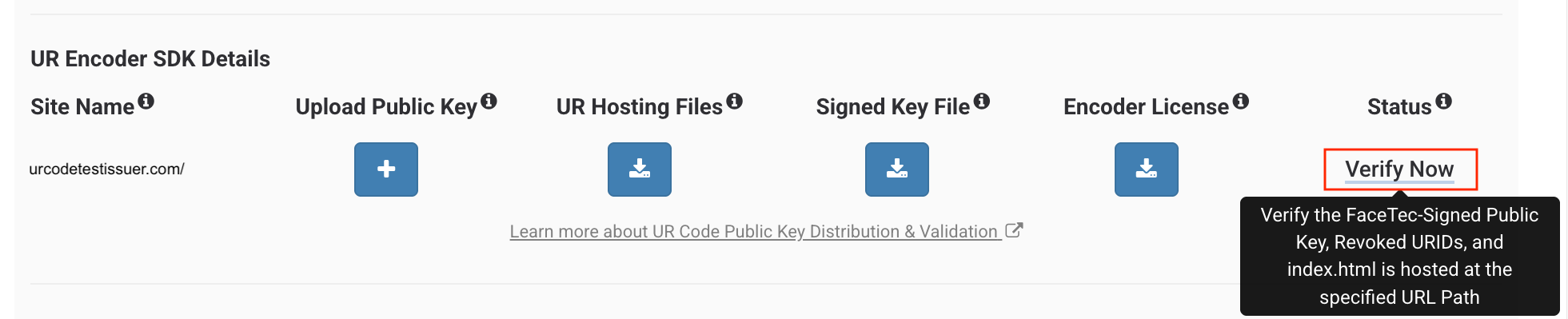
Step 9: Verify Your UR Hosting Files Configuration
Use Your Account's "Verify Now" Button
To verify Your UR Hosting Files Configuration, go to Your Account and press the "Verify Now" Button. If Verification is successful, then "Verify Now" will be updated to "Verified".
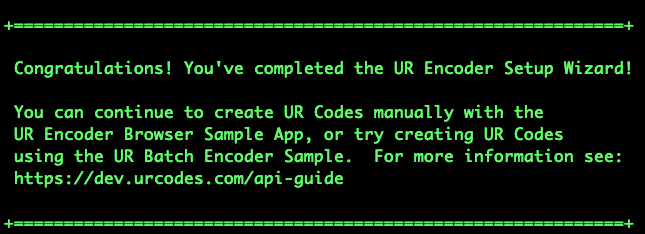
Complete the UR Encoder Configuration Wizard
Congratulations! If you have reached this prompt, then you have finished Your UR Encoder SDK's Configuration. At this point, you can continue to create more UR Codes or proceed with testing.
Step 10: Test with Postman
After installing and testing the UR Encoder SDK using the setup scripts, you can use the UR Encoder SDK Postman Test Suite to perform additional testing with the UR Encoder APIs. The Postman Test Suites are available on the Downloads Page.
Encoder SDK and Automation
Once deployed within your infrastructure, FaceTec's UR Encoder SDKs function as a REST Service on your Backend. This means custom logic can be implemented in your Web Service layer to leverage the UR Encoder SDK APIs and integrate them into automated workflows, such as creating and verifying UR Codes, implementing scripts to import/export data, and more, depending on the intended use case.
Generated UR Codes are Base64-encoded and can be programmatically created or retrieved from the UR Encoder SDK via custom logic according to your requirements. See the UR Code contents and Template Metadata documentation for more details about the UR Codes generated on the UR Encoder SDK.
For instance, you can create a script to generate UR Codes from an existing Database by creating a metadata JSON object and sending an API Request (POST /create-ur-code-from-2d-image) payload for each Database document that needs a UR Code. Once the payloads have been generated in the examples above, the script can then proceed to create a batch of UR Codes for each document. Please review the node_basic_sample_app.js, node_batch_sample_app.js, and the README files in the UR Encoder SDK Package for more details.