UR Scan+Match Device SDKs
Introduction
The UR Scan+Match Device SDKs are designed for use by Relying Parties and Issuing Authorities to create Client-Side Applications with access to the same features and UI/UX as those available in the UR Scan+Match Apps to verify and match UR Codes generated by the UR Encoder SDK and the UR Encoder Demo.
In addition to UR Code Verification, the UR Scan+Match SDKs also provide On-Device 2D:2D Matching. The On-Device 2D:2D Matching Functionality can be used to match a 2D Image from a trusted source against the 2D Face Image encoded in a UR Code. For more information about 2D:2D Matching and the Match Levels returned, please see the UR Code 2D:2D Matching Guide.
Important Note: The UR Scan+Match SDKs do not generate or create UR Codes. If Your Team is an Issuing Authority and needs to generate UR Codes, then Your Team should use the UR Encoder SDK instead. For more information, please see the UR Encoder SDK Guide.
Getting Started
After completing the steps outlined in this guide, Your Team will have downloaded the UR Scan+Match SDKs, specified Your Application's Package/Bundle IDs and Domain Names, launched the Sample Apps, and successfully integrated the UR Scan+Match Device SDKs into Your Application!
Before Getting Started, Your Team should first review the Different License Types for the UR Scan+Match SDKs.
Download the UR Scan+Match SDKs
Download the UR Scan+Match Device SDKs to scan Your UR Codes, validate the Digital Signatures, retrieve and display the Metadata/PII stored, and perform a Match to confirm everything was configured and working as expected.
Specifying the Package ID, Bundle ID, and Domain Name
When downloading the SDKs for the first time, Your Team will need to specify the Package IDs, Bundle IDs, and Domain Names for Your Applications.
The UR Scan+Match SDKs prevent Initialization on all Package IDs, Bundle IDs, and Domain Names that have not been added to Your Account. The License with Your Package IDs, Bundle IDs, and Domain Names needs to be generated before Your Applications can use the UR Scan+Match SDKs. For more information, please see the Package IDs, Bundle IDs & Domain Names Guide.
Run and Test the UR Scan+Match Device SDKs Sample App
Before beginning Your Integration, it is recommended that Your Team first run the UR Scan+Match Device SDKs and perform tests to learn and understand the most essential features included in each SDK, and facilitate the integration process.
Android & iOS:
Android: Open the
apps/SampleAppfolder in Android Studio, then run the App.iOS: Open the Sample App's
.xcodeprojfile in Xcode, then run the App.
Important Note: If you are using an Apple Silicon Mac and FaceTec UR Scan+Match SDK's .framework, you may experience issues building the iOS Sample App on the Xcode Simulator. Before the introduction of the Apple Silicon Mac, the Xcode Simulator only used the x86_64 architecture. However, on the Apple Silicon Mac, the simulator uses the arm64 architecture. In the FaceTec UR Scan+Match SDK's .framework, the arm64 slice can only be built on actual devices (and not on a simulator). To resolve this issue, you should use the .xcframework instead. It has a specific simulator framework with a stubbed out binary for x86 and arm64, which allows it to compile and build on the simulator.
Browser:
Prerequisites:
- Install Node.js.
- Run
node -v(Using the latest version is recommended).
Run Server and Launch Sample App Menu (Necessary for running Sample App):
- Open a terminal from the root of the extracted directory.
- Run
npm install. - Run
npm run ur-scan-match-browser-sdk. - If Your Browser does not open automatically, navigate to
localhost:8000.
Build the Sample App Itself:
- Open a new terminal in
sample-apps/UR-Codes-Sample-App/. - Run
npm install. - Run
npm run build(Terminal is left running afterBuild: 1 URCodesSampleController.js Completedis reached). - Select
UR Codes Sample Appfrom the main menu onlocalhost:8000.
Test the UR Scan+Match Sample App
After launching the UR Scan+Match Device SDKs Sample App, you can scan UR Codes, validate their Digital Signatures, retrieve and display the Metadata/PII stored, and perform a Match to get a feel of the UR Scan+Match App UI/UX and available features.
Core Sample App Features:
- Scan and Match a UR Code: Scan a UR Code, perform a Match, and review the extracted UR Code stored Metadata/PII displayed.
- New UR Code Scan: Perform a UR Scan+Match Scan on a previous or new UR Code.
- UR Code History: Review all scanned UR Codes in the History section of the UR Code Scan+Match App.
- App Settings: Review the basic settings available for the UR Code Scan+Match App.
- Design Showcase: Toggle between the default UR Scan+Match App UI or choose a Custom Theme of your own. You can select the default theme as a baseline, copy the code from the Sample App, and modify this as desired to match the styles and UX of Your Application. For more information, please review the UI/UX Customization guide.
Test on Yourself, for Yourself
The UR Code Scan+Match SDKs are designed to work in the real world. The UR Code Scan+Match App UI and on-screen messages are designed to guide new Users to successfully scan their UR Codes, validate their Digital Signatures, retrieve and display the Metadata/PII stored, and perform a Match to confirm their identity.
Remember: Real Users will follow on-screen guidance and do their best to succeed because they want UR Codes to work for them. That may seem obvious, but in Usability Testing, sometimes testers push the limits and try to get the sessions to fail. It is fine to occasionally try the extreme cases, but keep in mind that the mainline test scenario should always be as similar to real-world User Cases as possible.
UR Code Scan+Match App scenarios you can quickly test:
- Generate a UR Code: Access the UR Code Generator Demo to create a Test-Only UR Code with Your Provided 2D Image and Metadata, and output a Scannable and Downloadable image of the UR Code
- Scan and Match a UR Code: Scan Your generated UR Code, perform a Match, and review the extracted UR Code stored Metadata/PII displayed.
- UR Code Re-Verification: Try asking someone else to scan your generated UR Code using their face and check the results. The UR Code SDKs will not succeed because it is not you!
Running the UR Scan+Match Sample Apps
The videos below demonstrate how quickly you can download, configure, and run the UR Codes Scan+Match Android, iOS, and Browser Sample Apps and start testing.
The initial integration of the UR Scan+Match Android, iOS, and Browser SDKs into Your Application can be done in minutes. The Initial Integration Guides provide videos demonstrating the initial integration for each SDK, along with the required steps for a basic App.
Android
Please also see the corresponding Android SDK Initial Integration Guide.
iOS
Please also see the corresponding iOS SDK Initial Integration Guide.
Browser
Please also see the corresponding Browser SDK Initial Integration Guide.
Integrating the UR Scan+Match Device SDKs into Your App
To integrate the UR Scan+Match Device SDKs into Your App, Your Team will need to import the SDK, initialize it, and then launch the UR Scan+Match Check.
Step 1 - Download and Extract the UR Scan+Match Device SDKs
Skip this step if you already downloaded the UR Scan+Match Device SDKs in the previous Sample App Testing step.
Step 2 - Add/Import the UR Code Scan+Match SDK
These steps get the core library added to your project:
Android: Import the
facetec-ur-scan-match-sdk-X.X.X.aarinto your project as shown in the Android SDK Integration Video.iOS: Import the
FaceTecURScanMatchSDK.xcframeworkfile into your project.Browser: Copy the
core-sdkfolder into your project.
Important Note: FaceTec recommends using theFaceTecURScanMatchSDK.xcframeworkinstead of theFaceTecURScanMatchSDK.framework. TheFaceTecURScanMatchSDK.xcframeworkhas a specific simulator framework that allows it to compile and build on the Xcode Simulator when it is running on an Apple Silicon Mac.
Step 3 - Initialize the UR Code Scan+Match
Initialize FaceTec by calling the FaceTecURScanMatchSDK.initialize function to load the library and validate your Key.
Initialize FaceTec as early as possible, and always before the moment the User needs to perform a Scan: To conserve memory, the UR Code Scan+Match SDKs do not load important binaries and resources until the
initializemethod is called. Theinitializemethod takes 1-2 seconds or less on most modern devices for all Device SDKs. However, older devices and devices under heavy loads can take 5-7 seconds or more to perform initialization tasks in the background. Therefore,initializeshould be called as early as possible in Your App's workflow to provide a fast and excellent experience launching into the FaceTec UI. The Sample Apps each demonstrate callinginitializeon App Startup, prior to enabling any App functionality. This ensures that when a User taps to start a UR Code Scan+Match Check that they can immediately begin the Session Startup process and camera initialization, rather than having to also wait for initialization to complete.
Step 4 - Start a UR Code Scan+Match Check
After initialization, the SDK will return an sdkInstance object, which can be used to start a UR Code Scan+Match Check.
Android SDK
sdkInstance.startURCodeMatch(URCodesSampleActivity.this); iOS SDK
let vc = self.sdkInstance!.startURCodeMatch(self); Browser SDK
this.sdkInstance.startURCodeMatch();Customizing the Interface
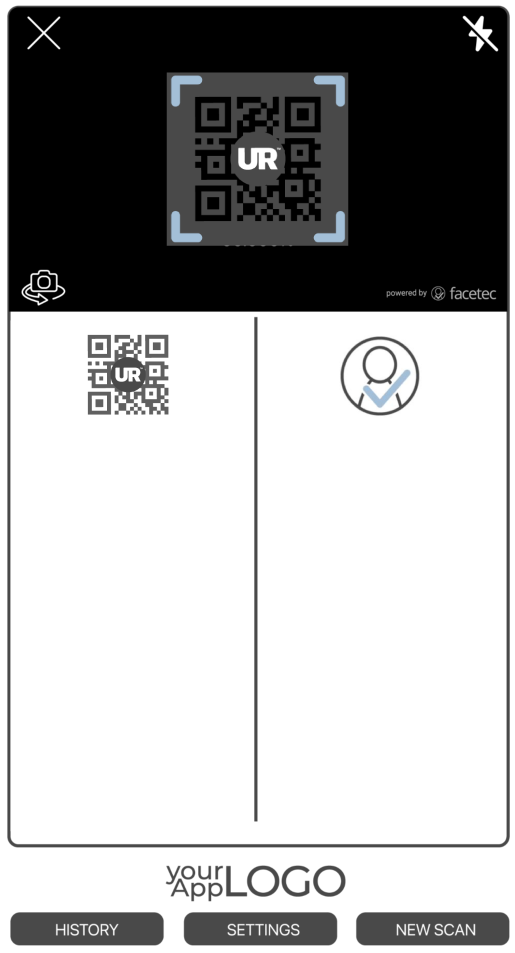
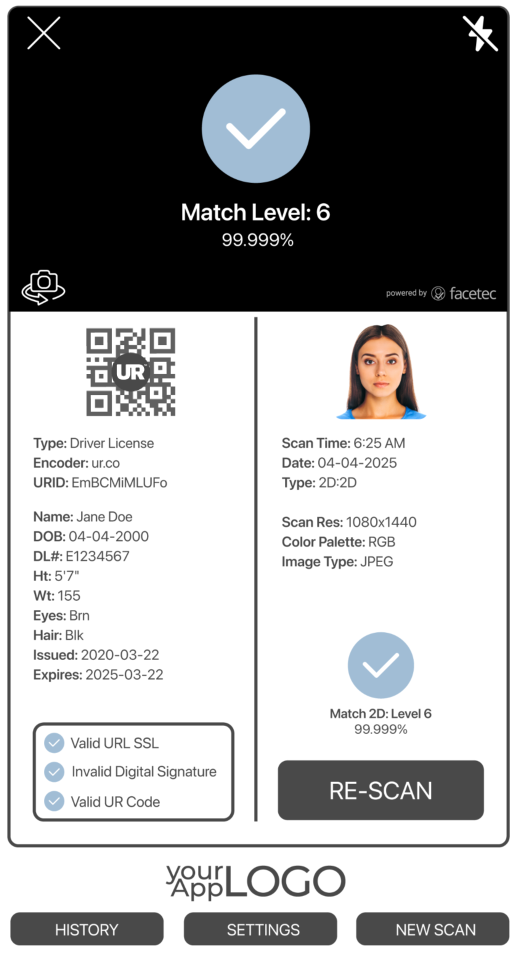
Customizing the UR Scan+Match Device SDKs UI and Text elements to fit the branding and style of Your Application is a simple task. FaceTec allows you to customize every color, font, string, border, button, stroke, and fill in the interface.
- See the UI/UX Customization Guide to learn more about the UI elements and available customizations.
- See the Text & Language Editing Guide to learn more about customizing and localizing text in the UR Code Scan+Match App Interface.
UR Code Scan+Match App Default UI:
Additional Information
Learn more about the Public Key Map and Public Key Checker included in the UR Scan+Match Device SDKs.
UR Scan+Match Device SDKs Overview:
- UR Code Verification can be performed either with the Public Key Map or the Public Key Checker.
- With the Public Key Map, Developers can specify the Public Keys to use for Digital Signature Validation. When a UR Code is scanned, the URL configured in the UR Code is used to look up the Public Key(s) specified in the Public Key Map to attempt and validate the UR Code.
- The UR Scan+Match SDKs can also automatically verify UR Codes with the Public Key Checker. If the Device has Internet Access, then the Public Key Checker will automatically search for the Public Key at the URL specified in the Scanned UR Code. If the Public Key is found, then it will be used for UR Code Verification.
Providing the UR Code as a Search Parameter (Browser SDK Only).
The UR Scan+Match Browser App now supports automated ingestion and processing of previously scanned UR Codes via a URL search parameter. This capability eliminates the need for Users to manually rescan a UR Code, enabling a faster and more seamless handoff between Applications.
For scenarios such as where Users scan or upload a UR Code in the Matcher Demo App and then transition to the Scan + Match App for facial verification, it is possible to pass a previously scanned UR Code as a URL search parameter (?c=UR_CODE_STRING) to automatically detect the scanned UR Code string on load, process the provided UR Code, and populate the UR Code information in the left-hand column of the UR Code Scan+Match App UI, advancing the User to the face scan portion of the flow without the need to re-scan the UR Code.
UR Scan Match urcodeData History JSON
Every time a UR Code is scanned in the UR Scan+Match SDK, a urScanID is generated, and a unique History JSON is created. The History JSON object contains the results of a UR Code Session. This includes the UR Code Base64 Image, the UR Code Template, Security Checks, Validation Results, Match API Type, Match Levels, and other important data.
You can use the getURCodeScanMatchSession() and the getURCodeScanMatchSessionsAll() APIs to retrieve the History JSON for stored UR Code Scan & Match Records by the Index Range, or return an array of History JSON objects with all stored UR Codes and Match records.
UR Codes History JSON Properties
The UR Code Results are stored in different properties of the History JSON object, as demonstrated below:
| Property | Description | Contains | Extracted Info |
|---|---|---|---|
| metadata | Client Metadata. | The raw values about the UR Scan + Match SDK version, Device model, package, and other data. | platform, deviceModel, installationID, packageName, etc. |
| urScan | UR Codes Metadata. | Template information extracted data, Base64 images, and Security Checks. | urCodeData, MetadataJSON, securityChecks, etc. |
| faceMatchAttempt | Face Match Attempt Metadata. | Face Match ID, Scan timestamp, Base64 image, resolution, type information. | scanTime, faceImageResolution, faceImageType, etc. |
| faceMatchData | Face Match Metadata. | Match attempt count and Match Level information. | matchAttempt, matchType, matchLevels, etc. |
UR Codes History JSON Example:
{
  "metadata" : {                                         // Device Metadata.
    "urScanMatchSDKVersion" : "",                        // UR Scan+Match SDK Version.
    "platform" : "",                                     // Platform (i.e. Android, iOS, Browser).
    "deviceModel" : "",                                  // Device Model used.
    "installationID" : "",                               // Installation ID for this UR Scan+Match SDK instance.
    "packageName" : ""
  },
  "urScan" : {                                           // UR Code Scan Metadata.
    "urScanID" : "",                                     // UUID of the UR Code Scan.
    "scanTime" : "",                                     // Timestamp of the UR Code Scan.
    "flashlightOn" : Boolean,                            // Whether the Device Flashlight was activated during Scan.
    "gps" : { },                                         // GPS coordinates (Planned Feature).
    "urCodeValidatedOnDevice" : Boolean,                 // If the UR Code was validated on the Device.
    "urCodeData" : {
      "urid" : "",                                       // URID of the UR Code.
      "urCodeVersion" : ,                                // Version of the UR Code.
      "urCodeImage" : "Base64_Image",                    // Base64 Encoded UR Code Image.
      "urCodeURL" : "",                                  // Full URL encoded in the UR Code.
      "urEncoderURL" : "",                               // Encoder URL used to create the UR Code.
      "urCodeTemplate" : "",                             // Template Type for the UR Code.
      "isMultiFaceURCode" : Boolean,                     // If the UR Code has multiple faces encoded into it.
      "metadataJSON" : [ {                               // UR Code Metadata.
        "NameOfAccountHolder" : "",                      // UR Code fields (dynamic based on Template used).
        "RoutingABANumber" : "",                         // UR Code fields (dynamic based on Template used).
        "AccountNumber" : "",                            // UR Code fields (dynamic based on Template used).
        "AccountType" : ""                               // UR Code fields (dynamic based on Template used).
      } ],
      "securityChecks" : {                               // UR Code Security Checks.
        "validURL" : Boolean,                            // UR Code URL uses HTTPS.
        "validSignature" : Boolean,                      // If the UR Code digital signature was validated.
        "validCode" : Boolean,                           // If the UR Code was determined to be valid.
        "validPublicKeyRetrievedFromInternet" : Boolean, // If the FaceTec-Signed Public Key was retrieved from the internet.
        "wasOffline" : Boolean                           // If the UR Code validation attempt used a cached and verified FaceTec-Signed Public Key.
      }
    }
  },
  "faceMatchAttempt" : {                                 // Face Match Attempts Metadata.
    "faceMatchAttemptID" : "",                           // UUID of the Face Match Attempt.
    "scanTime" : "",                                     // Timestamp of the UR Code Face Match Attempt.
    "flashlightOn" : Boolean,                            // If the Flashlight feature was activated during .scan
    "cameraPosition" : "Boolean",                        // Indicates whether the front or back (rear) camera was used in the scan.
    "gps" : { },                                         // GPS coordinates (Planned Feature).
    "faceImageData" : {                                  // Face Image Metadata
      "faceImageResolution" : "480x640",                 // Resolution of the image containing the detected face.
      "faceImageColorPalette" : "RGB",                   // Face Image Color Palette.
      "faceImageType" : "JPEG",                          // Face Image Format.
      "faceImage" : "Base64_Image"                       // Base64 Encoded Face Image Data.
    },
    "faceMatchData" : {                                  // Face Match Levels Results.
      "matchAttempt" : ,                                 // Number of Match Attempts.
      "matchType" : "",                                  // Match Type (i.e 2D:2D, 2D:3D).
      "bestMatchLevel" : ,                               // The highest Match Level received from any Match Attempts against this UR Code.
      "matchLevels" : [ ],                               // An Array of Match Levels for Match Attempts against this UR Code.
    }
  }
}